
Use Revenue by Product to see actual money earned per pass type (and workshops) for a selected period. This replaces the older classic “Revenue Summary Per Pass and Classes” report.
Open the report #
Where: Reports → Revenue by Product
- In the left sidebar, open Reports.
- On the Reports & Analytics page, click the Revenue by Product tile (or View report).
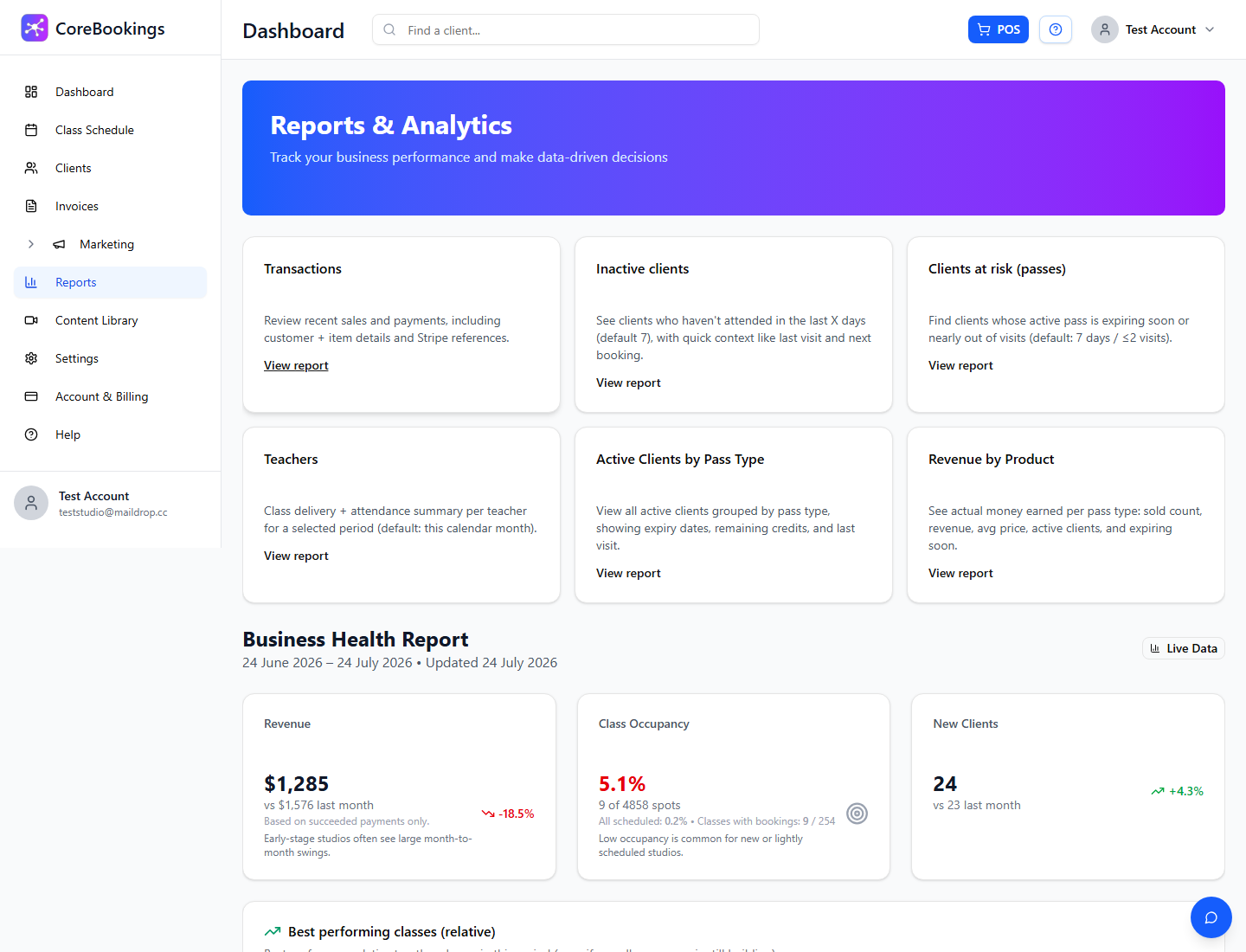
The page title is Revenue by Product. Use Back to Reports to return to the hub. Owners and admins can open this report.
Choose a period #
In Filters:
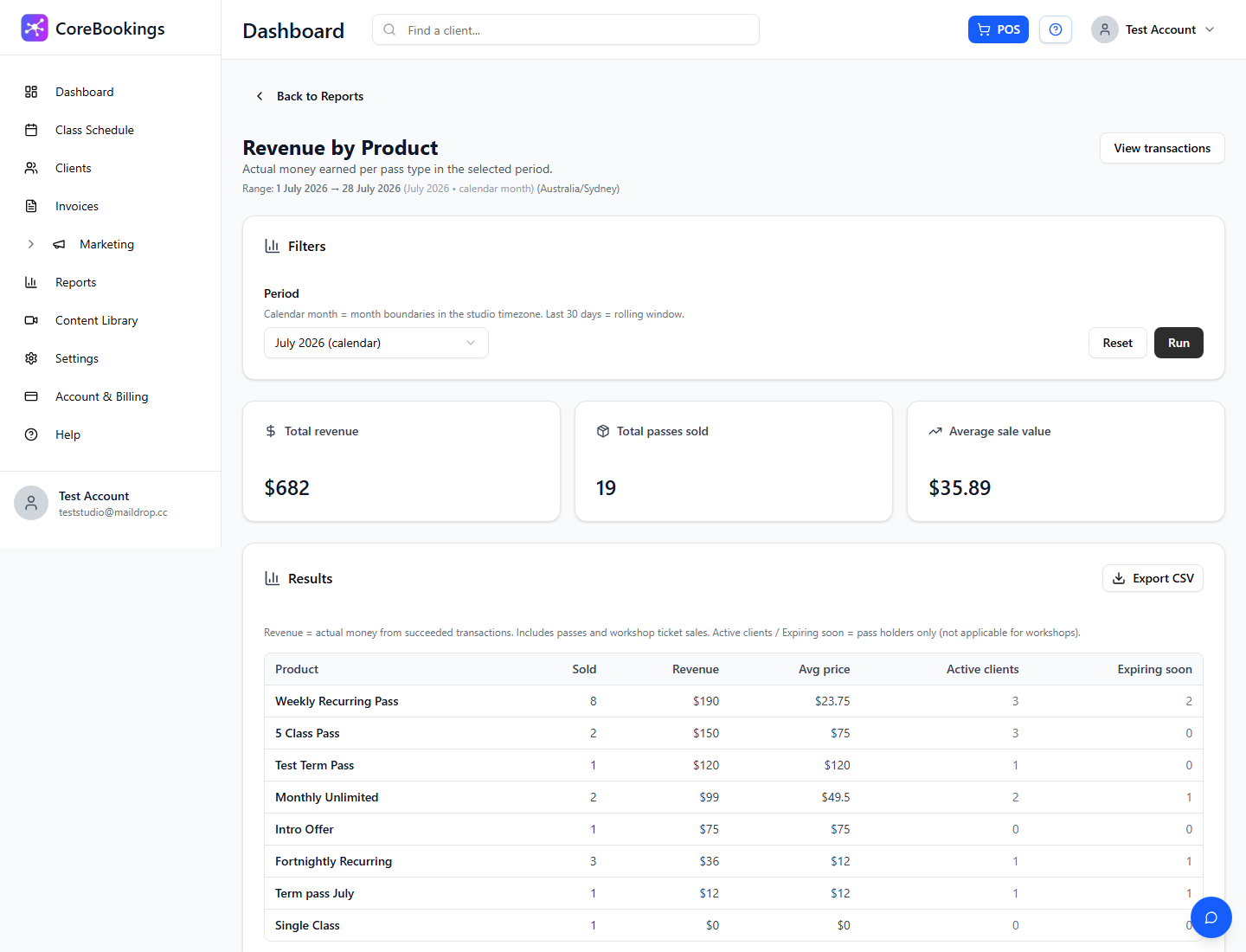
- Period — This month (calendar), Last month (calendar), Last 7 days, Last 30 days (rolling), Last 3 months, or Last 12 months.
- Calendar months use month boundaries in the studio timezone. Last 30 days is a rolling window.
- Click Run to load results, or Reset to return to this calendar month.
The page shows the selected date Range and timezone. You can also open View transactions to jump to the Transactions report for line-level sales.
What the results show #
Summary cards at the top:
- Total revenue
- Total passes sold
- Average sale value
The results table lists each product with:
- Product — pass or workshop name (workshops show a Workshop badge)
- Sold
- Revenue
- Avg price
- Active clients
- Expiring soon (pass holders; workshops show —)
Revenue is based on succeeded transactions for passes and workshop tickets in the selected period.
Export CSV #
Click Export CSV on the Results card to download the product rows (including type and totals).


