
Table of Contents
Use the Teachers report for class delivery and attendance per teacher over a selected period, plus an estimated payout based on each teacher's pay rate.
Open the report #
Where: Reports → Teachers
- Open Reports.
- Click the Teachers tile (or View report).
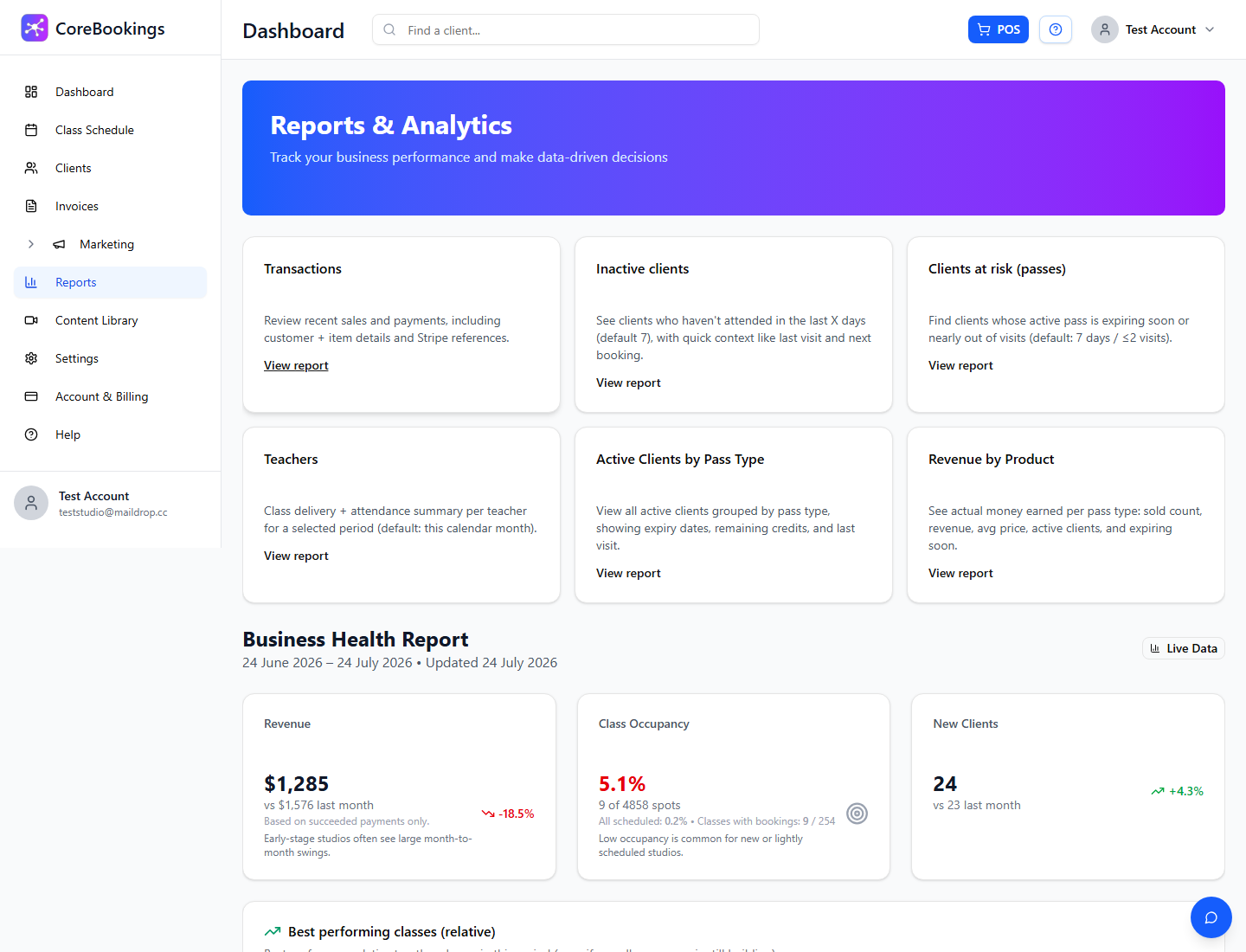
The page title is Teachers report. Open schedule jumps to the class schedule.
Choose period and filters #
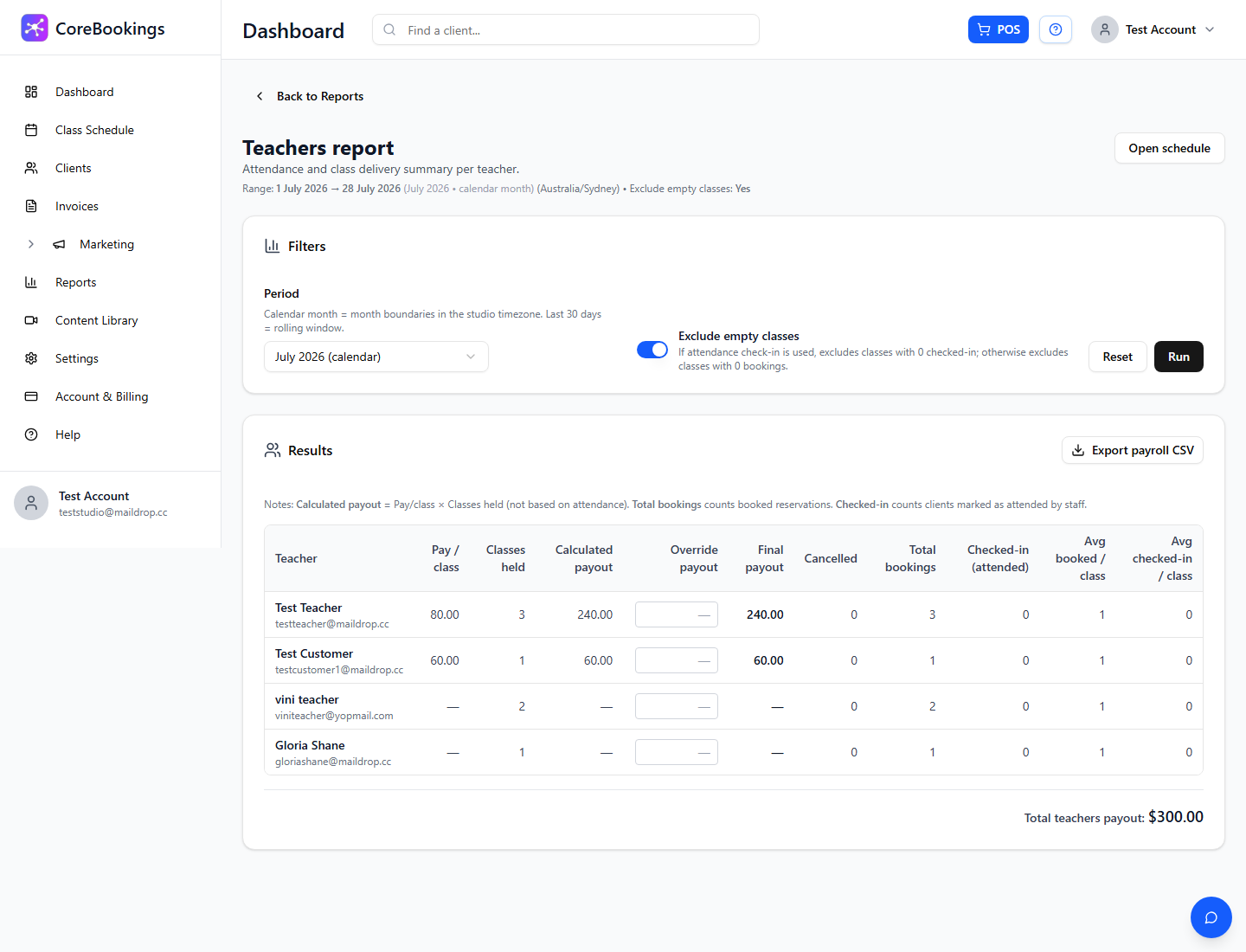
- Period — This month (calendar), Last month (calendar), Last 7 days, Last 30 days (rolling), Last 3 months, or Last 12 months.
- Exclude empty classes — on by default. If you use attendance check-in, classes with 0 checked-in are excluded; otherwise classes with 0 bookings are excluded.
- Click Run or Reset (reset returns to this calendar month with empty classes excluded).
Read results and payouts #
Each teacher row typically includes classes held, cancelled, booked, checked in, averages, and Calculated payout (pay per class × classes held). You can enter an optional Override payout; Final payout uses the override when set.
Set each teacher's pay rate under Settings → teachers / instructors so calculated payouts are meaningful.
Export CSV #
Use Export CSV on the results card to download the teacher rows for the selected period (including payout columns).


