
Clients cannot request a standing booking like "every Monday at 8 am for a month" in one step. In CoreBookings, each class session is booked individually. For fixed programs (courses or school terms), use class terms and term passes so clients buy once and book into each session in that term.
Short answer #
- Drop-in classes: Clients book each date separately from the timetable.
- Term programs: Create a term, link recurring classes to it, sell a term pass, then clients book each class in the term using their pass visits.
- Studio staff: You can add a client to multiple classes from Class Schedule Detail on the dashboard.
Book regular classes one at a time #
For ongoing weekly classes (for example Monday 8 am yoga), clients open your booking site or app and tap Book on each date they want to attend. There is no option to reserve every Monday in a month with a single booking action.
Memberships and visit packs work the same way: one booking per class, with a visit deducted (or unlimited membership rules applied) each time.
Set up a term-based program #
Use this when you run a fixed block of classes (for example an 8-week course or school term).
- Go to Settings > Term Dates and create a term with start and end dates.
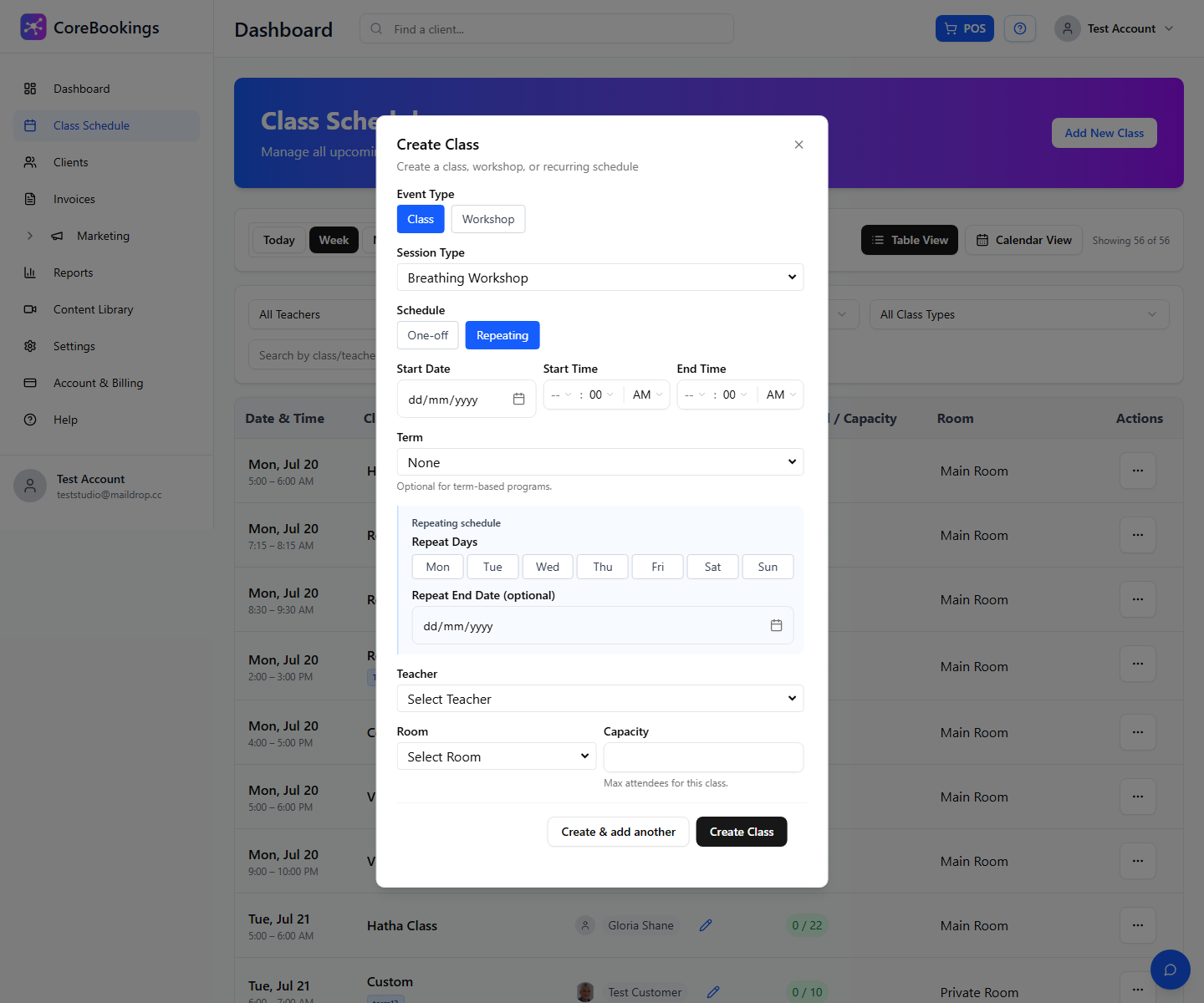
- On Class Schedule, click Add New Class.
- Under Schedule, choose Repeating and set the day, time, and start date.
- Select the Term for this recurring series.
- Save the class. CoreBookings generates the sessions in that term.
Class terms and term passes are available on Starter and above.
Create a term pass #
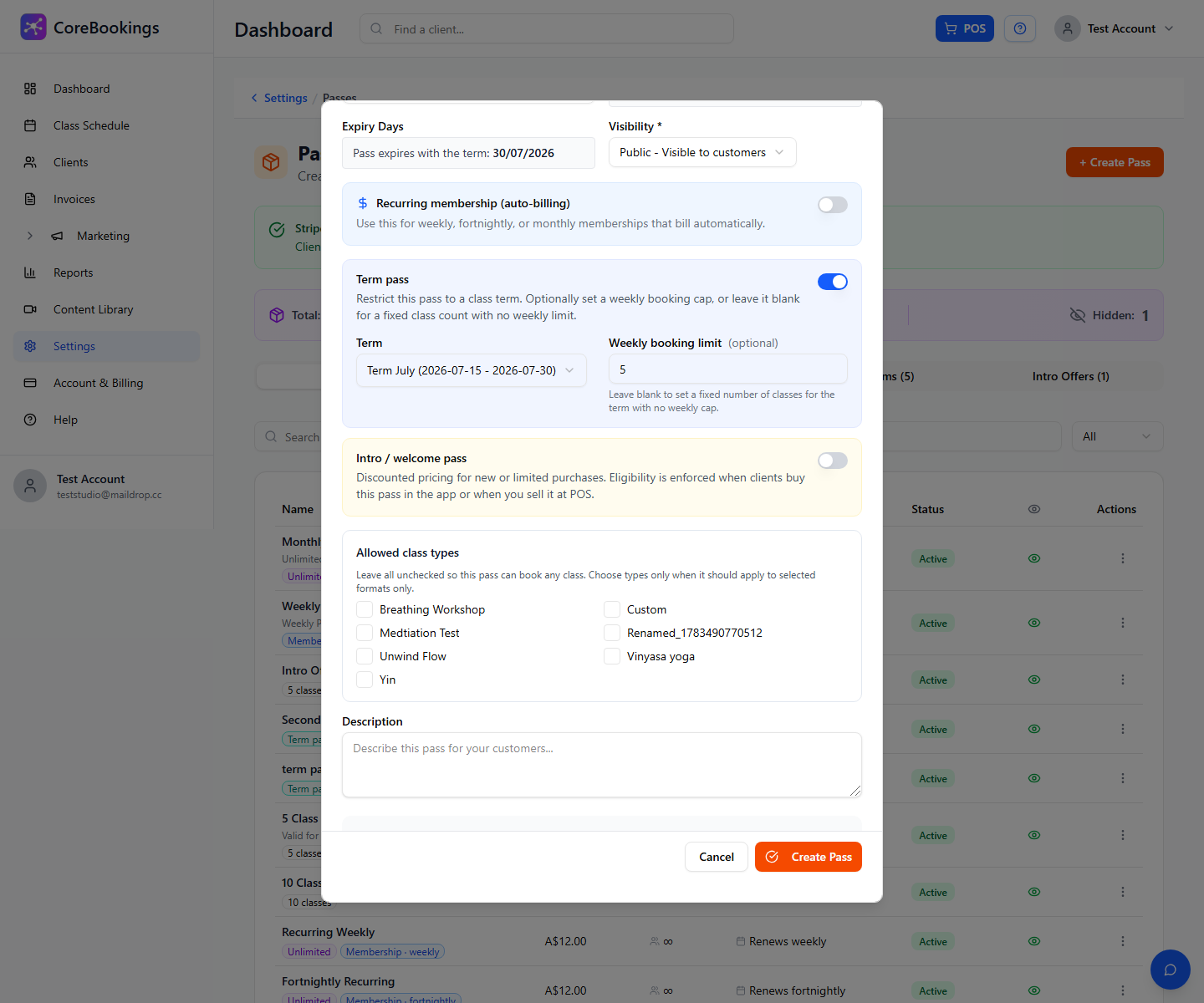
- Go to Settings > Passes and click + Create Pass.
- Turn on Term pass and select the matching Term.
- Set Number of Visits to the total classes included in the program.
- Optionally set a Weekly booking limit if clients should only book a set number of classes per week.
- Click Create Pass.
How clients book with a term pass #
- The client buys the term pass from your booking site or app (or you sell it from their client profile).
- They open the timetable and book the first class in the term. Only classes linked to that term accept the term pass.
- They repeat for each date they plan to attend until their visits are used or the weekly limit applies.
CoreBookings does not auto-book every session in the term from a single tap. Clients (or staff) still confirm each class date. If you want every client on every date, add them from the dashboard for each session or use the manual enrolment guides below.
Add clients to multiple classes from the dashboard #
Studio staff can book clients into classes without the client using the app:
- Open Class Schedule and click the class row.
- On Class Schedule Detail, click Add Client.
- Select the client and pass, then confirm.
- Repeat for each date in the series.
Related help #
- How to manually enrol a client into a course
- How do I book students into courses manually?
- Restrict passes to specific class types
Need help? Email support@kriya.com.au.


