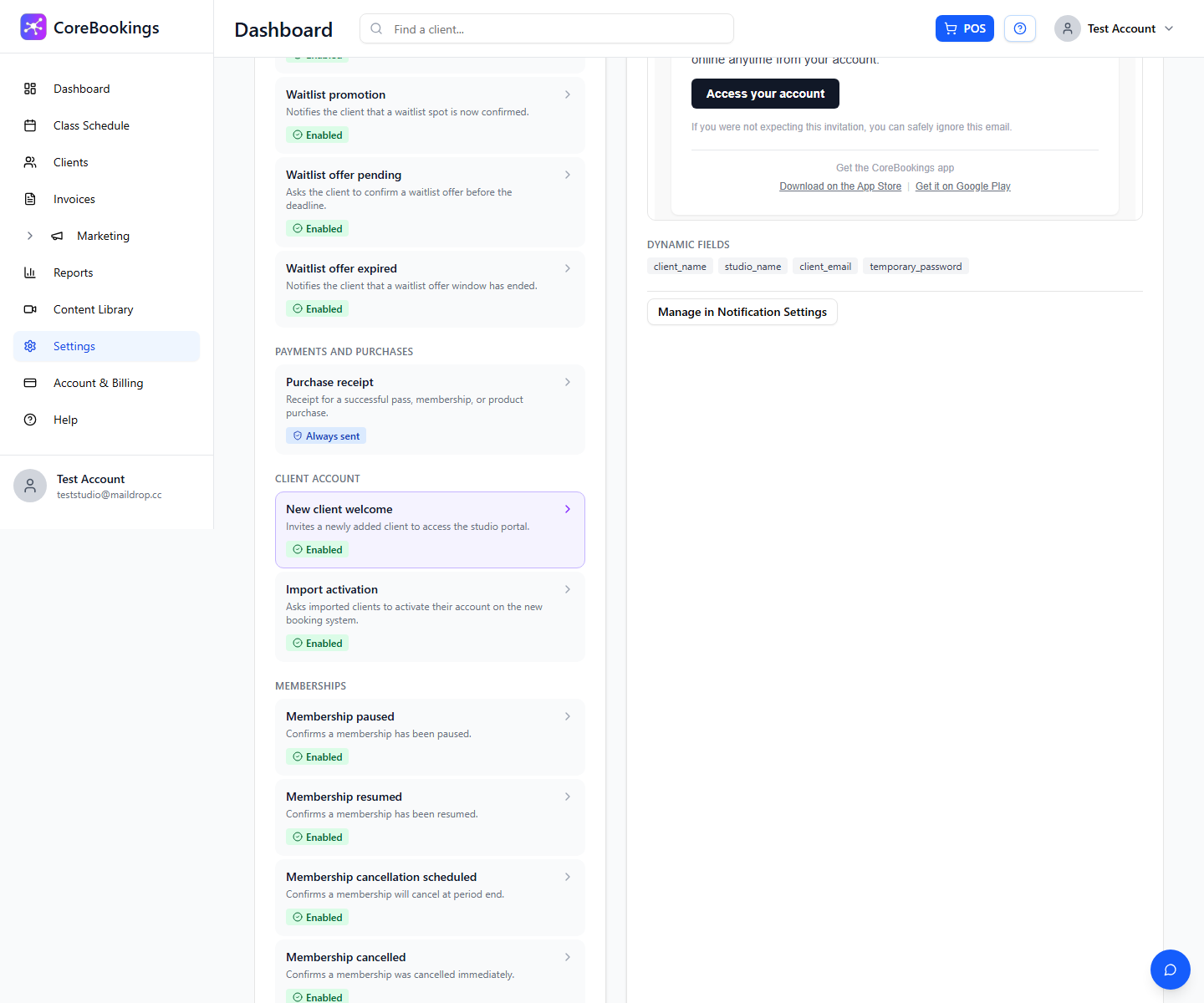
CoreBookings does not support custom fields on the client signup or registration form. If you need health history, injuries, or ability information, use your waiver, an external intake form, or client notes on the profile.
Short answer #
- Custom signup fields: not available
- Standard signup: first name, last name, email, and password
- Best options: Settings → Waiver, an external form (for example Google Forms), or notes on the client profile
- Welcome emails: preview only under Settings → Email Templates; body text cannot be edited
What the signup form includes #
When clients create their own account in the mobile app or public booking flow, CoreBookings collects basic account details only: first name, last name, email, and password.
There is no setting to add extra questions such as medical history, emergency contacts, or experience level to that signup screen.
Use your waiver for health disclosures #
Go to Settings → Waiver to customise the agreement clients must accept. You can include language asking clients to disclose injuries, medical conditions, or physical limitations, and to speak with the instructor before class.
When a waiver is configured, clients booking for themselves in the app must accept it before the booking completes. Staff-assisted bookings from the dashboard can bypass the waiver check, so obtain consent separately if needed.
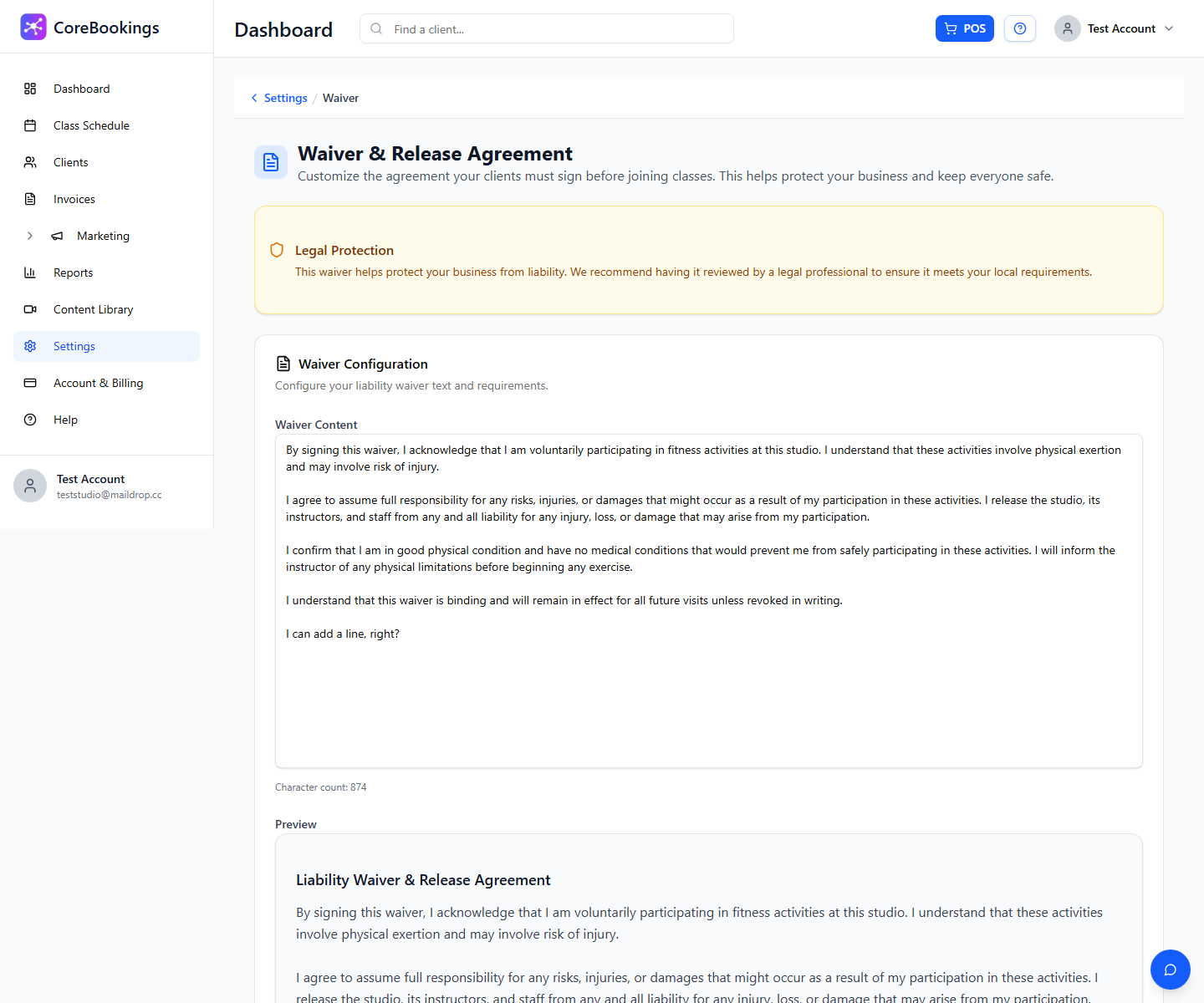
This is general liability wording, not a structured questionnaire. Have your legal adviser review the text for your studio and local requirements.
External intake form #
For detailed health questions, many studios use an external form such as Google Forms or Microsoft Forms.
- Create the form with the questions you need.
- Share the link on your studio website, in class descriptions, by email, or in your waiver text.
- Review responses in the form’s spreadsheet or export.
CoreBookings cannot embed a third-party form inside signup, but you can ask new clients to complete it before their first visit.
Record details on the client profile #
When you add or edit a client in the dashboard, use the Notes field on their profile to record health information, injuries, or preferences shared in person or on a paper form.
Notes are visible to studio staff with client access. They are not shown to the client in the app.
Welcome emails #
Settings → Email Templates shows previews of automatic client emails, including New client welcome. Templates are managed by CoreBookings and cannot be edited.
You can turn the welcome email on or off in Settings → Notifications under New client welcome, but you cannot add custom questions to the email body.