
Recurring client membership card payments sometimes fail—for example when a card expires or a bank declines the charge. You may get automatic failed-payment emails from Stripe (or Stripe API error emails). What happens next is controlled mainly by your Stripe retry / revenue recovery settings, not by a separate setting inside CoreBookings.
Which emails this covers #
- Client membership / subscription payments — charges Stripe runs for recurring passes sold through CoreBookings. This article.
- Your CoreBookings studio plan payment — different process. See My subscription payment has failed. How do I update my payment details?.
Failed-payment emails for client memberships usually name the client or Stripe customer and invoice. Studio plan emails refer to your CoreBookings billing account.
What Stripe does after a failed charge #
In your Stripe Dashboard, open Billing → Revenue recovery → Retries (wording can vary slightly). There you control:
- How many times Stripe retries a failed membership invoice (Smart Retries or a custom schedule).
- What happens after retries finish, for example:
- Cancel the subscription
- Mark the subscription unpaid
- Leave the subscription past due
- Whether Stripe emails customers when card payments fail (enable this under Stripe billing / subscription email settings if you want automatic customer notices).
While Stripe is still retrying, the membership is typically past due. If the client updates a valid card before the final attempt, Stripe usually retries the open invoice automatically.
If the client only updates their card after Stripe has finished retries and marked the subscription unpaid or cancelled, an automatic retry may no longer apply. In that case you often need to sell or recreate the membership (for example with Sell Pass) after the card is fixed—or resolve the invoice in Stripe if it is still open.
Update the client’s card in CoreBookings #
Where: Clients → open the client → Manage Cards
- Open Clients and open the client named in the email (or search by email).
- Click Manage Cards.
- Add a new card, or set the correct card as the default.
- Confirm with the client that the membership should continue.
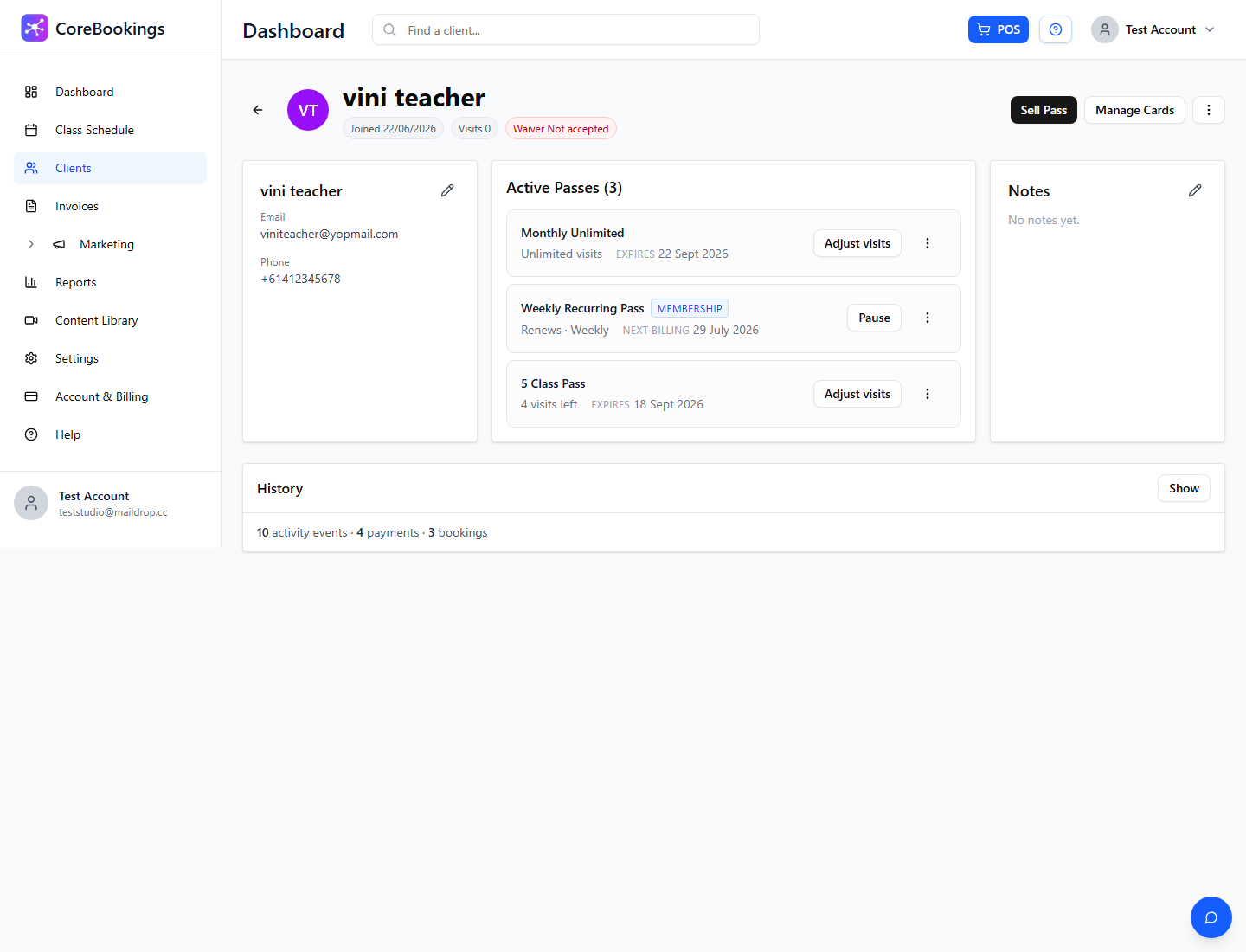
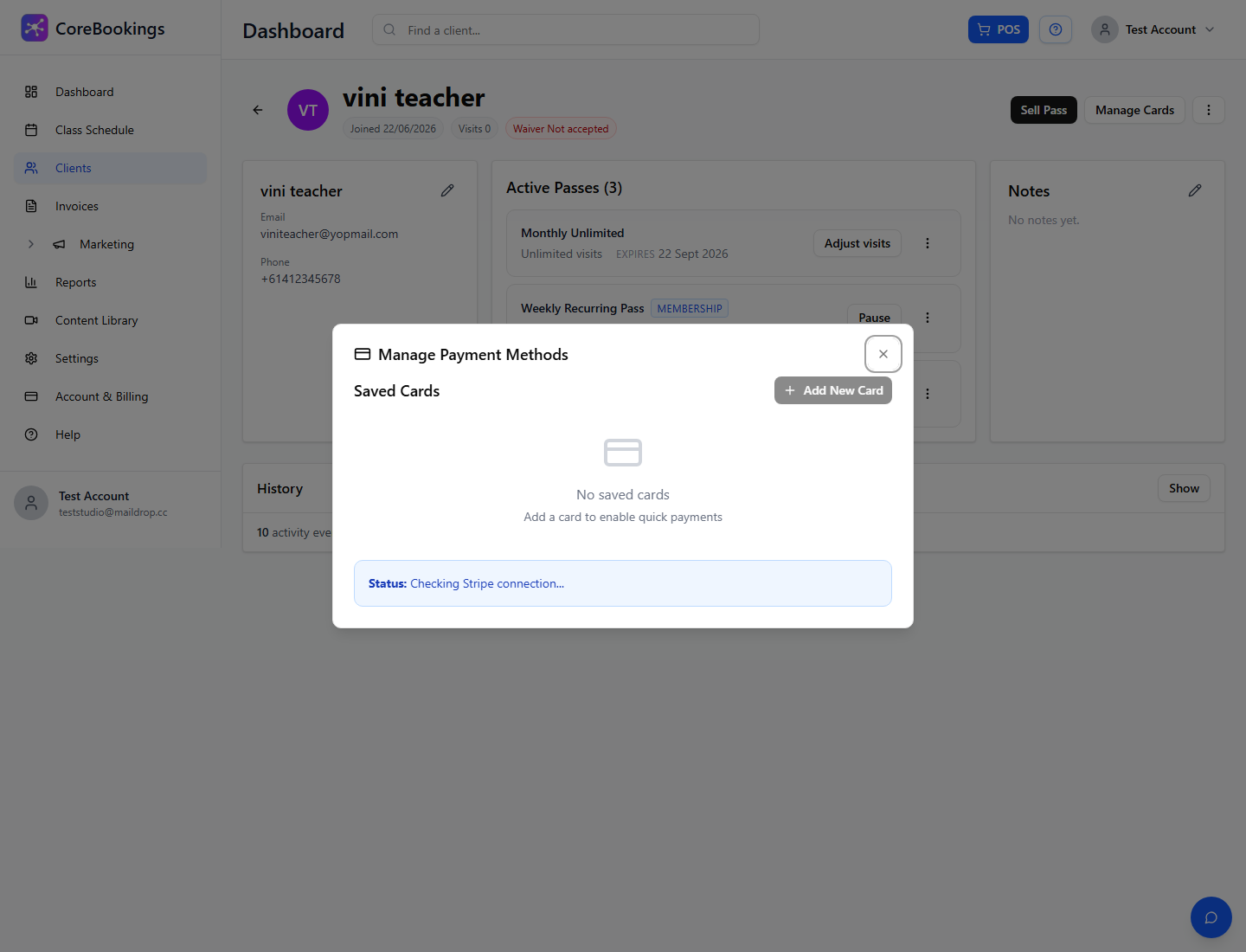
Clients may also be able to update their card in the CoreBookings mobile app or your booking widget when they sign in, depending on how they originally saved the card.
If Stripe is still retrying (past due), updating the default card is often enough for the next automatic attempt. Check the client’s membership status on their profile and the invoice status in Stripe.
Check retries and invoices in Stripe #
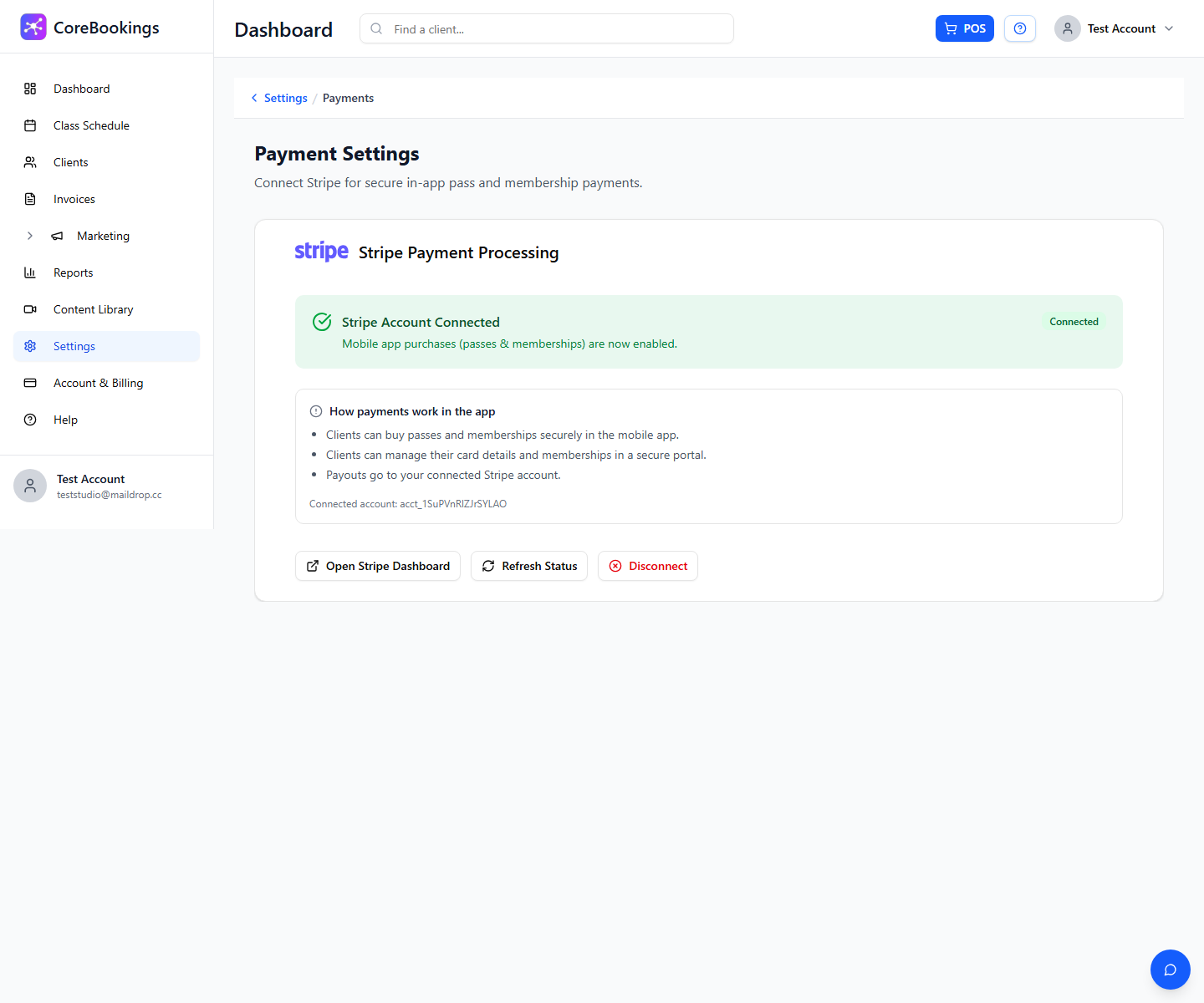
Where: Settings → Payments → Open Stripe Dashboard
- In CoreBookings, open Settings → Payments.
- Click Open Stripe Dashboard.
- Find the customer or failed invoice from the email.
- Review subscription status, open invoices, and whether another retry is scheduled.
- Adjust Revenue recovery / Retries and customer failed-payment emails if needed.
Stripe owns retry timing and final subscription actions. CoreBookings stores the membership against the client and uses the card on file for billing through your connected Stripe account.
Stripe API error emails #
Stripe API error emails often mean a charge, webhook, or account action failed (declined card, incomplete Stripe account details, restricted account, or a temporary API issue).
- Open the failed payment or event in Stripe Dashboard and read the decline or error code.
- Confirm Stripe still shows as Connected under Settings → Payments. Use Refresh Status if you just finished onboarding.
- Ask the client to update their card if the error is a decline or expired card.
- If the account itself is restricted or incomplete, finish the requirements Stripe lists in the Dashboard.
If you cannot tell whether the email is about a client membership or your studio plan, compare the amount and customer name with Account & Billing versus the client profile.


