
This article explains how to pause or cancel your CoreBookings studio subscription (the plan you pay CoreBookings for). It does not cover pausing or cancelling a client's recurring membership or pass. Those are managed separately from your client's profile in the dashboard.
Before you start #
Only studio admins can pause or cancel the CoreBookings subscription. Both options are self-service from Account & Billing. You do not need to email support.
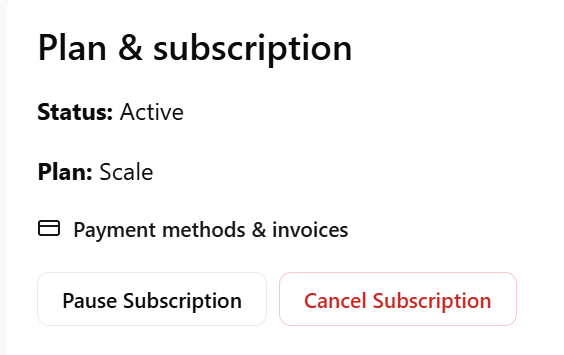
Go to Account & Billing in the left sidebar (or Settings → Plan & Billing), then open the Plan & add-ons tab. In the Plan & subscription section you will see Pause Subscription and Cancel Subscription.
Pause or cancel? #
Pause Subscription is a good option if you want to take a break but plan to come back soon. Billing pauses and some paid features may be restricted until you click Resume Subscription.
Cancel Subscription is for when you want to end your paid plan. Cancellation is scheduled for the end of your current billing period. When that period ends, your studio moves to Free Solo.
How to pause your subscription #
- Open Account & Billing → Plan & add-ons.
- In Plan & subscription, click Pause Subscription.
- Confirm when prompted: Pause subscription? Billing will pause and some features may be restricted until you resume.
While paused, the page shows that your subscription is currently paused and that access to some features is restricted. Click Resume Subscription when you are ready to return to your paid plan.
How to cancel your subscription #
- Open Account & Billing → Plan & add-ons.
- In Plan & subscription, click Cancel Subscription.
- Confirm when prompted: Cancel at period end? Your plan will remain active until the end of the current billing period.
If you see Your billing setup is incomplete, open the Billing tab first and complete payment setup before you can pause or cancel.
What happens after you cancel #
For an active paid subscription, cancellation is scheduled for the end of your current billing period. Your plan stays active until that date. The Plan & add-ons page will show Active until with the end date, and a message that your paid subscription has been cancelled and will end automatically.
When the billing period ends:
- Your studio moves to Free Solo (free tier limits apply, including up to 30 clients).
- Your studio data (clients, passes, bookings, and history) is not deleted.
- Your studio stays discoverable and bookable in the CoreBookings client app.
- You can upgrade again any time from Account & Billing.
You will receive a confirmation email titled Subscription cancellation scheduled with your access end date.
Incomplete subscription setup #
If your subscription status is incomplete (for example, you started upgrading but did not finish checkout), the button reads Cancel & start over. That cancels immediately so you can upgrade again later.
When you confirm, you will see: Cancel this incomplete subscription and start over? You can upgrade again after.
Related billing help #
- Update payment method or download invoices: Account & Billing → Billing → Manage billing (invoices, payment method)
- Payment failed: see My subscription payment has failed. How do I update my payment details?
- Upgrade your plan: use Available plans on the Plan & add-ons tab
Need help? Email support@kriya.com.au.


