
CoreBookings uses Stripe to process card payments for passes, memberships, and point-of-sale transactions. Connect your Stripe account from the studio dashboard to start accepting payments from clients.
Before you connect #
Where: Settings → Payments
Connecting Stripe enables:
- Pass and membership purchases in the CoreBookings mobile app.
- Card payments through the studio point-of-sale in your dashboard.
- Payouts to your connected Stripe account.
You need a Stripe account (or you can create one during the connection flow). If you already use Stripe for another business, you can sign in with that account or create a separate Stripe account for your studio.
Connect Stripe in CoreBookings #
- Log in to your CoreBookings studio dashboard.
- Open Settings and go to Payments.
- On the Payment Settings page, find the Stripe Payment Processing card.
- If you see Stripe Account Not Connected with a Not Connected badge, click Connect Stripe Account.
- Allow pop-ups if your browser blocks the Stripe window.
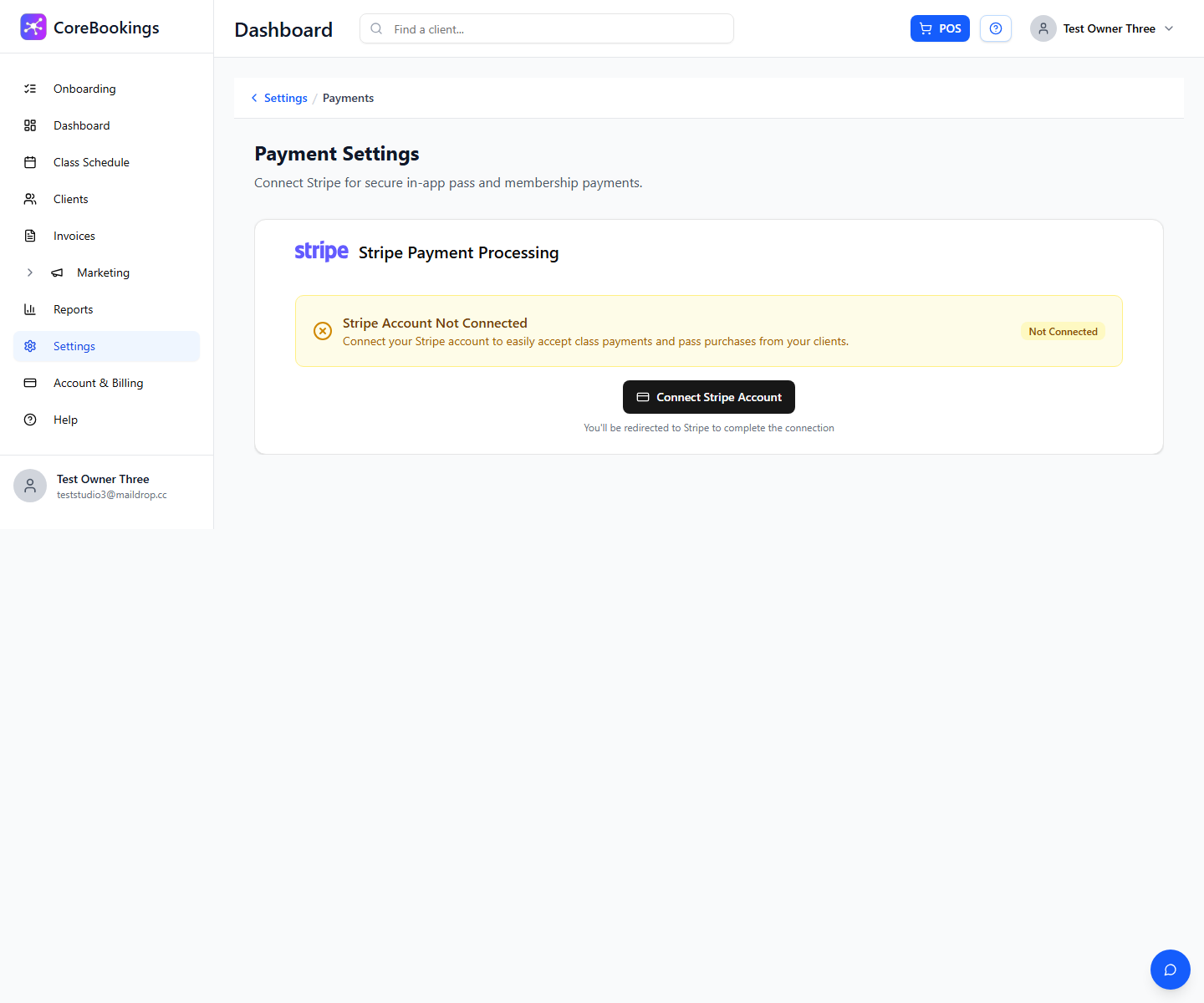
CoreBookings opens Stripe in a new window so you can authorise the connection. When you finish in Stripe, close the window or return to CoreBookings. The page checks your connection status automatically.
Complete setup in Stripe #
In Stripe, either sign in to an existing account or create a new one. Stripe may ask for:
- Business details and contact information.
- Identity verification for the account owner.
- Bank account details for payouts.
Follow the prompts in Stripe until onboarding is complete. Stripe must approve your account before payouts can begin.
Confirm your connection #
Back in CoreBookings, the Stripe Payment Processing card should show Stripe Account Connected with a Connected badge.
If the status has not updated yet, click Refresh Status. You can also open Open Stripe Dashboard to manage payouts and payment settings in Stripe.
Once connected, clients can buy passes and memberships in the mobile app, and you can take card payments from the studio dashboard.
Processing fees #
CoreBookings transaction fees are Stripe fees + 1%. Stripe charges its own card processing fee on each payment (rates depend on card type and region), and CoreBookings adds a 1% platform fee.
You are not charged a CoreBookings platform fee on failed charges.
If you have trouble linking Stripe, contact us and we can help.


