
CoreBookings uses two capacity levels to control how many clients can book a class: room capacity and class capacity. Room capacity is the default for every class in that room. Class capacity applies only when you override a single session.
Two types of capacity #
- Room capacity is set on each room under Settings → Location. It is the starting limit for every class scheduled in that room.
- Class capacity is set on an individual class from Class Schedule Detail. It overrides the room default for that session only.
Think of room capacity as your studio default, and class capacity as a one-off adjustment when a session needs a different limit.
Room capacity is the default #
When you create or edit a room, you set a Capacity value. Every new class in that room inherits this number.
Example: if your main studio room has capacity 20, a new Yoga Flow class in that room starts with capacity 20 unless you change it.
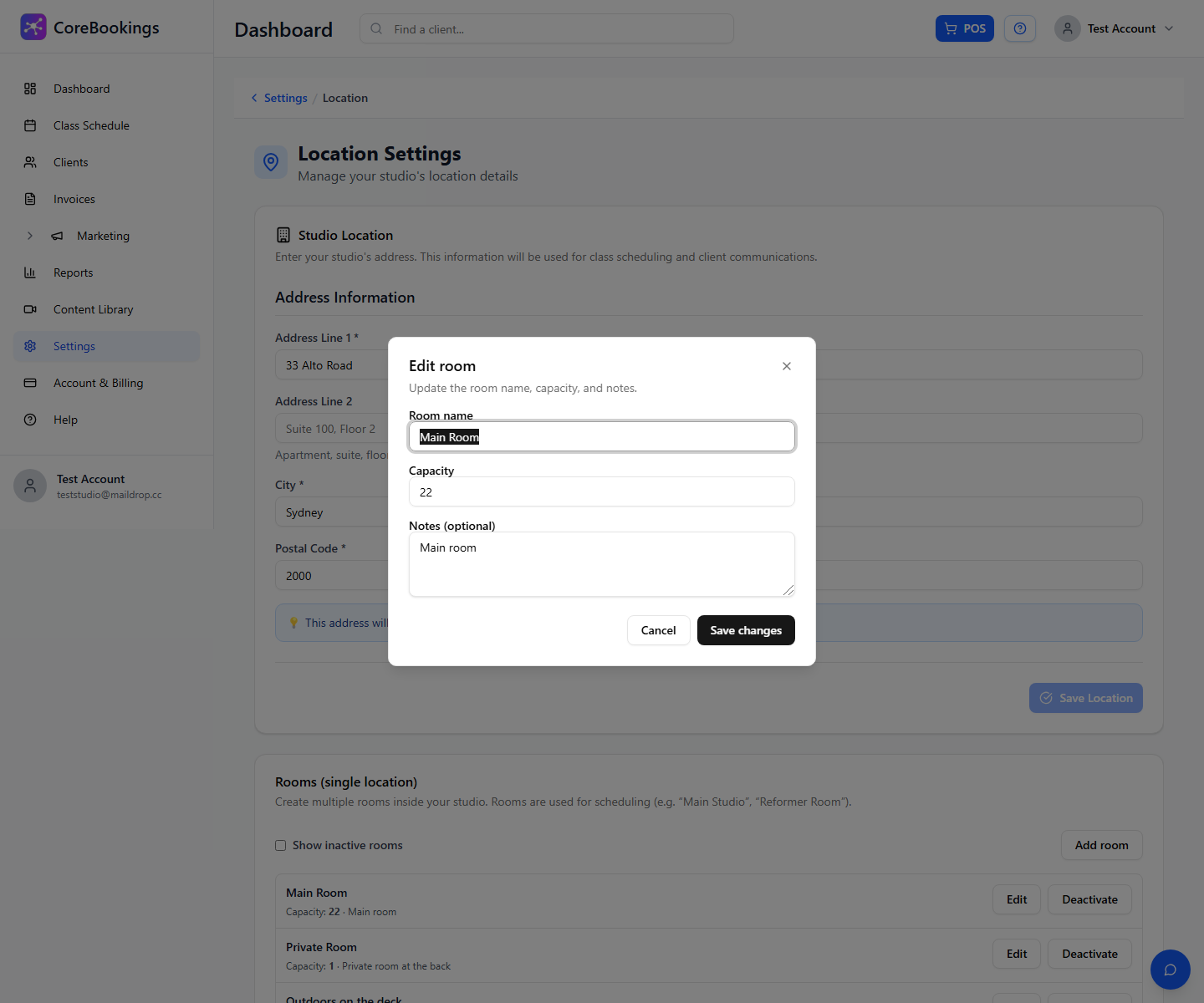
Changing room capacity does not automatically update existing classes. Update individual classes if you need them to match a new room limit.
Class capacity overrides the room #
On Class Schedule Detail, the badge shows {booked} / {capacity} booked. The capacity number is whichever limit applies to that class: the room default, or your override.
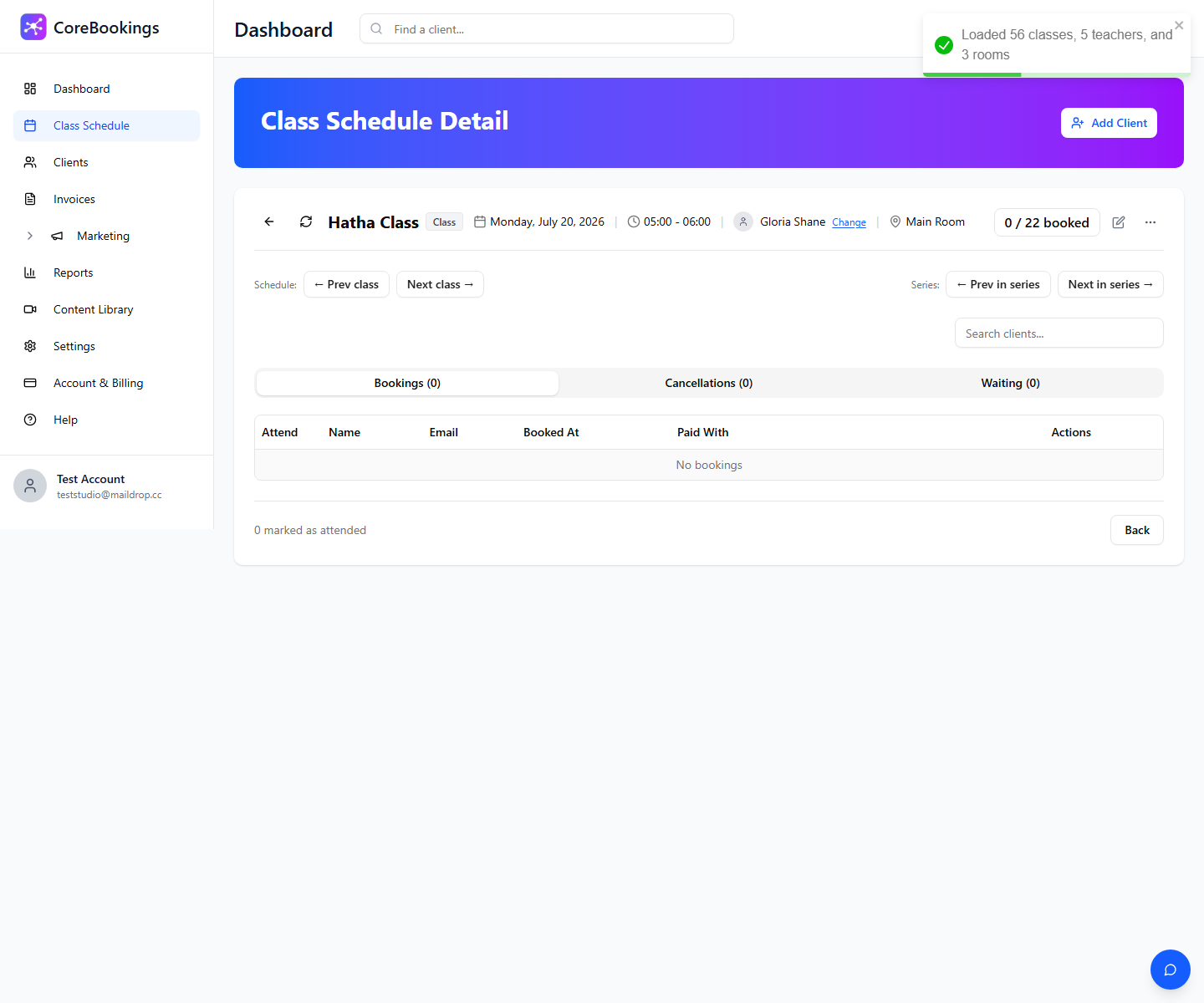
To override one class, click the pencil icon labelled Edit capacity, then set Capacity (1 – 1000) in the Edit capacity — this class only dialog.
Rules when saving a class override:
- Capacity must be a whole number between 1 and 1000.
- Capacity cannot be lower than the number of clients already booked for that class.
What happens when a class is full #
When confirmed bookings reach the class capacity, the class is full. New online bookings for that session are blocked.
On the class detail page, the {booked} / {capacity} booked badge reflects the limit. If you use waiting lists, clients can join the waitlist when the class is full instead of booking directly.
Studio staff can still manage bookings from the dashboard, but lowering capacity below current bookings is not allowed.
What clients see online #
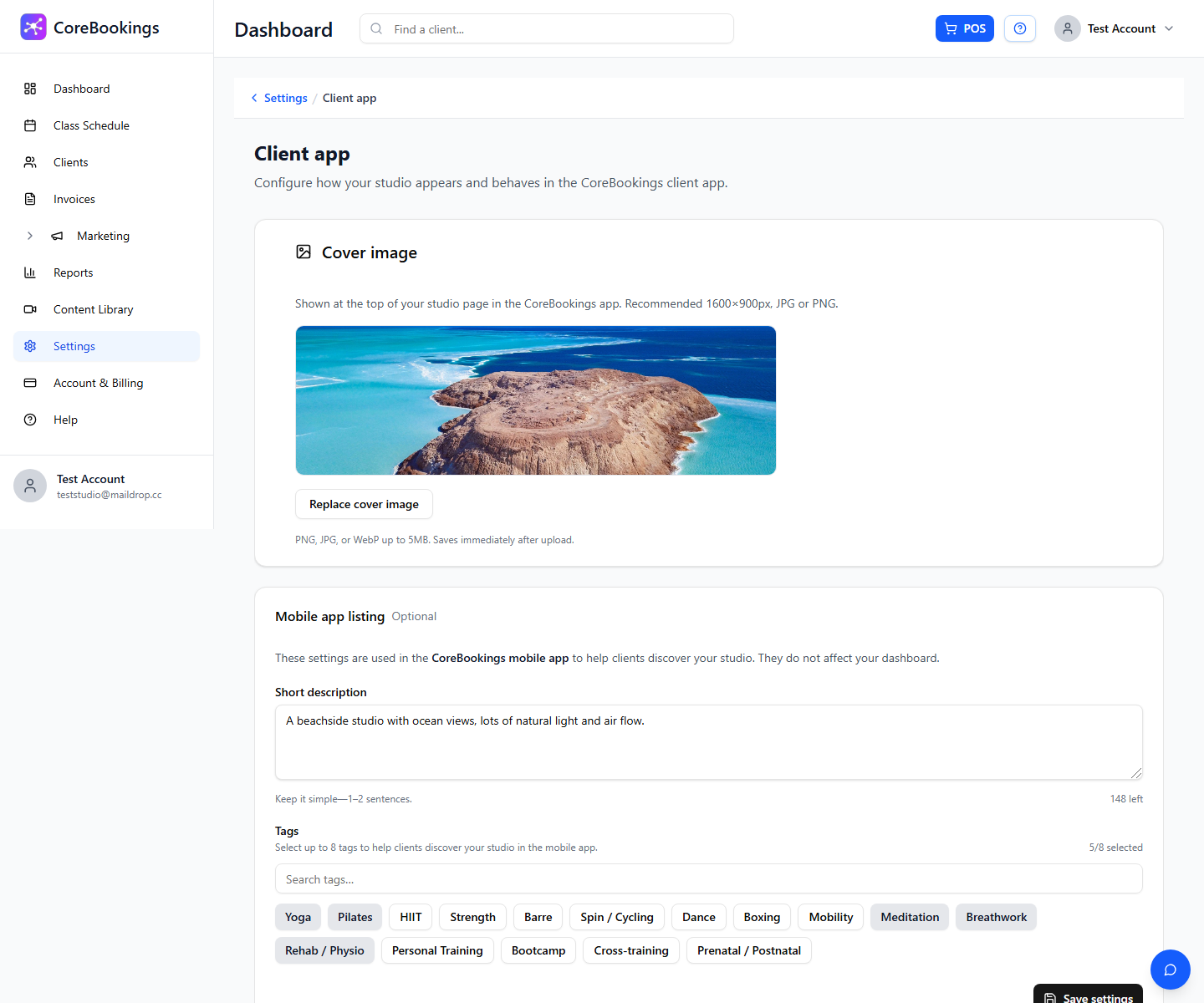
By default, clients can see how many spots are left when booking online or in the client app. You can hide this under Settings → Client app in the Class capacity visibility section.
Turn off Show capacity and spots left if you prefer clients not to see capacity numbers on your public schedule or in the app. Bookings still respect your limits behind the scenes.
How to change capacity #
For step-by-step instructions, see How to limit class capacity.
- Room default: Settings → Location → Rooms (single location) → Edit → Capacity
- One class: Class Schedule → open class → Edit capacity


