
Table of Contents
When clients book with Pay Later, they owe class credits at the desk. CoreBookings does not have a separate Unpaid Visits report. Use the Clients list filter Outstanding balances only, then clear the balance with Collect payment on the client profile.
Short answer #
- Open Clients.
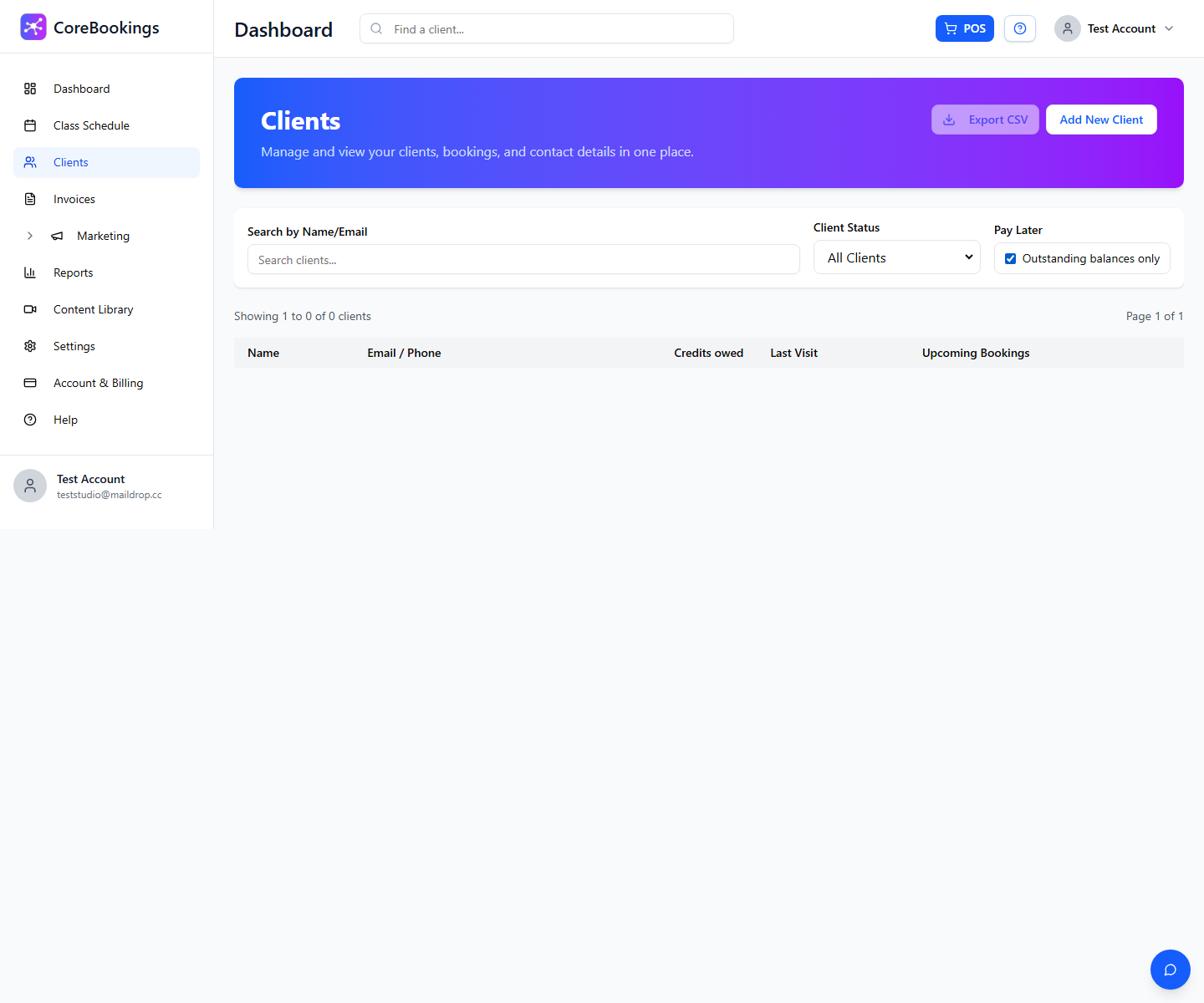
- In filters, open Pay Later and tick Outstanding balances only.
- Open a client from the list.
- Click Collect payment and record the desk payment.
Filter Clients for outstanding balances #
Where: Clients
- Open Clients in the left sidebar.
- Open the filters (if needed).
- Find Pay Later and select Outstanding balances only.
- Review the list. With this filter on, you will see Credits owed for each matching client.
- Optional: use Export CSV on the Clients page to download the filtered list.
Collect payment on the client profile #
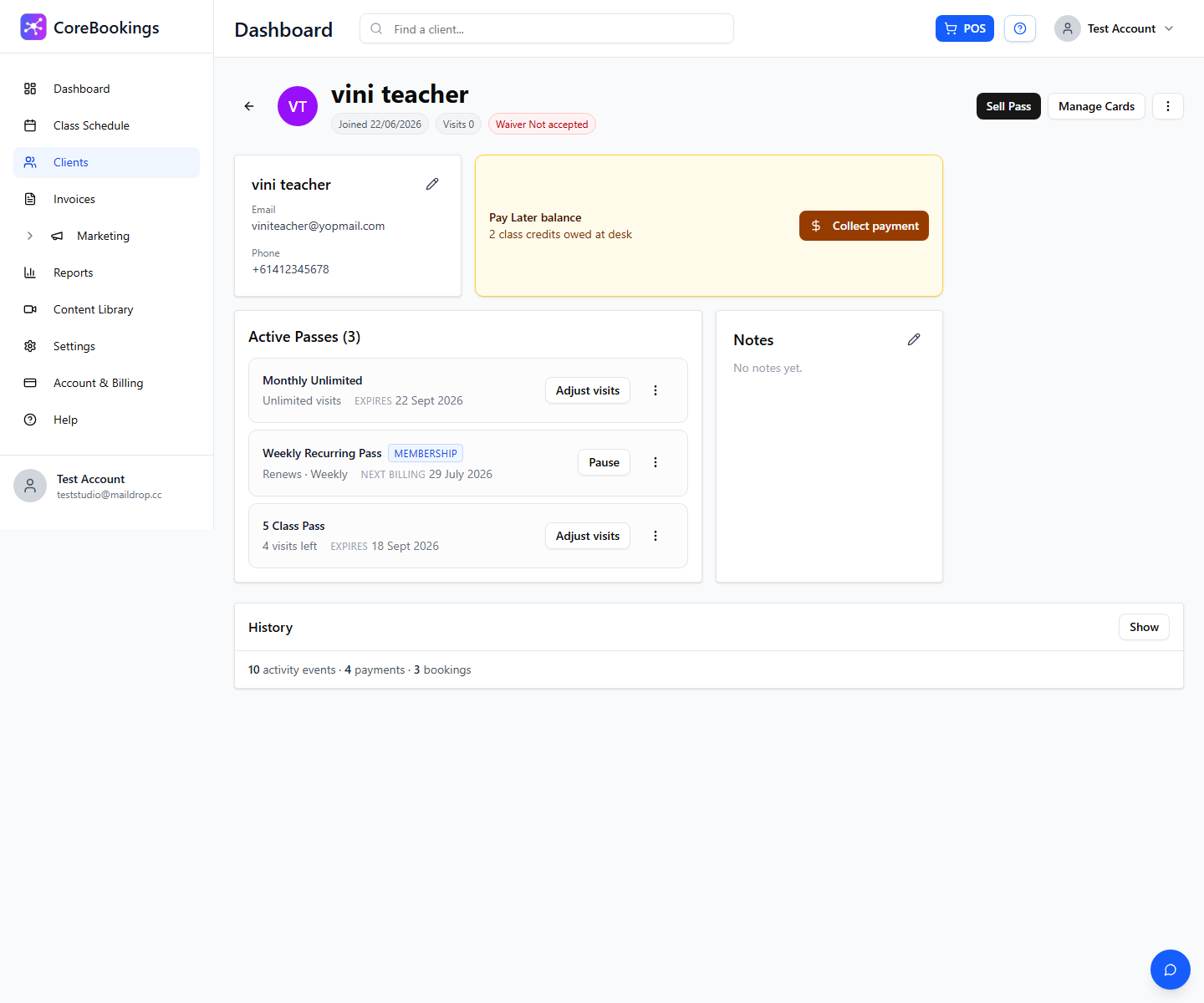
- Click the client name to open their profile.
- Look for the Pay Later balance banner showing class credits owed at the desk.
- Click Collect payment (owners and admins).
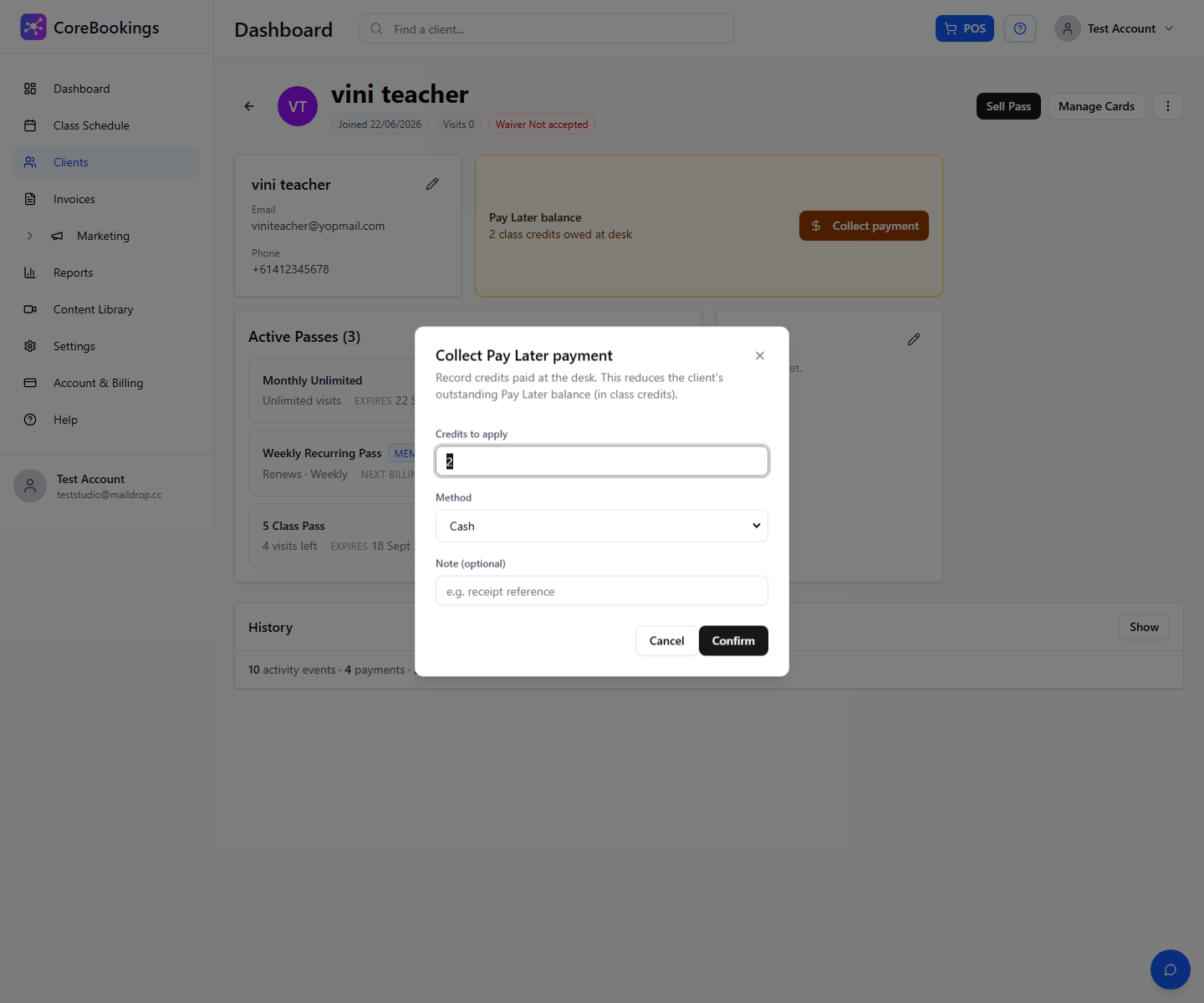
- In Collect Pay Later payment, set Credits to apply, choose Method (Cash, EFTPOS, or Other), add an optional note, then Confirm.
For more detail on settlement, see How Do I Settle a Pay Later Visit?.
What replaced the Unpaid Visits report #
The classic dashboard had an Unpaid Visits report for Pay Later bookings. In CoreBookings that workflow lives on Clients (filter + collect payment), not under Reports.


