
You can change how many visits a client has left and push out a class pass expiry date from their client profile. Changes apply to active passes and many expired passes listed under Past passes.
Short answer #
- Where: Clients → client profile → Active Passes
- Visits: Adjust visits on a class pass
- Expiry: ⋯ menu → Extend expiry (class passes only)
- Memberships: use Pause, Resume, or cancel actions — not extend expiry
Open the client profile #
- Go to Clients in the dashboard sidebar.
- Search for the client and click their name.
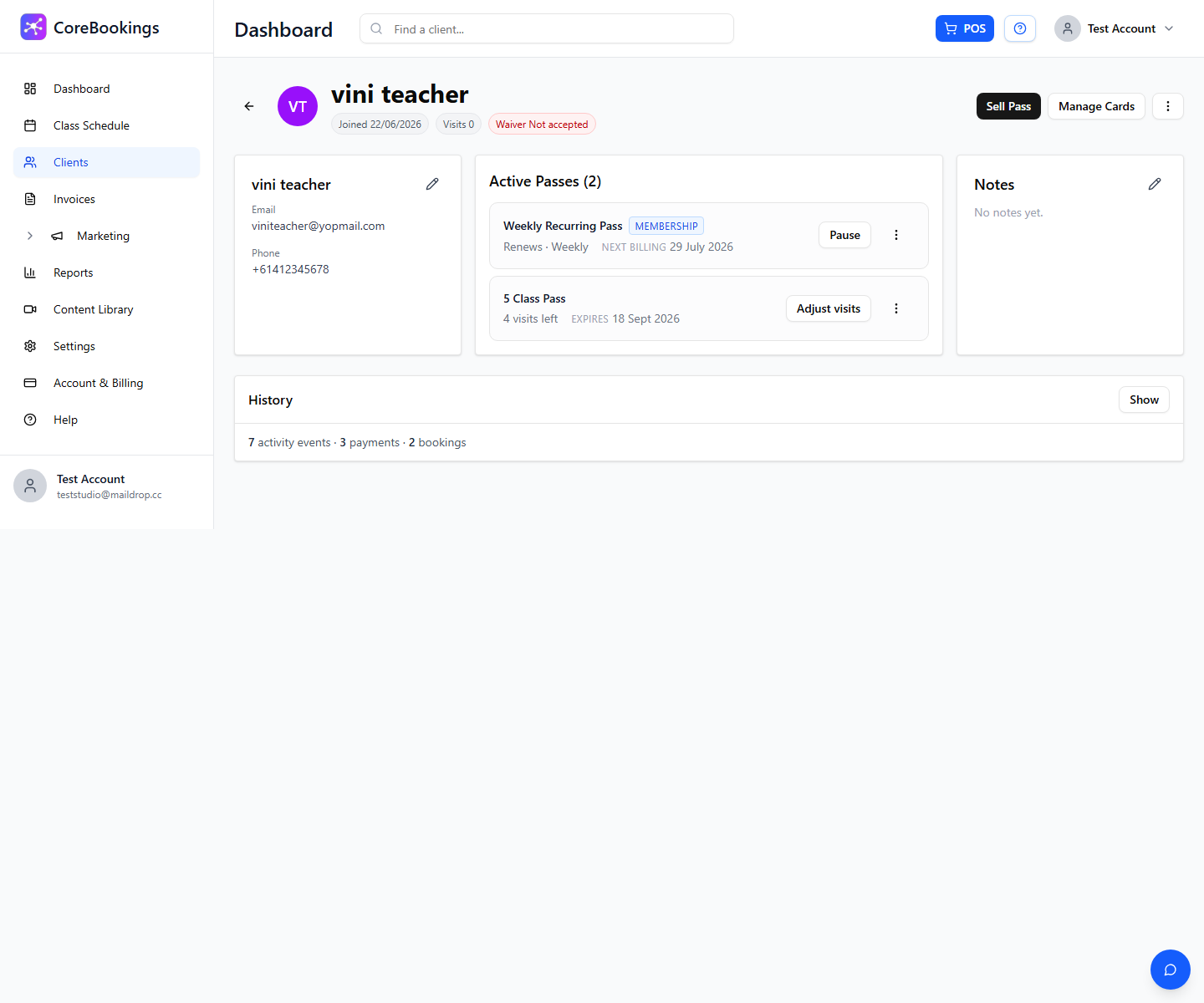
- Scroll to the Active Passes section on their profile.
Each pass card shows the pass name, visits remaining (or unlimited), and expiry or next billing date.
Adjust visits remaining #
For multi-visit class passes:
- Find the pass in Active Passes.
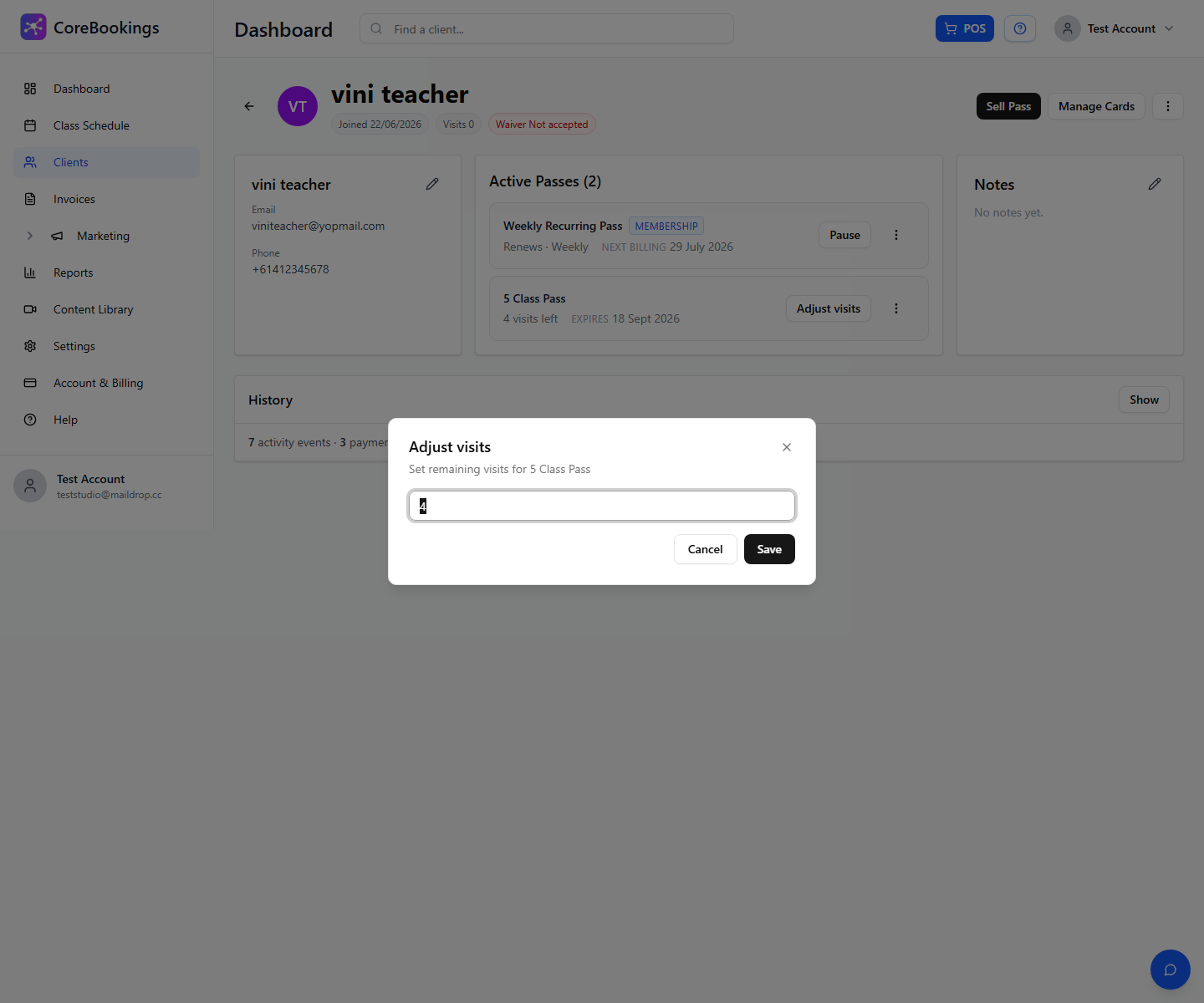
- Click Adjust visits.
- Enter the new Visits remaining number.
- Click Save.
Use this to add bonus visits, correct a mistake, or manually deduct visits. Unlimited memberships do not show Adjust visits.
Extend pass expiry #
For class passes with an expiry date (not memberships):
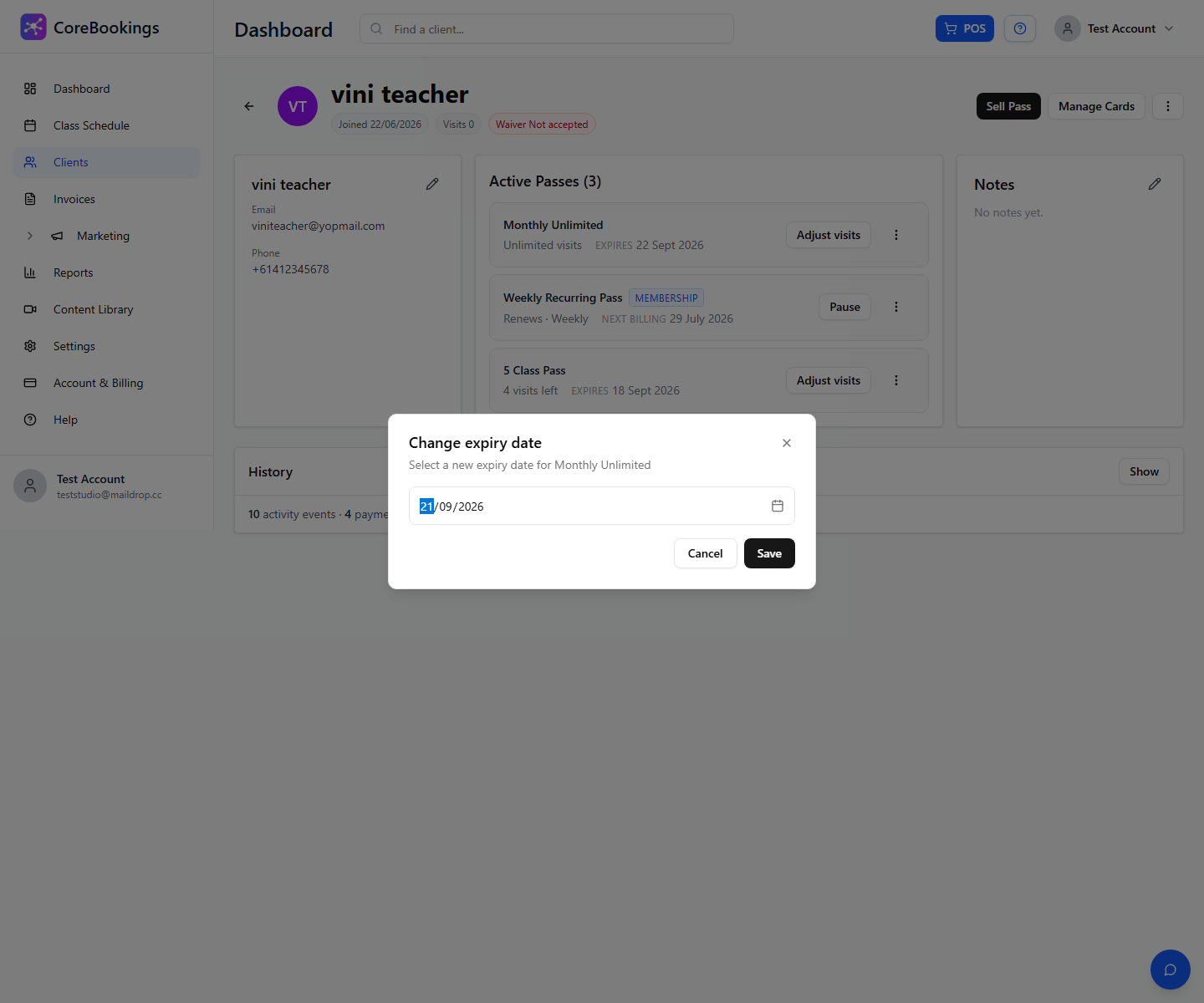
- In Active Passes, click the ⋯ menu on the pass row.
- Click Extend expiry.
- Choose the new date in the Change expiry date dialog.
- Click Save.
Memberships show Next billing instead of Expires. To pause, resume, or cancel a membership, use the buttons on that pass card.
Past and expired passes #
Expired or used-up passes appear under Past passes at the bottom of the same section. Expand that list to view them.
On past class passes that still have visits left or an expiry date, you may see Extend expiry so you can reactivate the pass for the client. After extending expiry or adding visits, the pass can move back to Active Passes if it is valid again.


