
You control how close to class start time clients can cancel from your booking site or app. CoreBookings uses a Cancellation Cutoff setting in minutes. This is not tied to your trial period.
Short answer #
- Default:
0minutes. Clients can cancel up until class start time. - Custom cutoff: Set minutes in Settings > Business (for example
120for two hours before class). - After class starts: Clients cannot cancel. That is expected.
- Studio staff: Can still cancel bookings from Class Schedule Detail after the client cutoff has passed.
How the cancellation cutoff works #
The Cancellation Cutoff (minutes) field sets how many minutes before class start client self-cancellations close.
0= clients can cancel any time before class start.60= clients must cancel at least one hour before class.120= clients must cancel at least two hours before class.
Once the cutoff time passes, the Cancel booking option is hidden on your booking site and mobile app. Clients cannot cancel after the class has started.
Set the cancellation cutoff #
- Go to Settings > Business.
- Under Scheduling & Policies, find Cancellation Cutoff (minutes).
- Enter the number of minutes before class start when client cancellations close.
- Click Save settings.
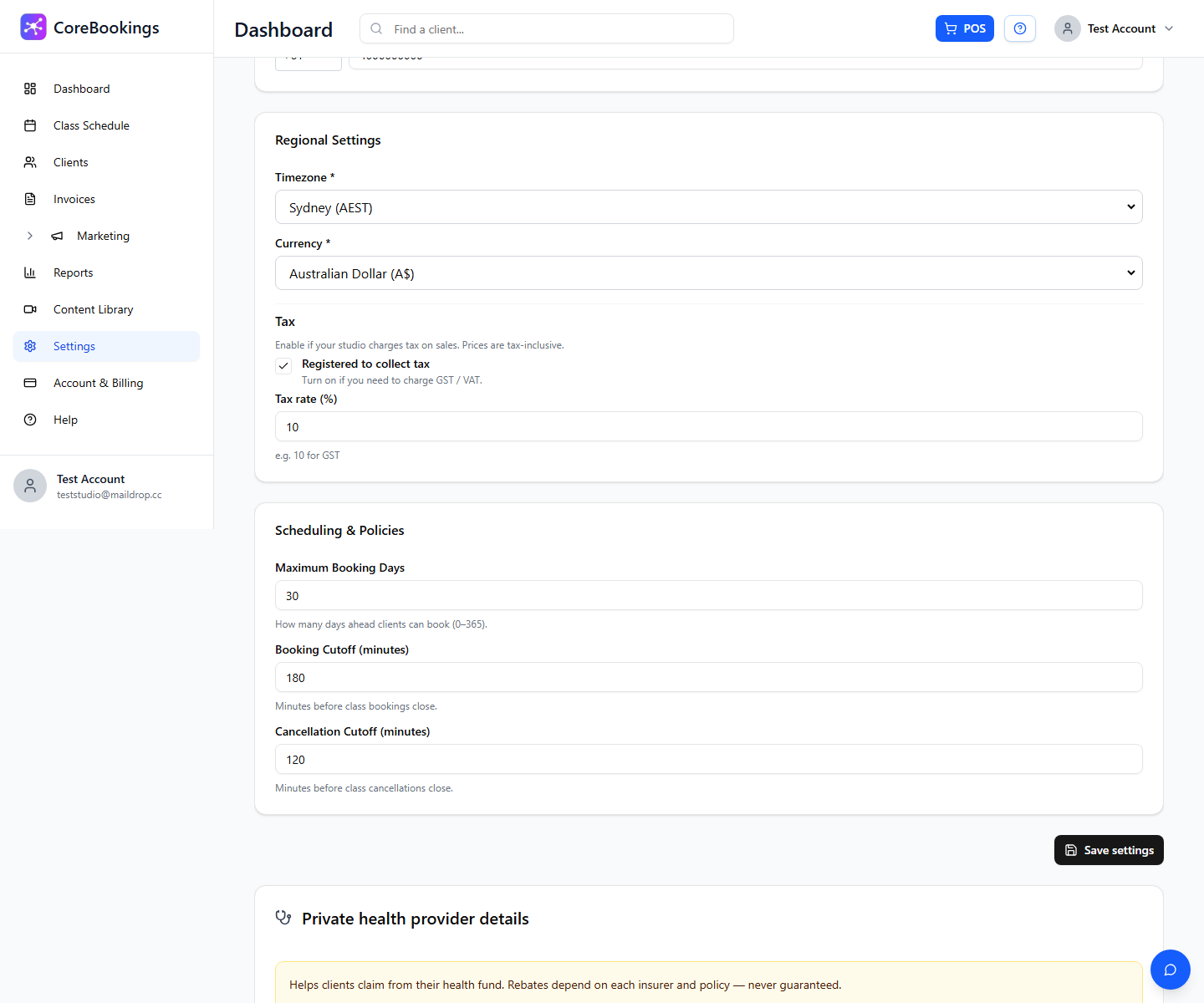
Most studios use 60 to 120 minutes. Use 0 if you allow cancellations up until class start.
This setting applies to the whole studio. It is not configurable per class type or instructor.
What clients see after the cutoff #
If a client tries to cancel inside the cutoff window (or after class has started), they will not see a cancel option on My Bookings or the class timetable.
If they contact you, explain your studio policy. You can cancel the booking from the dashboard if you choose to make an exception.
Staff can cancel after the cutoff #
The cancellation cutoff applies to client self-cancellations only. Studio staff can still cancel a booking from Class Schedule Detail after the cutoff has passed.
- Open Class Schedule and click the class.
- On the Bookings tab, click Cancel booking next to the client.
- Confirm when prompted.
Related help #
- How to cancel a booking
- How do I book students into courses manually?
- How to cancel an upcoming class
Need help? Email support@kriya.com.au.


