
Yes. If a student arrives without a paid pass, you can still book them into the class from Class Schedule. Sell a pass on the spot, or (when Pay Later is enabled for your studio) add them with Pay Later and collect payment afterwards.
Short answer #
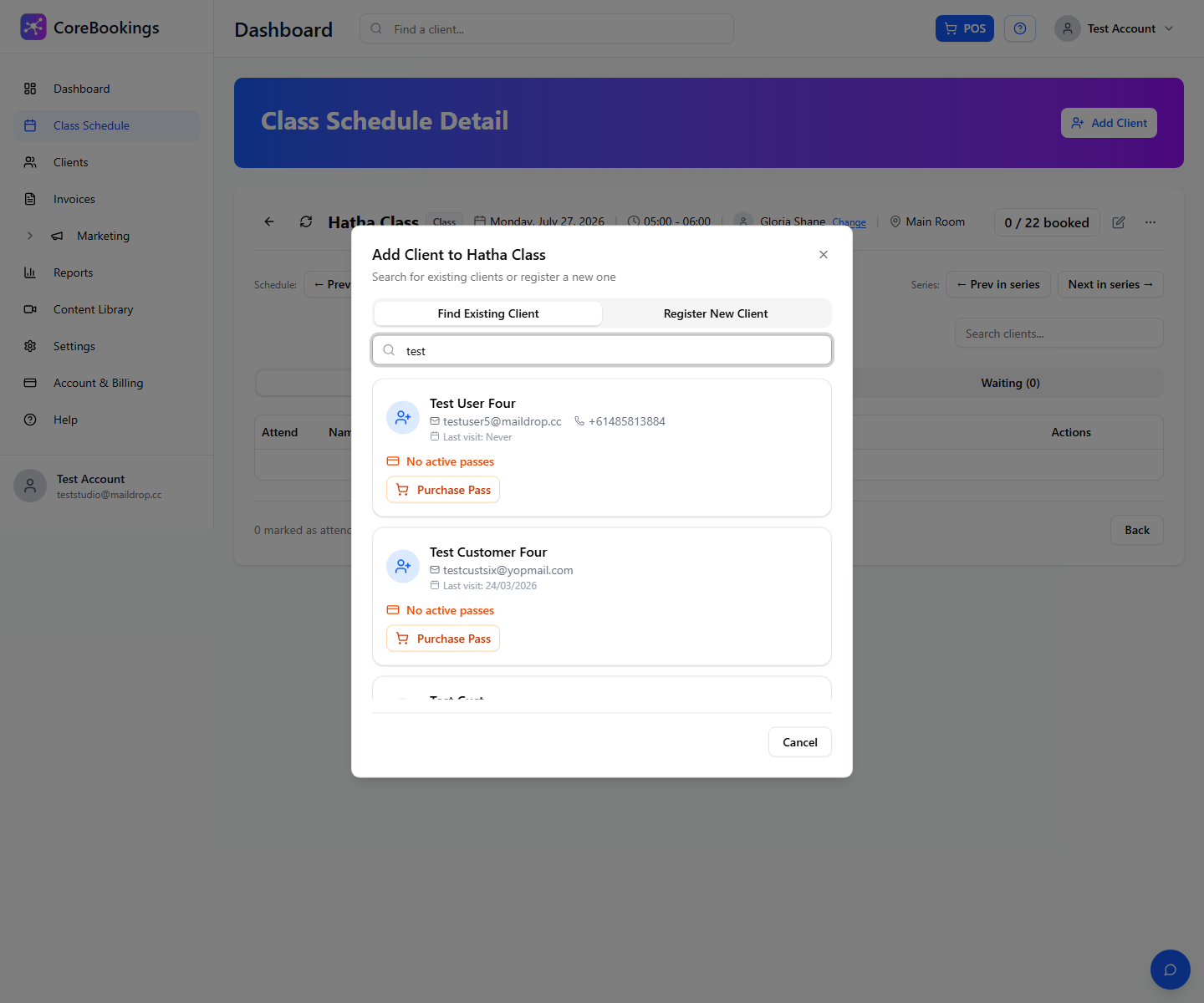
- Open the class → Add Client.
- If they have a usable pass, choose it and click Add to Class.
- If they have no active pass, use Purchase Pass (pay now) or Add with Pay Later (pay at the desk later).
- Outstanding Pay Later balances are cleared on the client profile with Collect payment—not via a separate Unpaid Visits report.
Pay Later must be enabled for your studio (Starter and above, on request). Workshops are not eligible for Pay Later.
Add them from Class Schedule #
Where: Class Schedule → open the class → Add Client
- Open Class Schedule and open the class (View Details / class detail).
- Click Add Client.
- On Find Existing Client, search by name or email.
- Or use Register New Client if they are new.
Option A: Sell a pass at the desk #
Best when the student can pay now (cash, EFTPOS, or card).
- In the Add Client dialog, find the client.
- If they show No active passes, click Purchase Pass (or Register & Sell Pass for a new client).
- Complete the sale in POS, then add them to the class with the new pass (Add to Class).
You can also open the client profile and use Sell Pass / POS before booking.
Option B: Add with Pay Later #
Best when they will pay later. Only available when Pay Later is enabled and the client is under your unpaid limit.
- In the Add Client dialog, find a client with No active passes.
- Click Add with Pay Later.
- For a new client, you can use Register & Add with Pay Later.
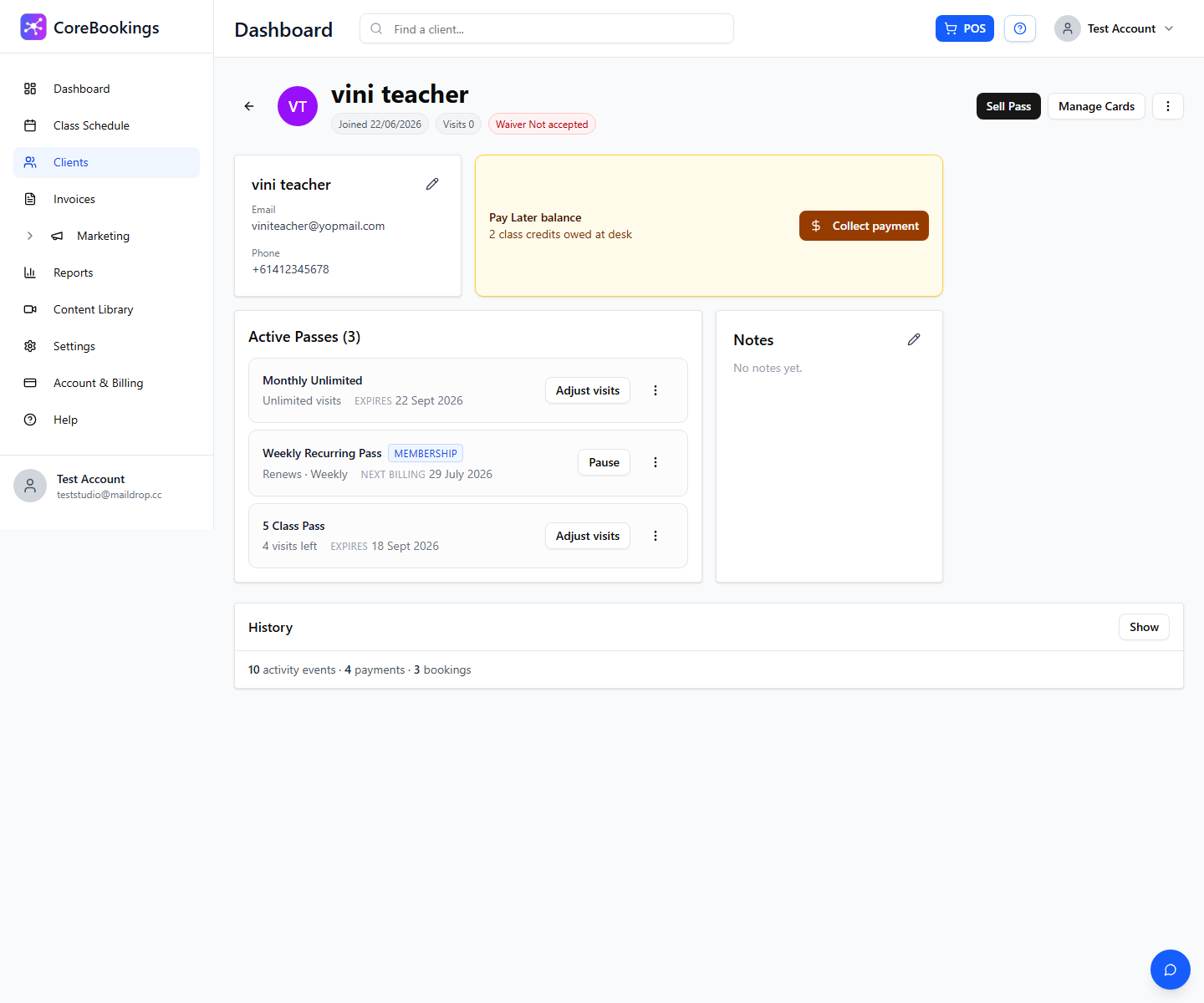
The client is booked into the class. Their profile shows a Pay Later balance (class credits owed at the desk). Each studio has a maximum number of unpaid class credits a client can hold at once.
Collect payment later #
Where: Clients → open the client → Collect payment
- Open Clients. Use the Pay Later / outstanding filter if you need to find who owes.
- Open the client profile.
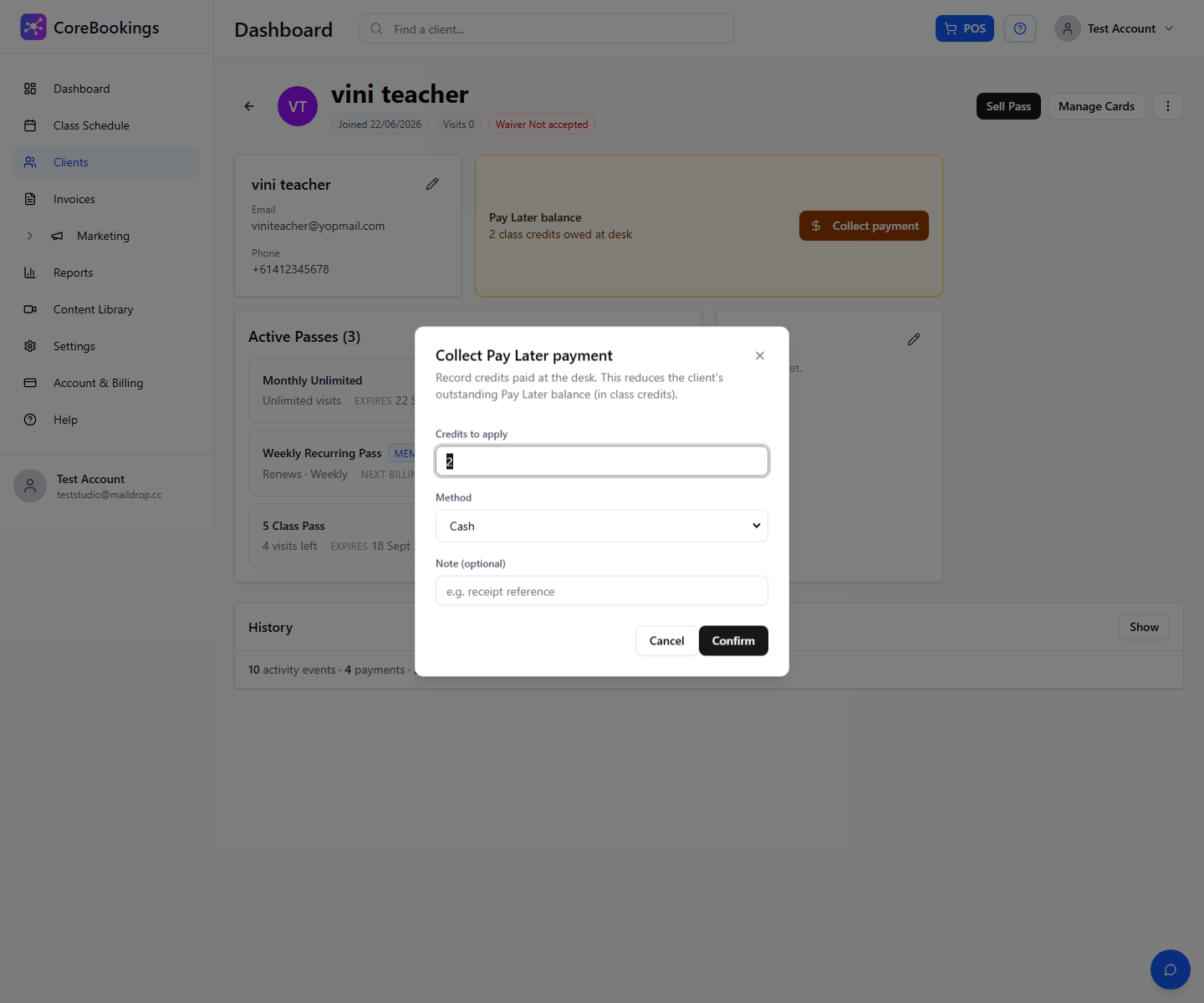
- On the Pay Later balance banner, click Collect payment.
- Enter how many class credits were paid, choose Cash, EFTPOS, or Other, and confirm.
Selling a pass for future visits is separate—use Sell Pass or POS if they also want credits going forward. Full steps: How Do I Settle a Pay Later Visit?.


