
Individual class bookings can be cancelled by you from the dashboard, or by clients on your public booking site and mobile app. Cancelling a booking returns the visit credit to the client's pass. To remove an entire class from the timetable, see How to cancel an upcoming class.
Before you start #
Dashboard: Class Schedule (/schedules) > open a class > Class Schedule Detail
Client booking site: Your public booking page (linked from Settings > Add to Website) or the CoreBookings client mobile app.
Cancel a booking from Class Schedule Detail #
Use this when a client cannot attend and you want to free their spot and return their pass credit.
- On Class Schedule, click the class row to open Class Schedule Detail.
- Open the Bookings tab.
- Find the client in the list.
- Click the Cancel booking icon (X) in the Actions column.
- Confirm when prompted.
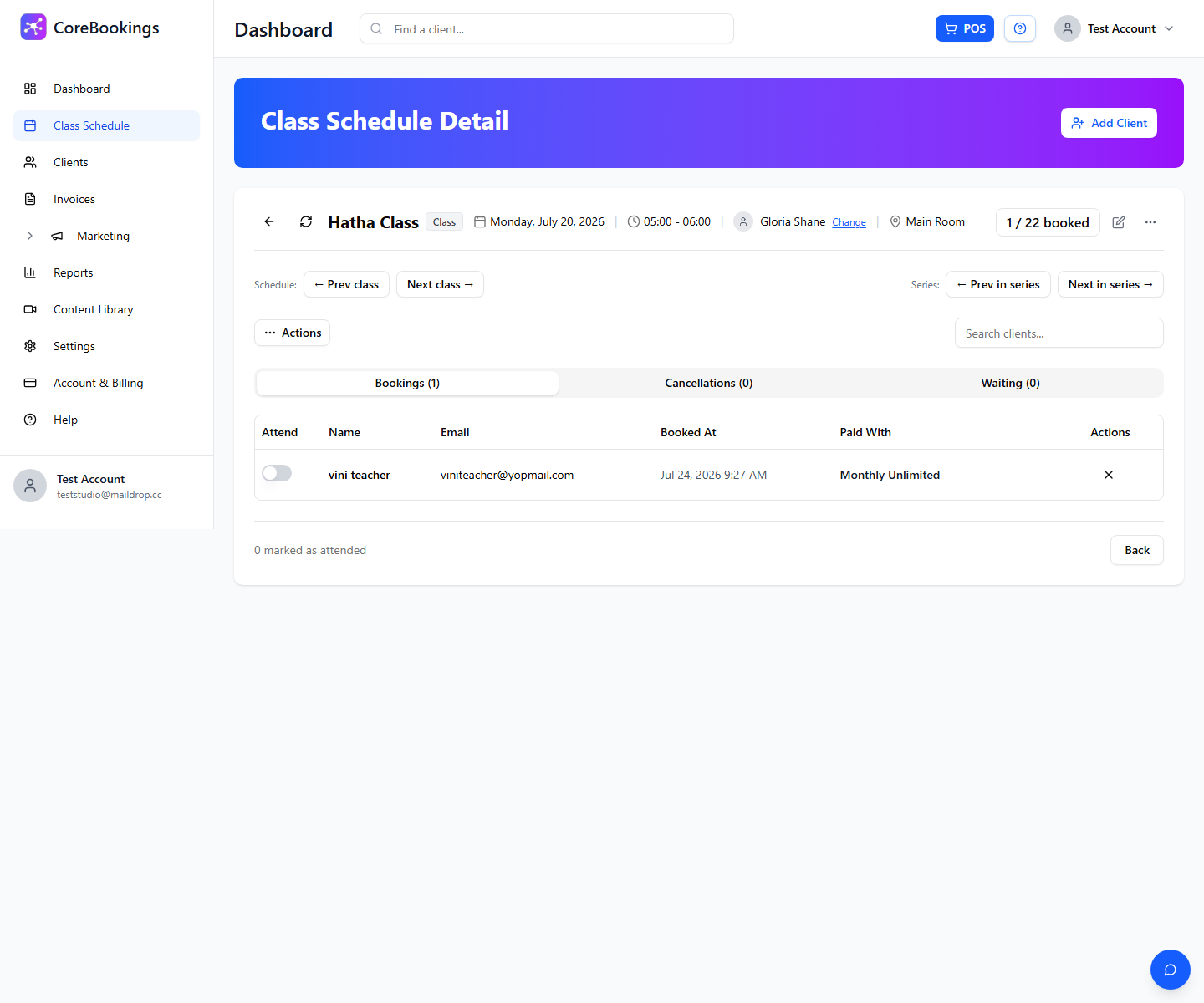
CoreBookings cancels the booking and returns the visit to the client's pass.
Let clients cancel their own booking #
Clients can cancel their own bookings when they are logged in to your booking site or the CoreBookings mobile app.
Option 1: From the class timetable
- Log in to your studio's booking site or open the mobile app.
- Go to the class timetable and find the booked class.
- Tap Cancel booking (instead of Book).
- Confirm when prompted.
Option 2: From My Bookings
- Log in and open My Bookings.
- Find the upcoming booking.
- Tap Cancel booking and confirm.
Clients cannot cancel after your Cancellation Cutoff has passed (see below). The cancel button is hidden when the cutoff applies.
Set the cancellation cutoff #
Control how close to class start time clients (and your team) can still cancel bookings.
- Go to Settings > Business.
- Under Scheduling & Policies, find Cancellation Cutoff (minutes).
- Enter the number of minutes before class start when cancellations close (for example,
120for two hours). - Click Save settings.
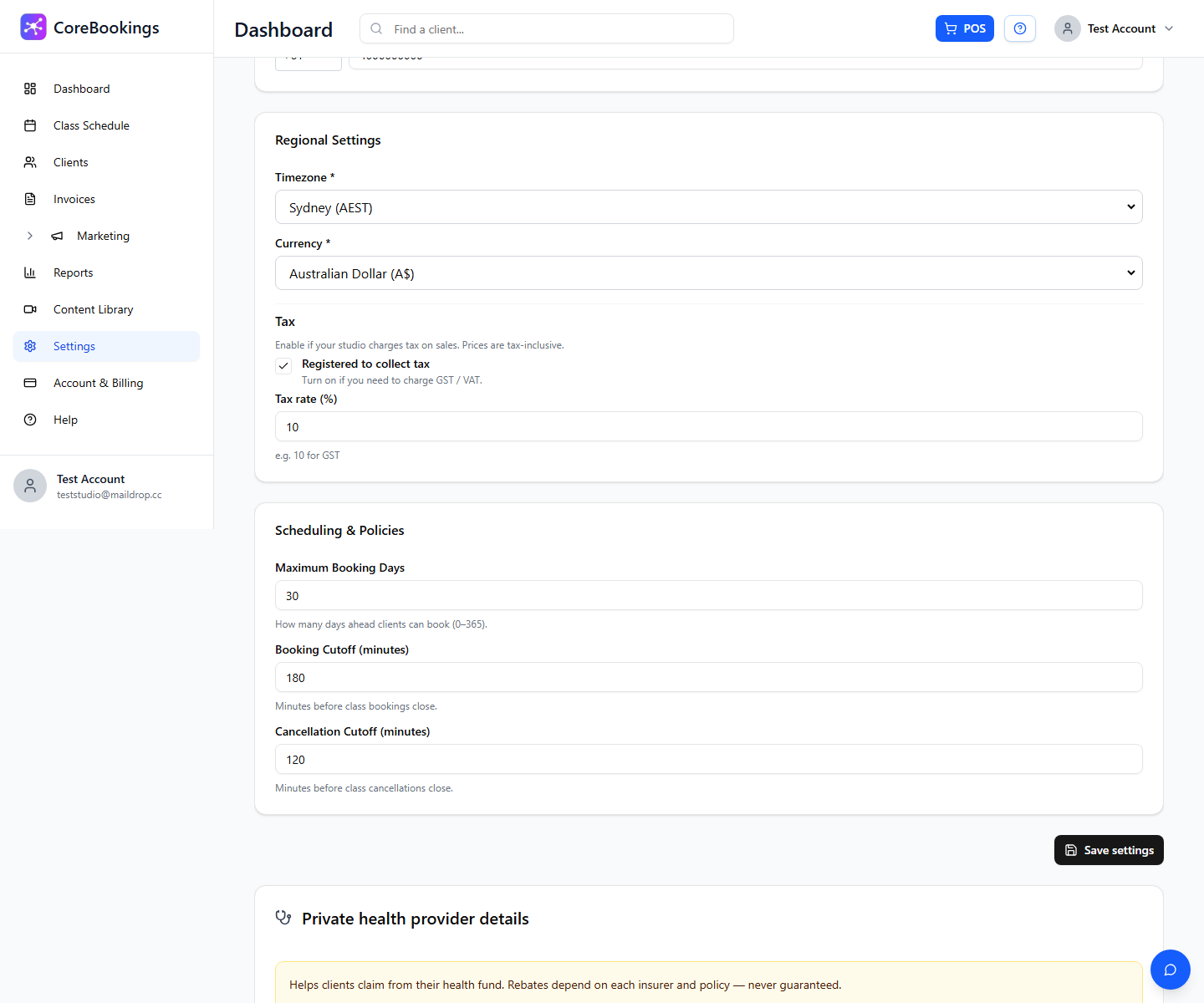
Most studios use 60 to 120 minutes. Use 0 to allow cancellations up until class start.
Reinstate a cancelled booking #
If you cancelled a booking by mistake, you can put the client back on the class.
- Open Class Schedule Detail for the class.
- Go to the Cancellations tab.
- Click Uncancel next to the client.
- Confirm when prompted. One visit is deducted from their pass again.
Related help #
- How to cancel an upcoming class
- Do I need to check clients in for class attendance?
- How to send an email or SMS to clients
Need help? Email support@kriya.com.au.


