
You can remove upcoming classes from your timetable when you need a break, a public holiday closure, or a one-off cancellation. In CoreBookings, do this from Class Schedule using Cancel This Class, Delete This Class, or Edit This & Future Classes for recurring series.
Before you start #
Where: Class Schedule (/schedules)
Open the Manage menu (or the actions icon) on the class row you want to change. You can also open a class and use More class actions on the class detail page.
Cancel vs delete a class #
- Cancel This Class marks the class as cancelled. It only works when the class has no bookings. Clients cannot book into a cancelled class. You can Reactivate This Class later if needed.
- Delete This Class permanently removes the class from your schedule. If clients are booked in, tick Cancel existing bookings and return credits to clients so passes are refunded automatically.
- Edit This & Future Classes (recurring series only) lets you delete this class and future classes in the series, for example when you are away for a week.
To cancel one client booking without removing the whole class, see How to cancel a booking.
Cancel one class with no bookings #
Use this when the class is still on the timetable but no one has booked yet.
- On Class Schedule, open the Manage menu for the class.
- Click Cancel This Class.
- In the Cancel Class dialog, review the class name, date, and time.
- If the class has no bookings, click Cancel Class.
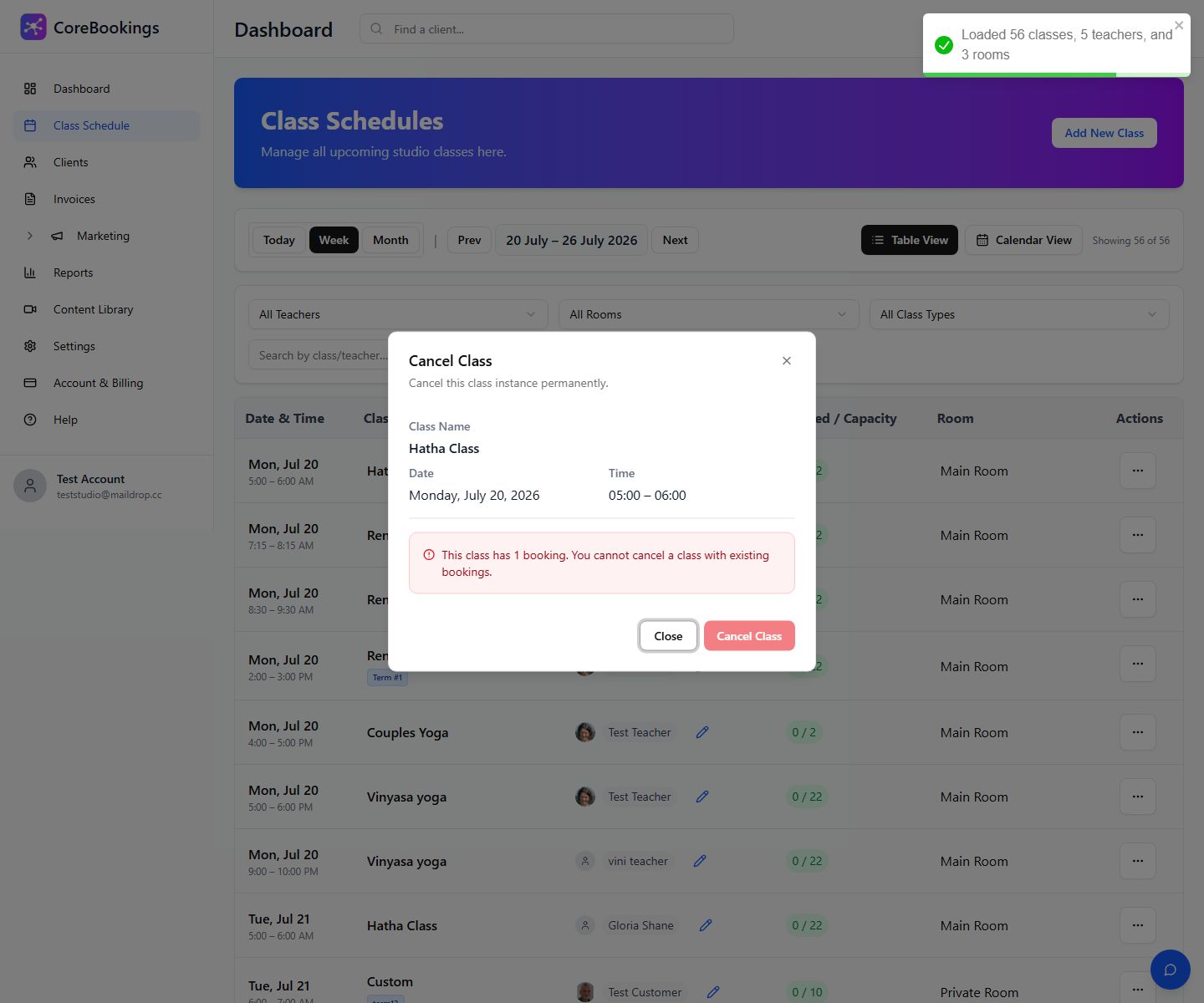
If the dialog shows bookings on the class, use Delete This Class with refunds instead, or cancel individual bookings first.
Delete a class and refund bookings #
Use this when clients are already booked and you want the class removed from the schedule.
- On Class Schedule, open the Manage menu for the class.
- Click Delete This Class.
- Tick Cancel existing bookings and return credits to clients if clients are booked in.
- Click Delete & Cancel Bookings (or Delete Class if there are no bookings).
- Confirm when prompted.
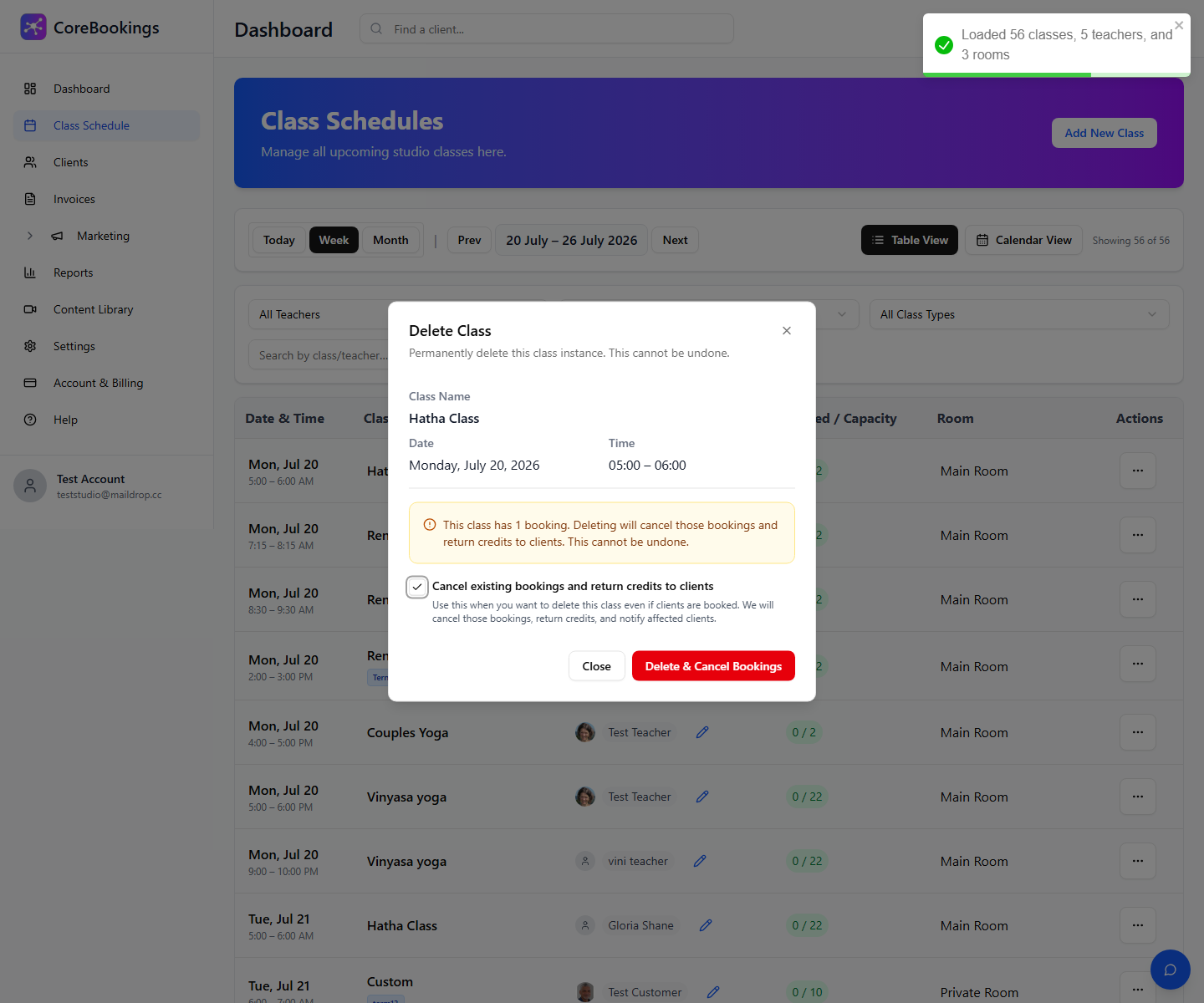
CoreBookings cancels the bookings, returns credits to passes, and notifies affected clients.
Cancel multiple future classes for a break #
For a recurring class series, remove several upcoming dates at once (for example a week off).
- On Class Schedule, open the Manage menu on any class in the recurring series.
- Under Recurring Series, click Edit This & Future Classes.
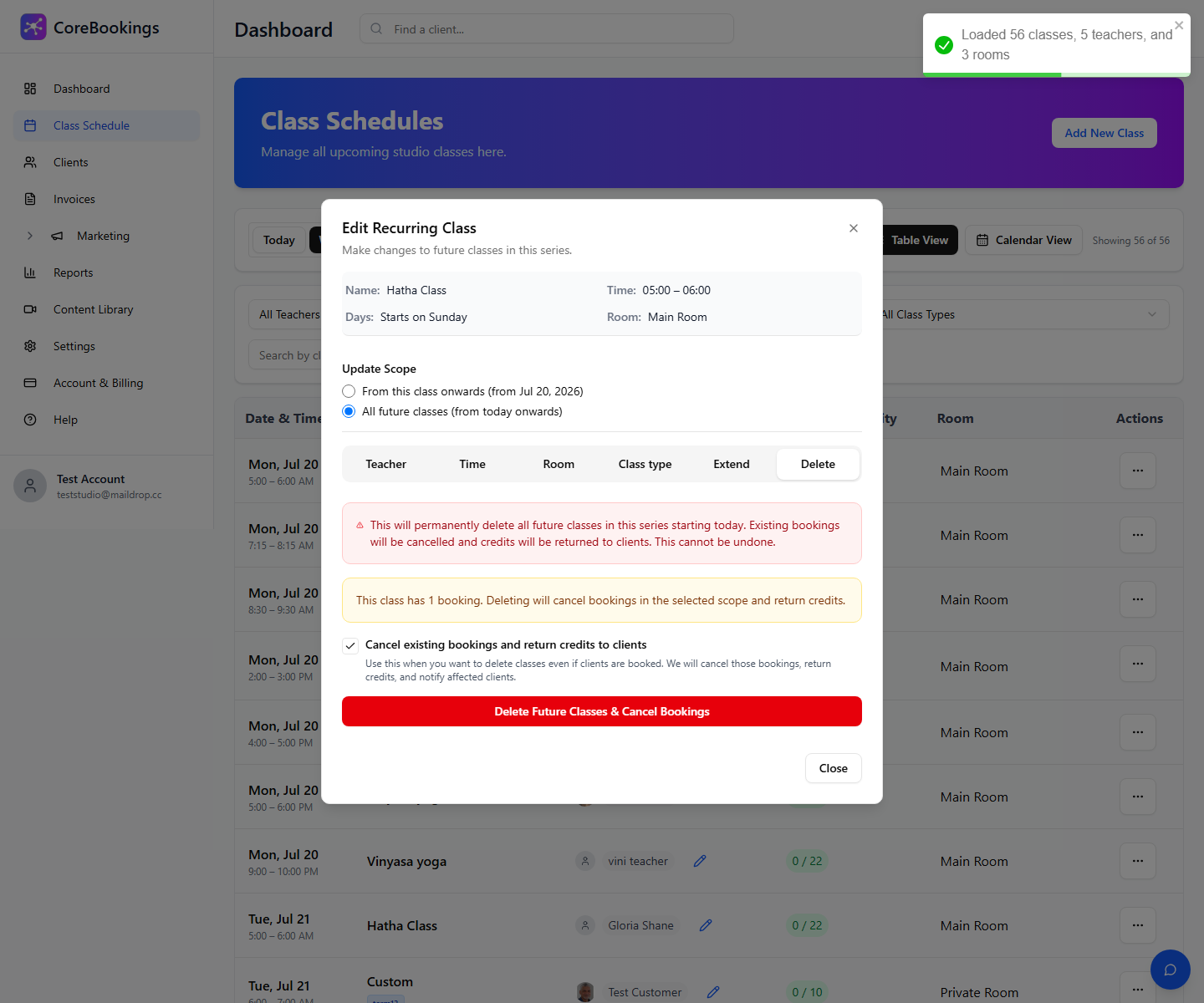
- Open the Delete tab.
- Choose the scope:
- From this class onwards to delete this date and all later classes in the series.
- All future classes (from today onwards) to delete every upcoming class in the series from today.
- Tick Cancel existing bookings and return credits to clients if any classes in that range have bookings.
- Click Delete From This Class Onwards or Delete Future Classes, then confirm.
Tell clients about the change #
When you delete a class with the refund option, CoreBookings notifies booked clients. For extra context (for example a studio closure message), use Email attendees on any class that still has bookings before you delete it, or send a studio-wide email from Marketing.
Related help #
- How to cancel a booking
- How to send an email or SMS to clients
- Do I need to check clients in for class attendance?
Need help? Email support@kriya.com.au.


