
Recurring payments in CoreBookings are membership passes that bill automatically through Stripe on a weekly, fortnightly, or monthly cycle. You create the membership under Settings → Passes, then sell it to clients from their profile or POS.
Short answer #
- Open Settings → Passes.
- Click + Create Pass.
- Turn on Recurring membership (auto-billing).
- Choose Weekly, Fortnightly, or Monthly.
- Set name, price, and visits (use 999 for unlimited).
- Click Create Pass, then sell it to the client.
Before you start #
- Plan: recurring client memberships need Growth or Scale. They are not available on Solo or Starter.
- Stripe: connect Stripe under Settings → Payments before selling memberships. Recurring memberships bill by card through Stripe.
- One-off vs recurring: a normal visit pack does not auto-bill. Turn on Recurring membership (auto-billing) for ongoing charges.
Create a recurring membership #
Where: Settings → Passes → Passes & Memberships
- Click + Create Pass.
- Enter a clear Pass Name (for example Weekly Unlimited Membership).
- Set Price to the amount charged each billing cycle.
- Set Number of Visits to the visits included each cycle, or 999 for unlimited (the form help text explains this).
- Leave Expiry Days empty for memberships so the membership stays active while payments succeed.
- Set Visibility to Public if clients should buy it in the app or online, or restrict visibility if it is desk-only.
- Turn on Recurring membership (auto-billing).
- Choose Billing interval: Weekly, Fortnightly, or Monthly.
- Optionally limit Allowed class types if the membership should only apply to certain formats.
- Click Create Pass.
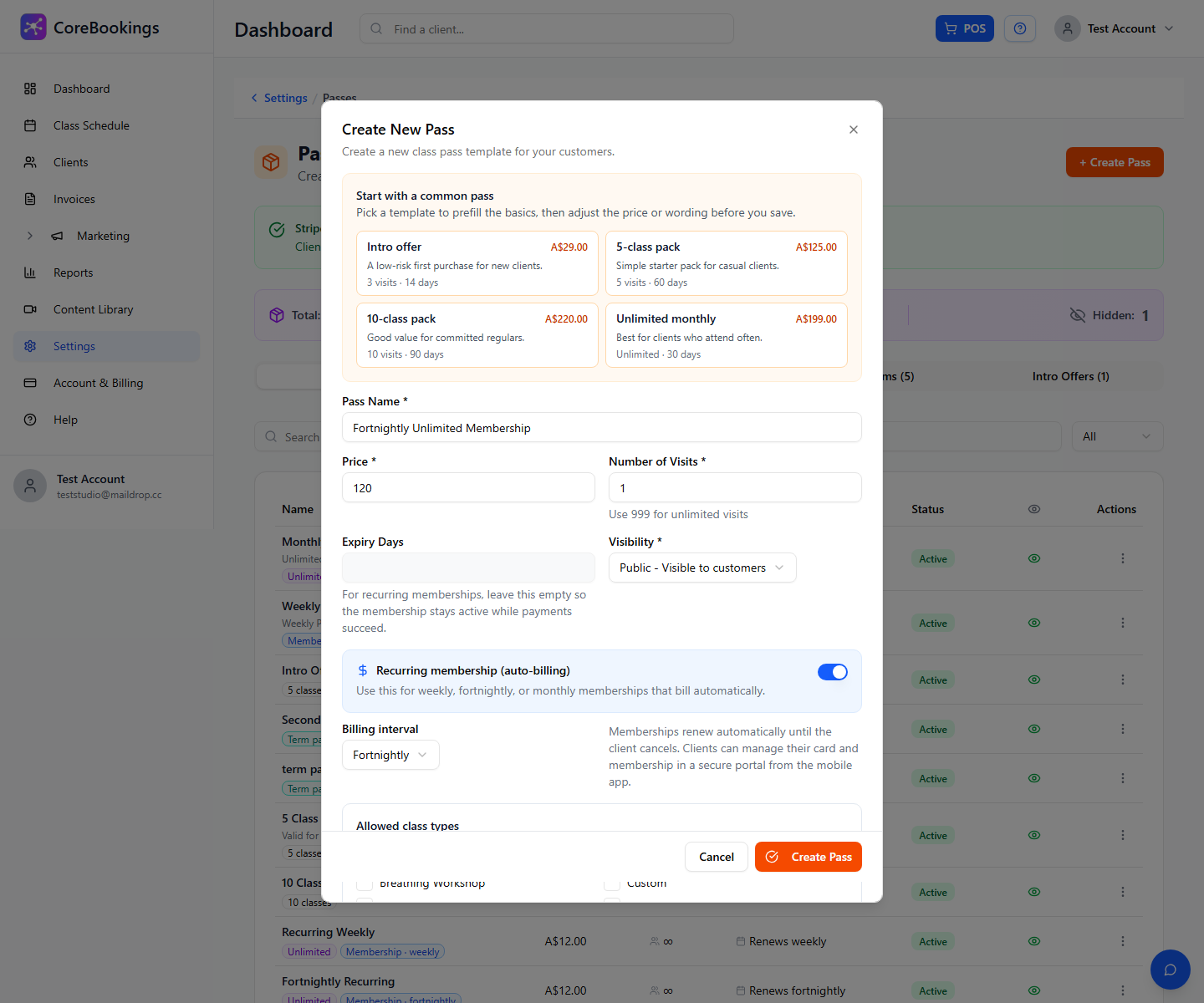
You can also start from the Unlimited monthly template, then change the billing interval if needed.
How billing works #
When a client buys the membership (online, in the app, or at the desk through POS), CoreBookings creates a Stripe subscription. Stripe charges the saved card on each billing cycle until the membership is cancelled or paused.
- Example: a Weekly membership at $50 bills $50 every week.
- Example: a Fortnightly membership at $120 bills $120 every fortnight.
- Clients get purchase confirmation emails for the sale. Failed renewals follow your Stripe retry settings.
No separate paper debit request form is required by Stripe. Clients agree online when they buy and save a card. You can still use your own studio waiver or agreement separately.
Sell the membership to a client #
Where: Clients → open the client → Sell Pass
- Open the client profile.
- Click Sell Pass (or use header POS).
- Select the membership under Passes & Memberships.
- Choose a card payment method (usually Stripe) and complete the sale.
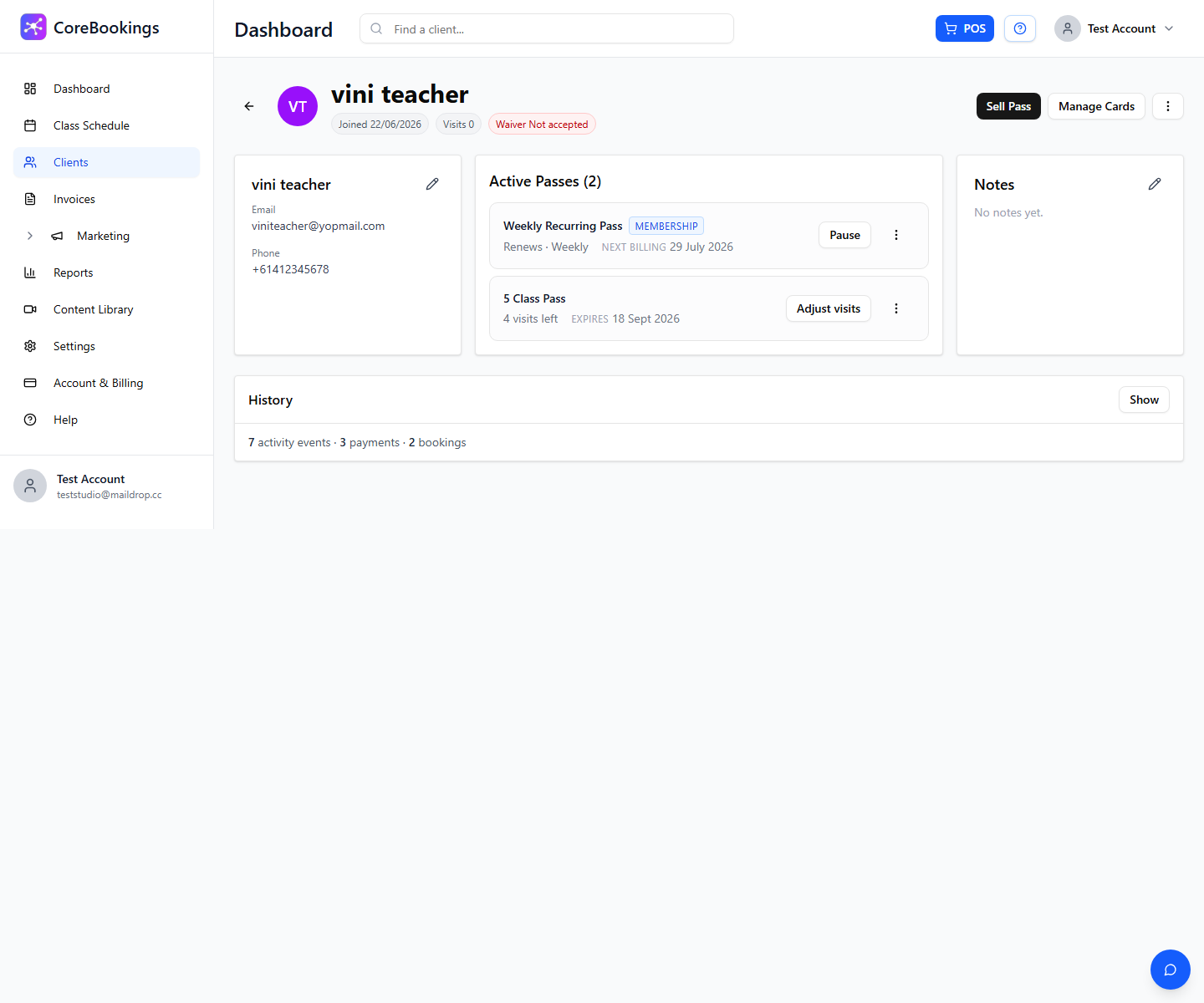
The membership appears under Active Passes on the client profile. Clients can also purchase public memberships in the CoreBookings mobile app when Stripe is connected.
Cancel or pause later #
On the client profile, open the membership under Active Passes. Use Pause or the pass actions menu to cancel or manage the membership. For failed renewals and card updates, see the related articles below.
FAQs #
How does the recurring price work?
The Price is what Stripe charges on each billing interval (weekly, fortnightly, or monthly) until the membership is cancelled.
Does the client fill out a debit request form?
No Stripe debit form is required. Purchase and card setup happen online. You may still use your own studio forms if you want.
Does Stripe know how to charge each cycle?
Yes. After the first successful purchase, Stripe runs the subscription on the interval you set until the studio or client cancels (or you pause it).


