
Table of Contents
Yes. To record who actually came to class, mark attendance on the Class Schedule Detail page. A confirmed booking shows who is expected, but it does not prove they attended.
Short answer #
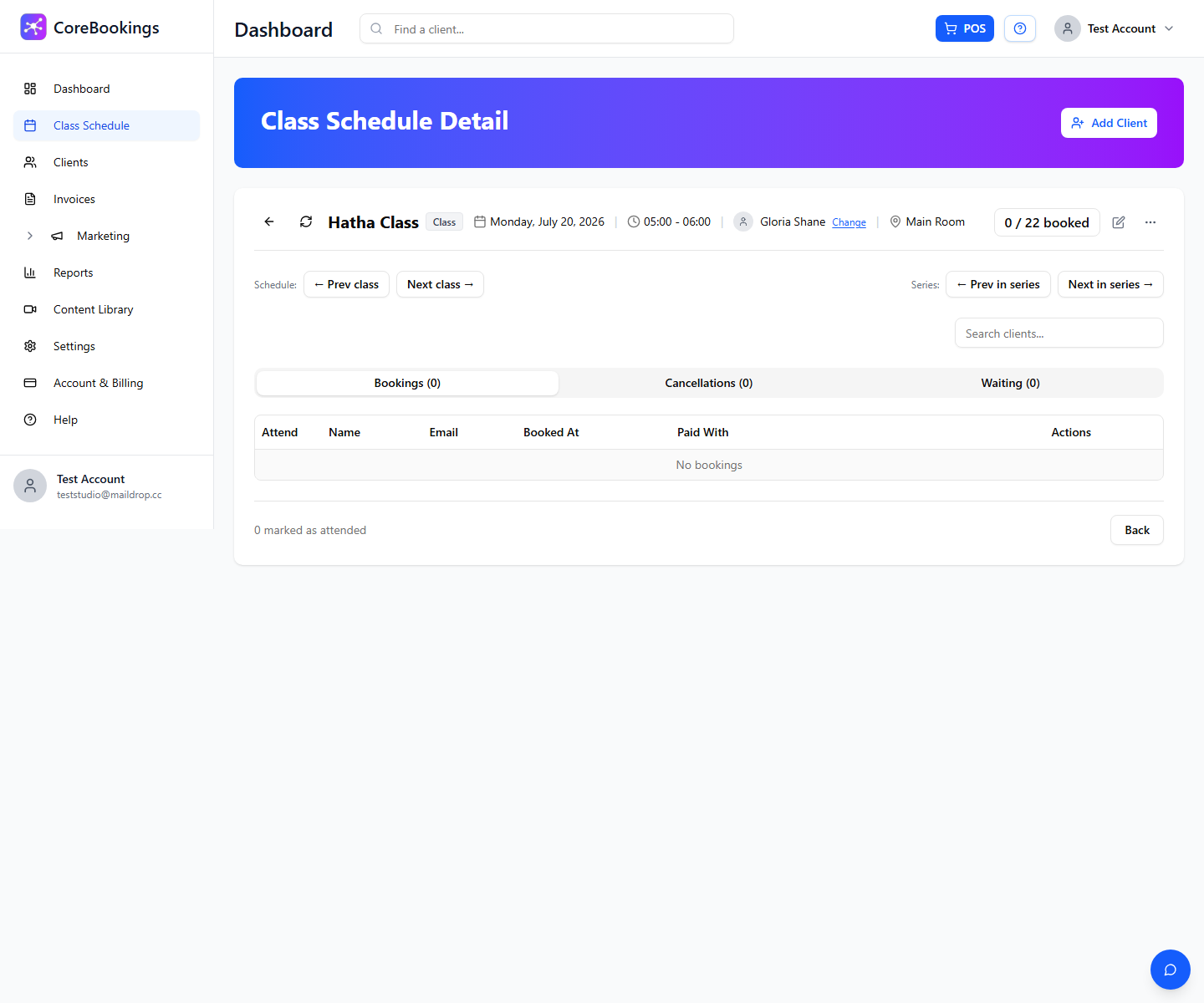
CoreBookings separates bookings from attendance. When a client books online or staff add them with Add Client, they appear on the Bookings tab. Toggle Attend when they arrive so attendance reports and visit history stay accurate.
Make this part of your start-of-class routine. It helps you spot no-shows and keeps teacher and business reports reliable.
Bookings vs attendance #
- Booking: The client has a spot in the class. They appear on the Bookings tab after booking online or being added by staff.
- Attendance: The client was present. Turn on the Attend toggle next to their name when they check in at the studio.
- Pass visits: Visits are usually deducted when the client books, not when you mark attendance. A no-show may still use a visit depending on your cancellation policy in Settings → Business.
Open the class detail page #
Where: Class Schedule
- Click Class Schedule in the left sidebar.
- Find the class and click its row to open Class Schedule Detail.
- Open the Bookings tab to see everyone booked into that session.
Mark clients as attended #
- On the Bookings tab, find the client in the list.
- Toggle Attend on when they arrive. CoreBookings saves attendance immediately and shows Attendance updated.
- Toggle it off if you marked someone by mistake.
From the Actions menu you can also Export CSV, Print attendance, or Email attendees for that class.
Cancellations and waiting list #
- Cancellations tab: clients who cancelled their booking before class.
- Waiting tab: clients on the waitlist when waitlist is enabled for your plan.
- Only clients on the Bookings tab can be marked as attended.
Things to know #
- Walk-in clients still need a booking. Use Add Client on the class page, then mark Attend when they arrive.
- Attendance feeds into reports such as teacher attendance summaries and business health metrics.
- If someone booked but did not attend, leave Attend off. That makes no-shows easier to spot in reports.
- You can also mark attendance from a client profile under their booking history where available.


