
The class attendance page in CoreBookings is Class Schedule Detail. Open it from Class Schedule to see who is booked, mark who attended, and manage the roster for that session.
Short answer #
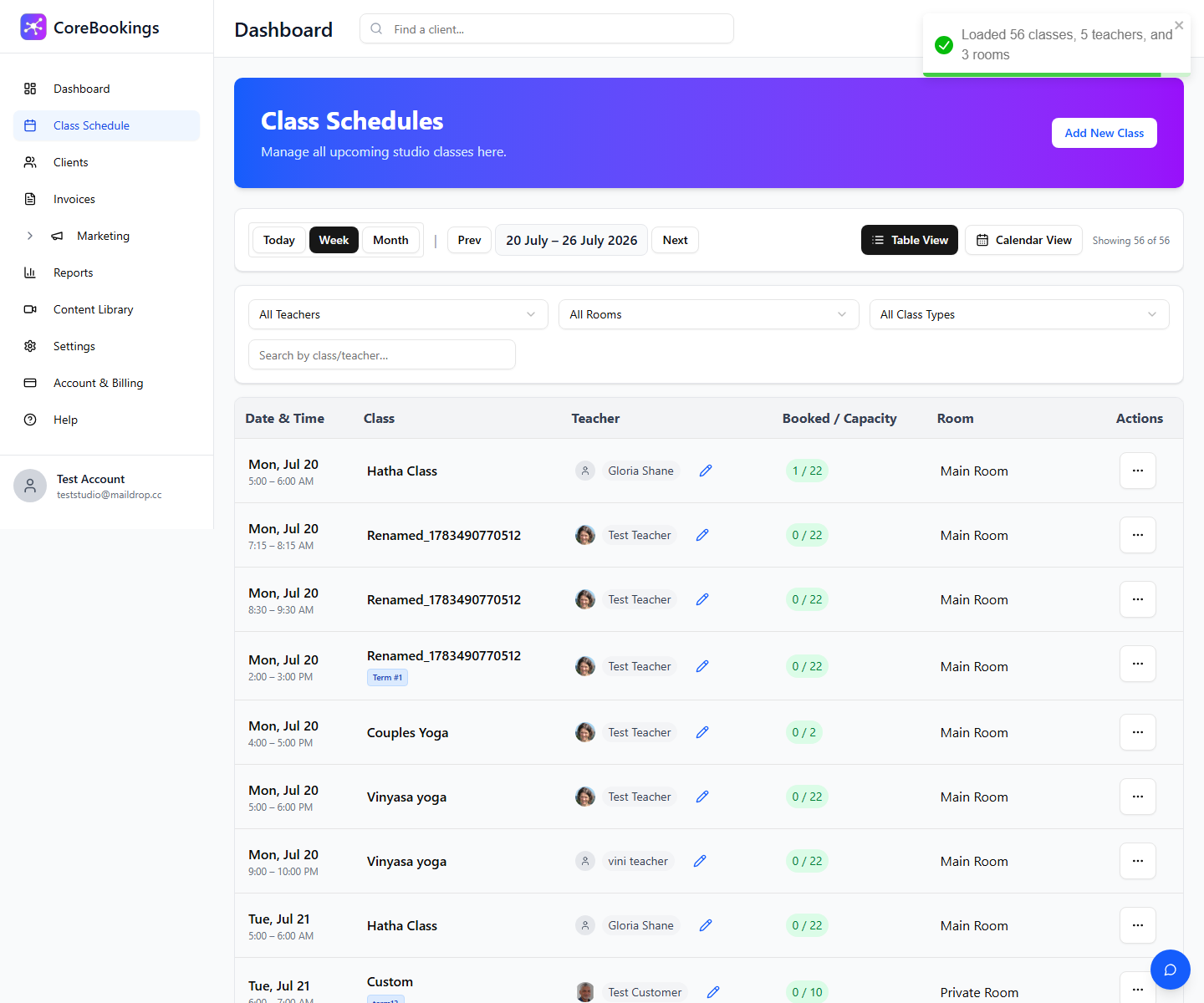
- Go to Class Schedule.
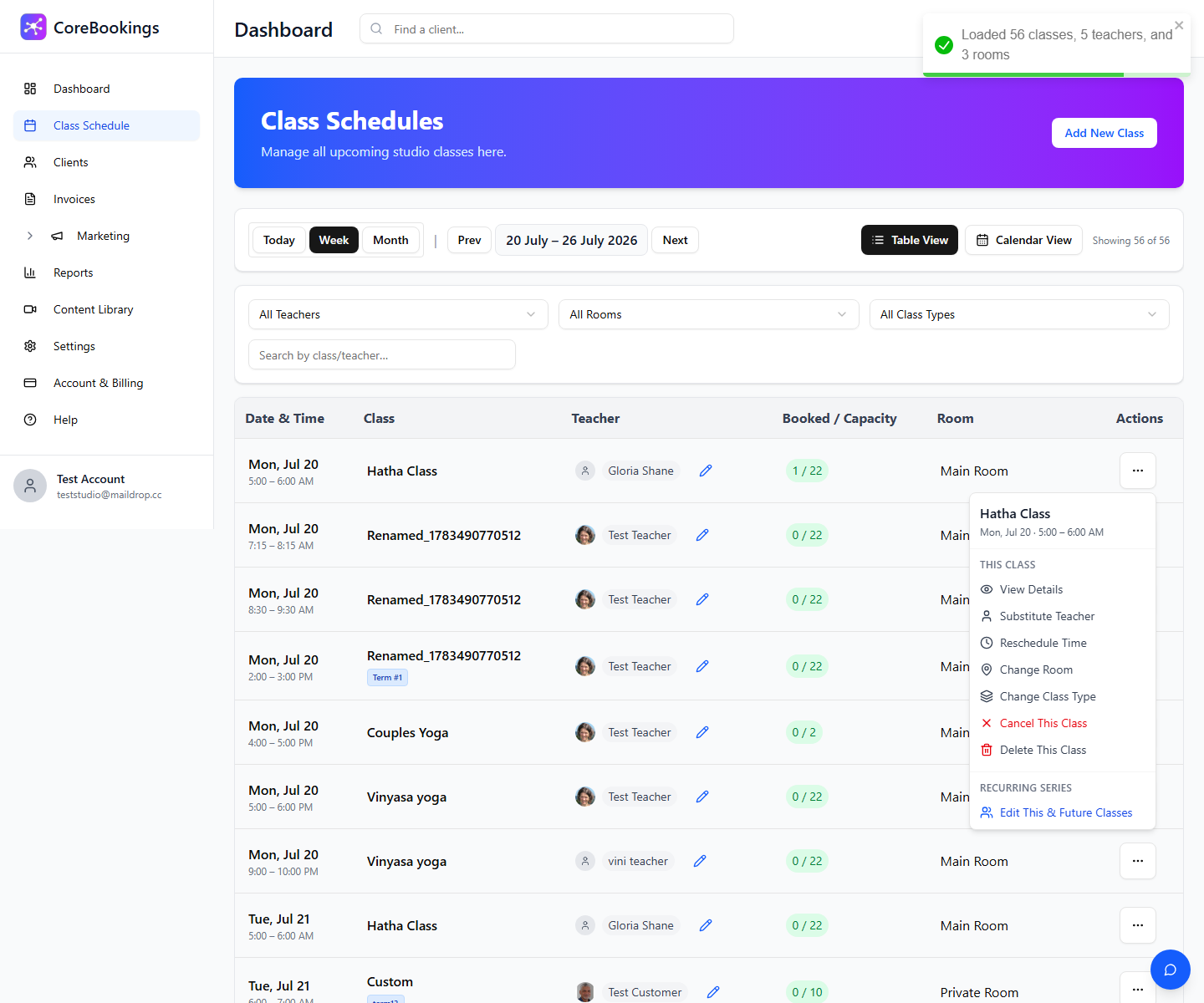
- Click a class row (or use View Details from the ⋯ menu).
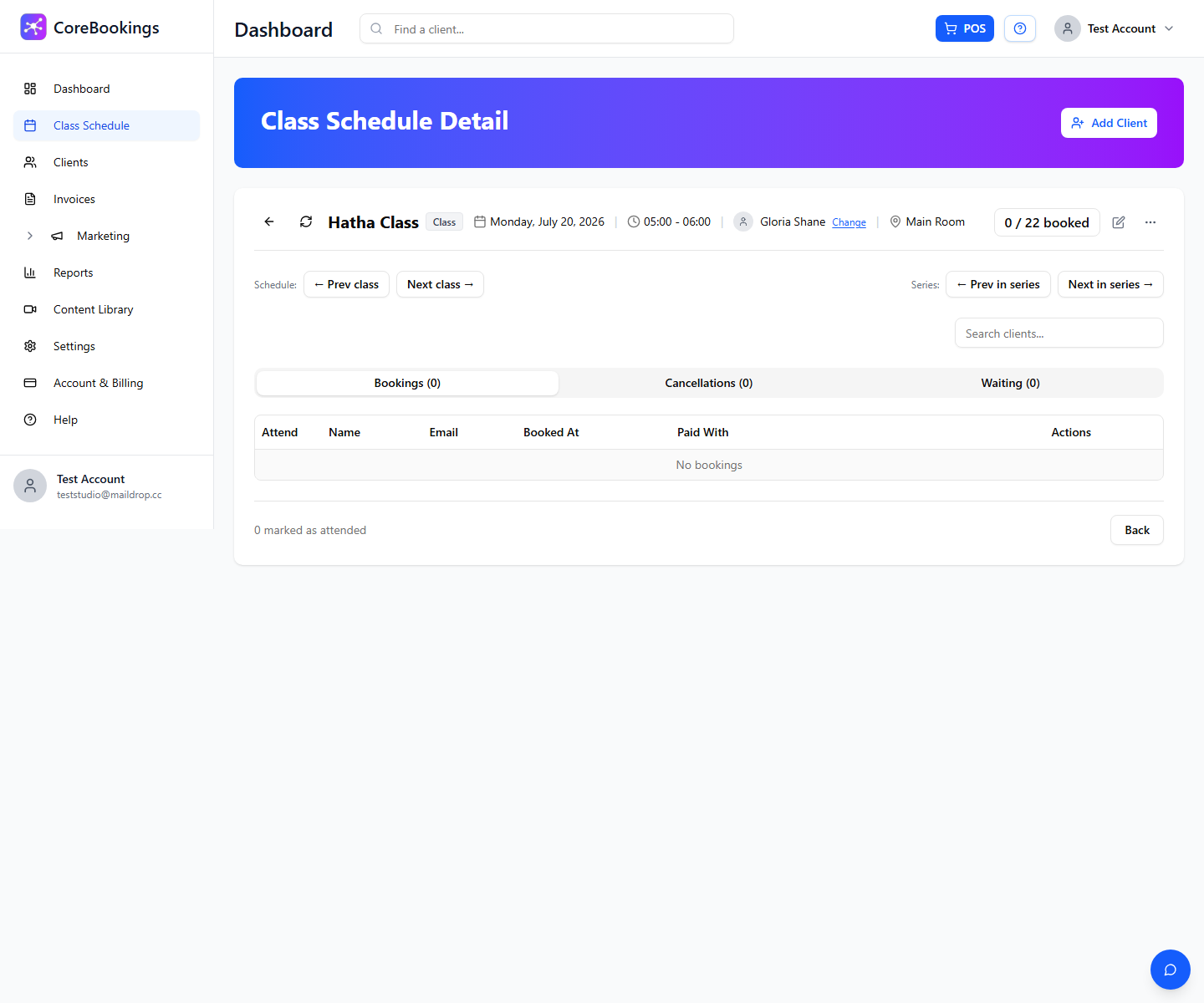
- On Class Schedule Detail, open the Bookings tab to see the attendance list.
Open Class Schedule Detail #
Where: Class Schedule
You can open a class in any of these ways:
- Click the class row in list view — the fastest option on desktop.
- Click the class in calendar view if you use the calendar layout.
- Open the ⋯ actions menu (or Manage on mobile) and choose View Details.
What you will see #
At the top of Class Schedule Detail you will see the class name, date, time, teacher, room, and how many spots are booked.
Below that, tabs show everyone linked to the session:
- Bookings — clients booked into this class. This is the main attendance list. Use the Attend toggle to mark who arrived.
- Cancellations — clients who cancelled before class.
- Waiting — clients on the waitlist (when waitlist is enabled on your plan).
To mark clients as attended, see register or check in clients to confirm attendance.
Useful actions #
From Class Schedule Detail you can also:
- Add Client — book a walk-in or add someone manually.
- Export CSV — download the roster.
- Print attendance — print a paper sign-in sheet.
- Email attendees — message everyone booked into the class.
These options are in the Actions menu on the class detail page.
On mobile #
On smaller screens, use the Manage button on the class card to open View Details. On the detail page, swipe horizontally on the bookings table if you need to see the Attend column.
Related help #
- Register or check in clients to confirm attendance
- How to check in customers on a class
- Edit a class or modify a recurring series
- How does the waiting list work on classes?
Need help? Email support@kriya.com.au.


