
Use the Clients page to find people who book at your studio. From a client profile you can update class pass visits, change expiry dates, and manage memberships from the Active Passes section.
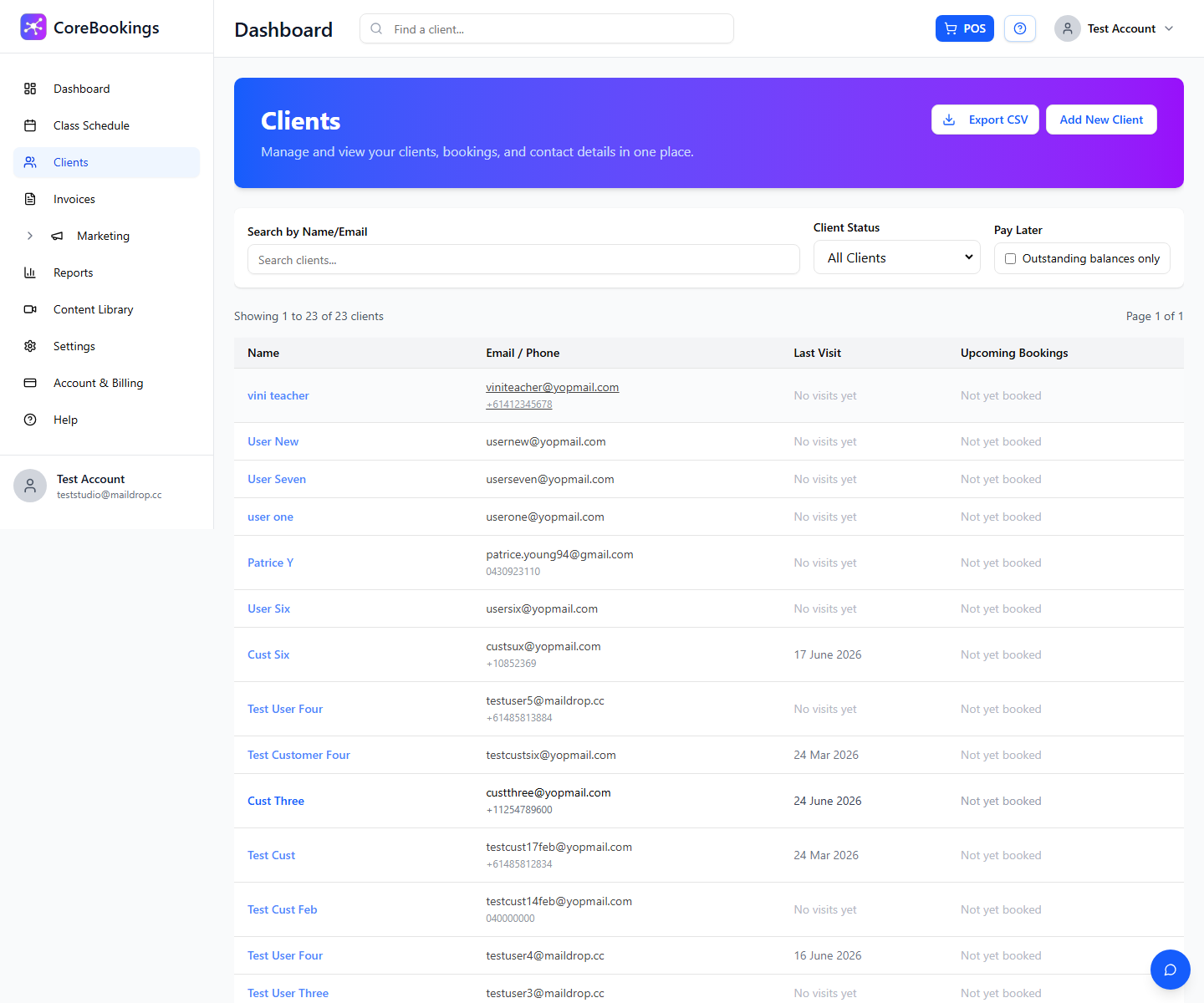
Open a client profile #
Where: Clients
- Click Clients in the left sidebar.
- Search by name or email, or use the Client Status filter to narrow the list.
- Click the client's name to open their profile.
From the client list you can also click Add New Client to create a profile, or Export CSV to download your client list.
Adjust visits remaining #
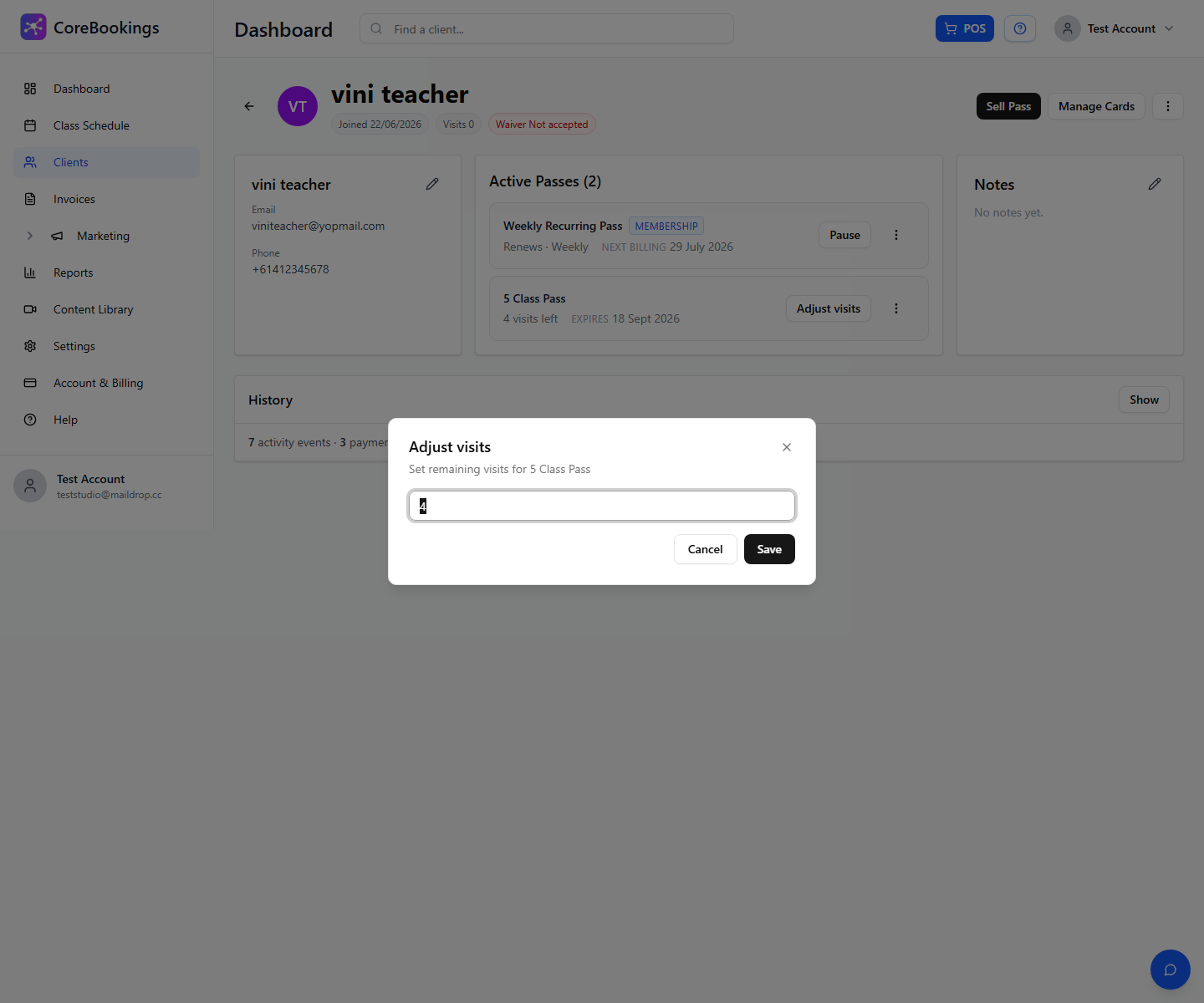
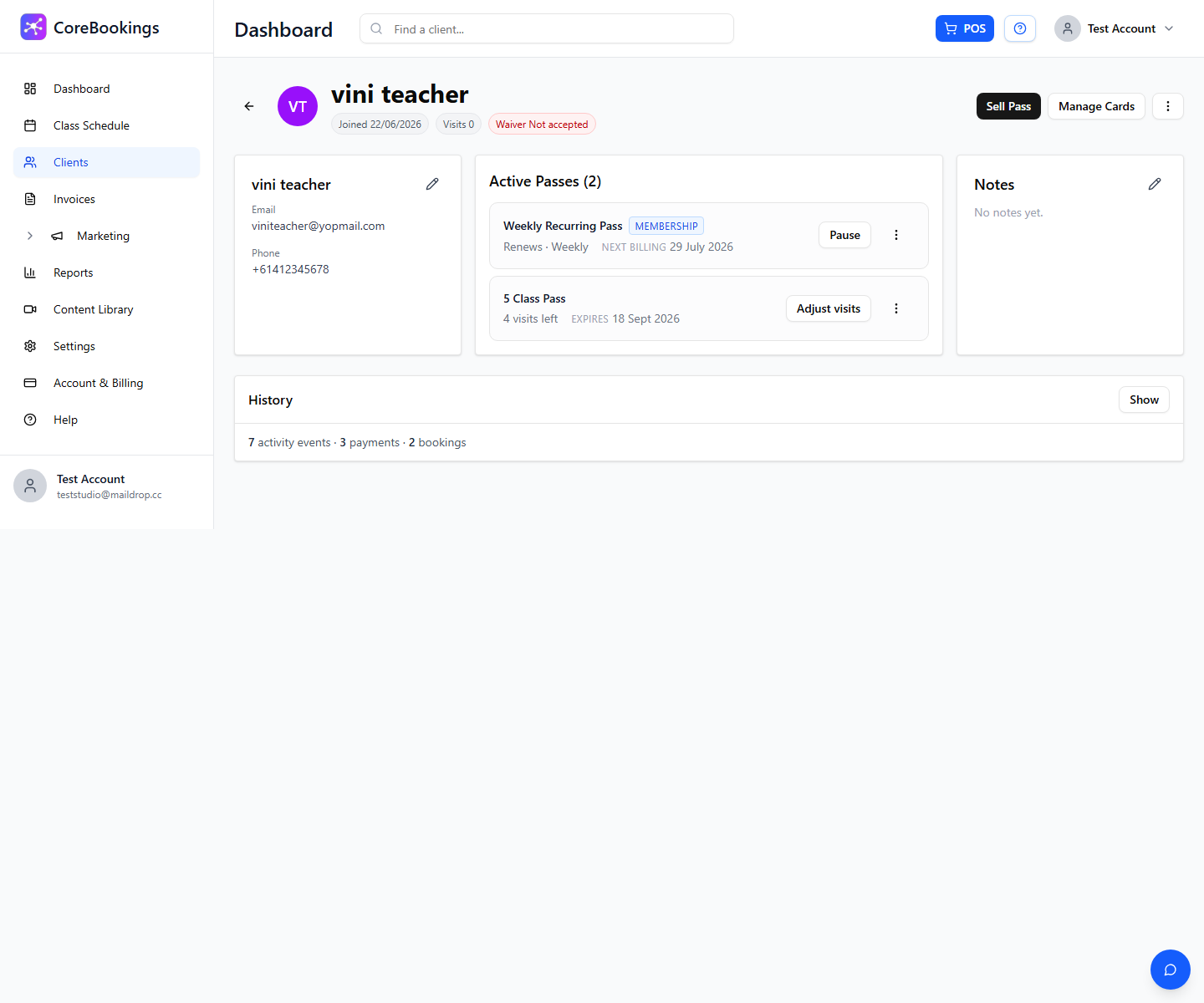
On the client profile, scroll to Active Passes. Each class pass shows visits left and expiry date.
- Find the pass you want to update.
- Click Adjust visits.
- Enter the new Visits remaining value in the dialog.
- Click Save.
The updated count appears on the pass card straight away. Use this when you need to add bonus visits, correct a mistake, or manually deduct visits.
Extend pass expiry #
For class passes (not memberships), you can push out the expiry date:
- In Active Passes, click the ⋯ menu on the pass row.
- Click Extend expiry.
- Choose the new date in the Change expiry date dialog.
- Click Save.
Memberships show Next billing instead of Expires. To pause, resume, or cancel a membership, use the actions on that pass card.
Cancel a pass #
To remove an active class pass:
- Click the ⋯ menu on the pass in Active Passes.
- Click Cancel pass.
- Confirm in the Cancel package dialog.
Cancelled passes move to Past passes at the bottom of the same section. For memberships, choose Cancel at period end or Cancel now from the membership actions instead.


