
Your CoreBookings studio dashboard login uses the email and password you created at signup. You can update both from the Manage Account page while signed in.
Before you start #
You must be signed in to update your email or password from the dashboard.
Login credentials are managed on Manage Account (/account). They are not on:
- Settings (studio configuration such as rooms, passes, and notifications)
- Account & Billing (subscription plan, invoices, and payment methods)
Changing your login email updates the address you use to sign in. Use a secure password you do not reuse on other sites.
Open Manage Account #
- Sign in at /login/.
- Click your name or avatar in the top-right corner of the dashboard.
- Select Manage Account.
The page heading is Manage Account with the subtitle Update your personal information and account settings.
Update your login email #
In the Personal Information section, update your details and click Save Changes:
- First Name (required)
- Last Name (required)
- Email Address (required) — this is your login email
- Phone Number (optional)
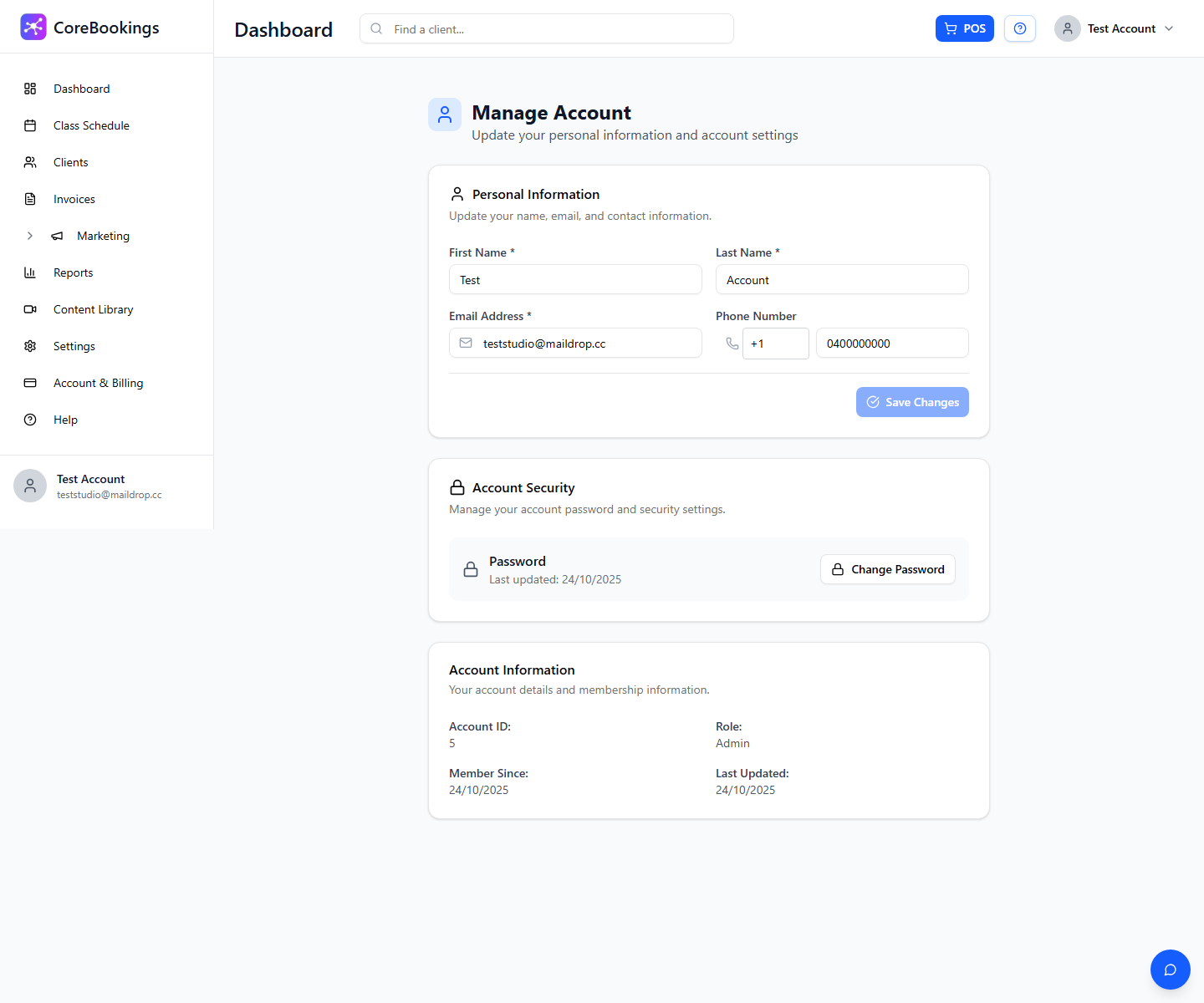
The Save Changes button stays disabled until you edit a field. After saving, CoreBookings shows: Profile updated successfully.
Use your new email address the next time you sign in. If the email is already registered to another account, CoreBookings shows an error and the change is not saved.
Change your password #
Scroll to the Account Security section and click Change Password.
In the Change Password dialog, complete:
- Current Password
- New Password (minimum 8 characters)
- Confirm New Password (must match)
Click Change Password. On success, CoreBookings shows: Password changed successfully.
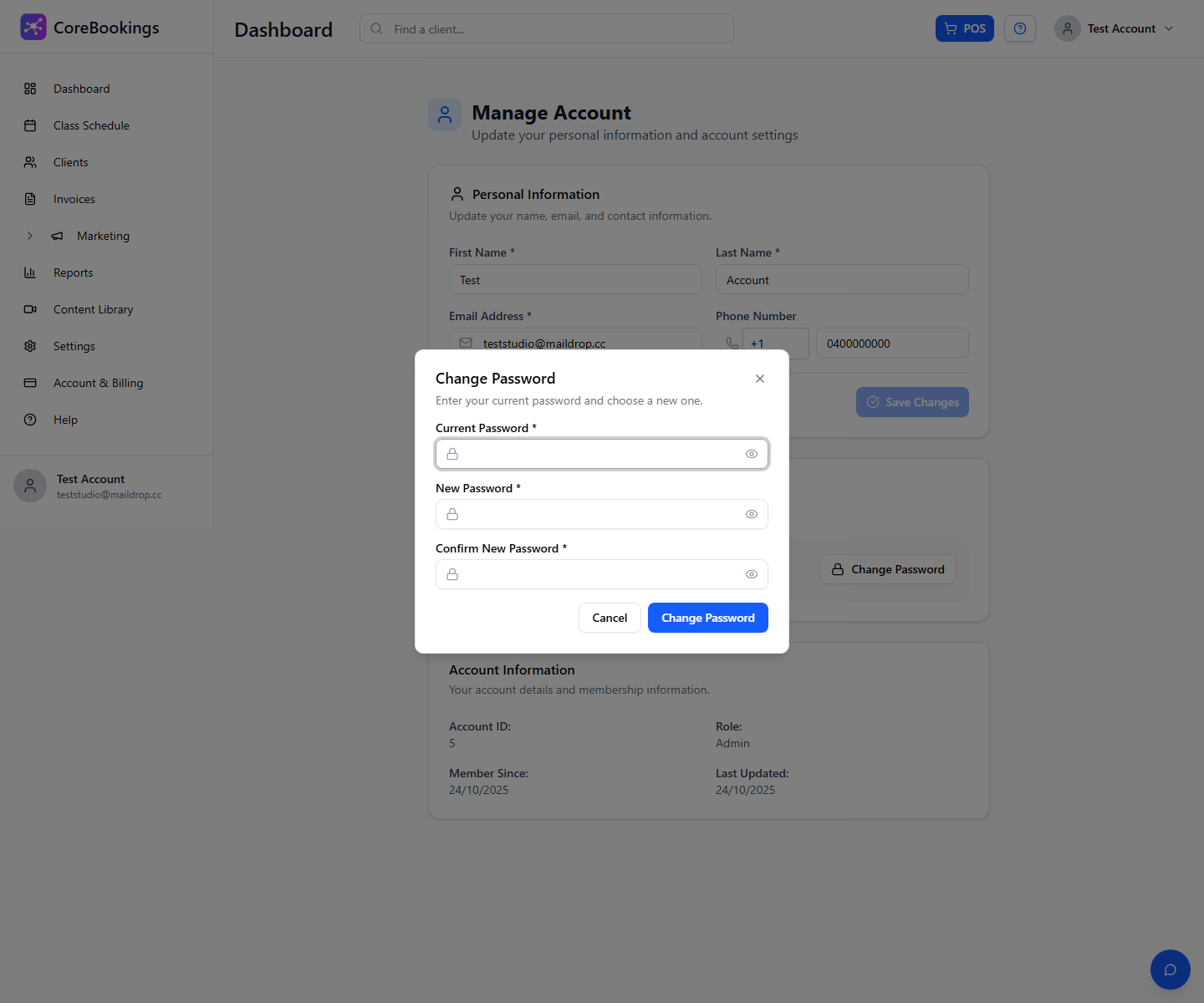
If your account is still using a default password, CoreBookings shows an Action required banner: For security, please set a new password before continuing. The password dialog opens automatically and the button reads Set Password instead of Change Password.
Use your new password the next time you sign in. If the current password is wrong, CoreBookings shows an error and the password is not changed.
Forgot your password? #
If you cannot sign in, reset your password from the login page:
- Go to /login/.
- Click Forgot password?
- On the Forgot Password page, enter your Email Address and click Send Reset Link.
- Open the reset link from your email.
- On the Reset Your Password page, enter your New Password and Confirm Password, then click Reset Password.
CoreBookings shows a generic confirmation message whether or not the email exists, to protect account privacy. Check your inbox and spam folder for the reset email.
If you see Please verify your email before logging in when signing in, verify your email first using the link from your signup email, or use Resend email on the login page.
Related help #
- How to open a CoreBookings account
- How do I cancel my subscription?
- My subscription payment has failed
Need help? Email support@kriya.com.au.


