
If a client books your special workshop with a regular class pass (for example a 5-class pack), they used the wrong product. CoreBookings controls this with class types and Allowed class types on each pass, not a per-class pass picker on the schedule form.
Before you start #
Class types: Settings > Class Types
Passes: Settings > Passes
Workshop on schedule: Class Schedule > Add New Class > event type Workshop
Allowed class types is available on Growth and Scale plans when enabled for your studio. If you do not see it in the pass editor, contact CoreBookings support.
How pass restrictions work #
- Each scheduled class or workshop has a Session Type (class type), such as Studio Class or Workshop.
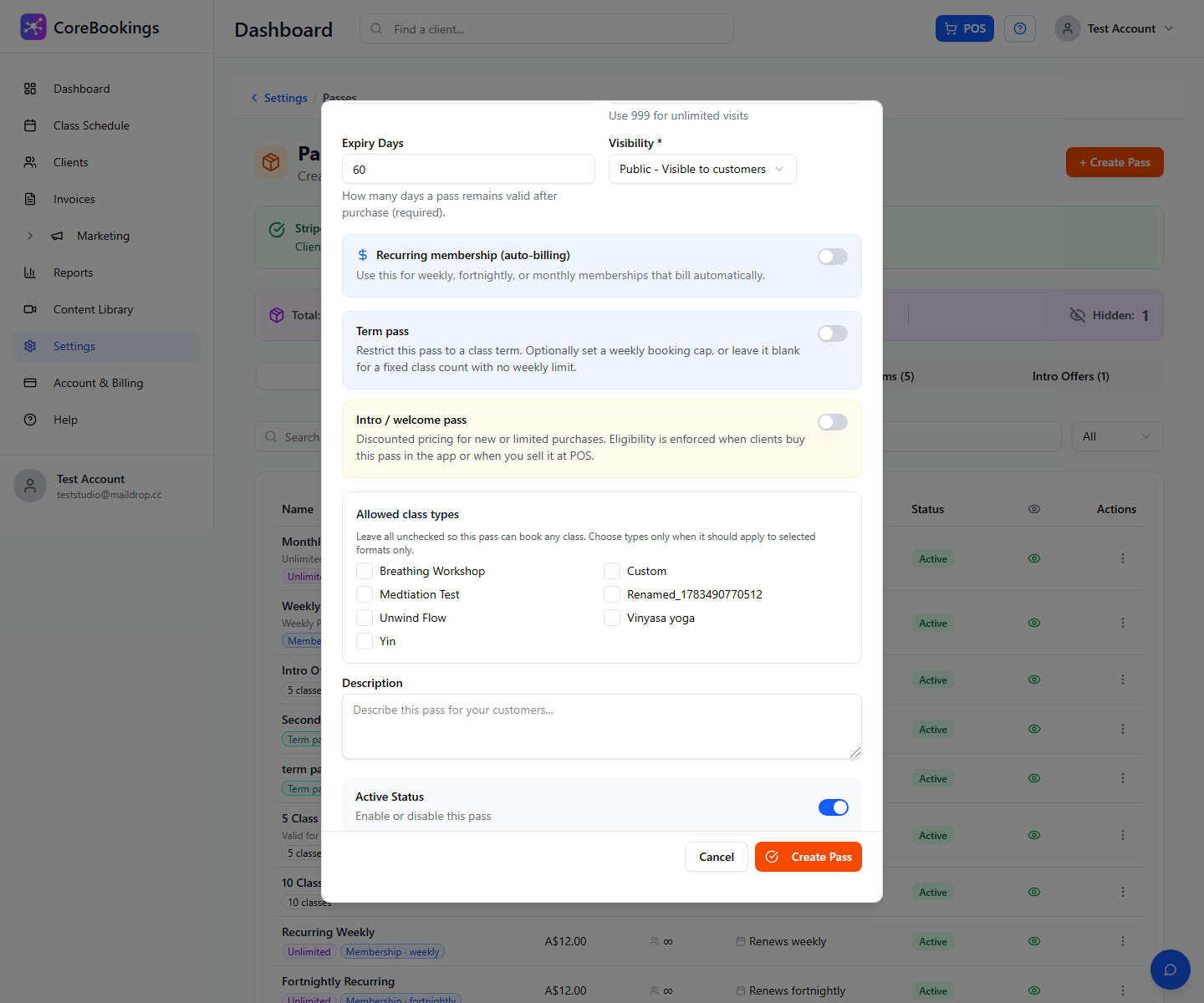
- Each pass or membership can list Allowed class types. Clients can only use that pass for matching session types.
- If every class type is left unchecked on a pass, it can book any class.
- If no restrictions are set anywhere, any active pass can book any class, including workshops.
See Restrict passes to specific class types for the full setup guide.
Set up a workshop-only pass #
- Go to Settings > Class Types and create a type for workshops (for example Workshop).
- Go to Settings > Passes and create your workshop pass (or edit an existing one).
- In Allowed class types, tick only Workshop.
- Click Create Pass or Update Pass.
- Edit your regular class passes (for example the 5-class pack) and make sure Workshop is not ticked in Allowed class types.
Tag the workshop with the right session type #
When you add or edit the workshop on Class Schedule:
- Click Add New Class (or edit the existing workshop).
- Under event type, choose Workshop and set Workshop Price ($) if clients pay online.
- Set Session Type to Workshop (or your workshop class type).
- Save the class.
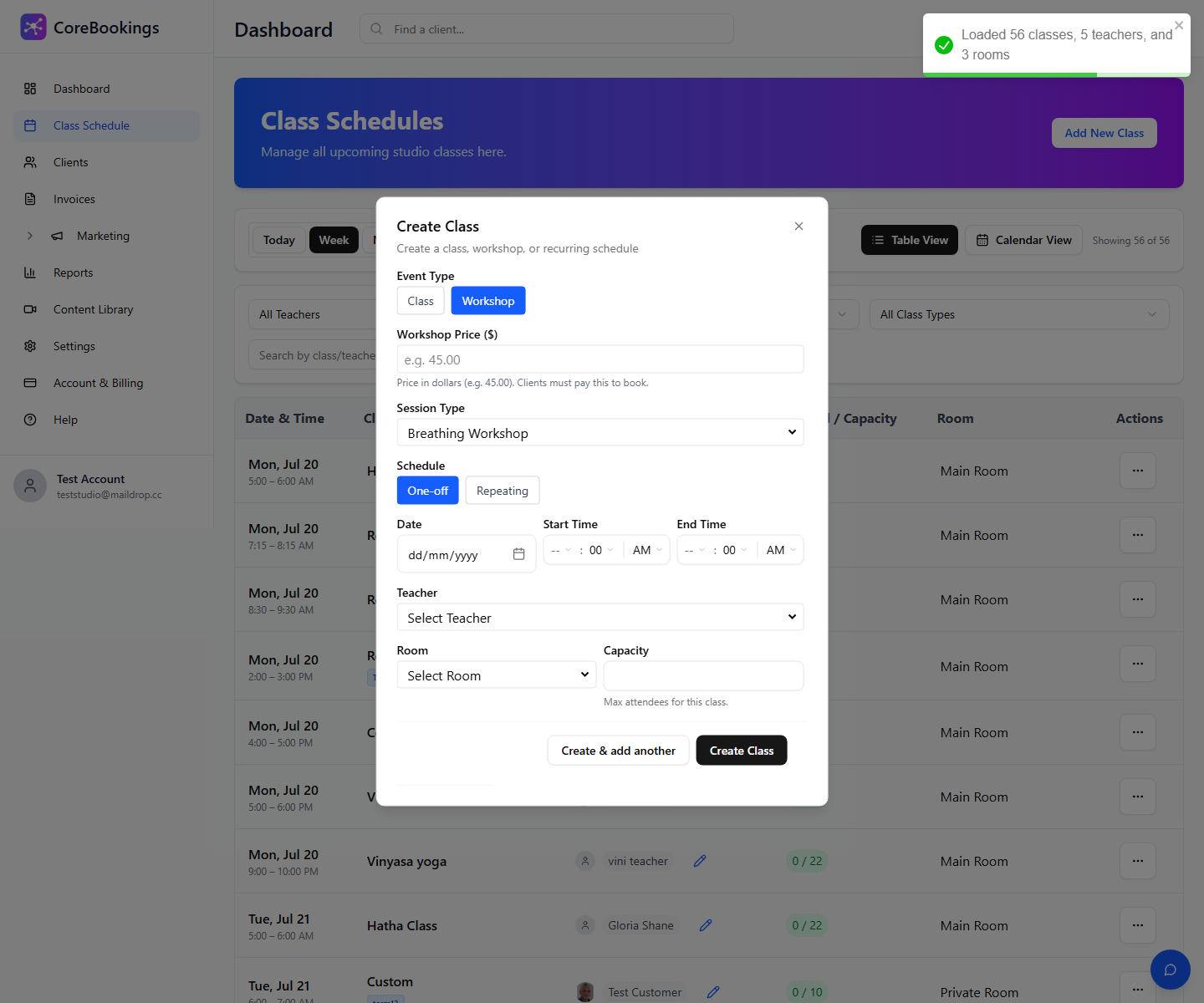
You can update an existing workshop later with Edit This Class or Edit This & Future Classes if the session type was wrong.
Fix a booking made with the wrong pass #
If a client already booked with the wrong pass before you set restrictions:
- Create or confirm you have a dedicated workshop pass in Settings > Passes.
- Set Allowed class types on passes as described above.
- Open Class Schedule Detail for the workshop and cancel the client's booking (see How to cancel a booking). This returns the visit to their class pass.
- Ask the client to book again with the workshop pass, or sell them the workshop pass from their client profile.
- If they already own the correct pass, use Add Client on the class detail page to book them in with that pass.
After restrictions are in place, clients cannot book the workshop with a regular class pass online.
Related help #
- Restrict passes to specific class types
- How to cancel a booking
- How to add, give, or sell a new pass to a client
Need help? Email support@kriya.com.au.


