
When a class reaches capacity, additional clients can join the waitlist instead of booking a confirmed spot. You manage the queue from Class Schedule Detail and control how spots are offered under Settings → Business.
When clients join the waitlist #
A class is full when confirmed bookings reach its capacity limit. The next client who tries to book online is added to the waitlist with status Waitlisted.
On the class detail page, confirmed clients show as Confirmed. Waitlisted clients appear on the Waiting tab in queue order.
See How does room and class capacity work? for how capacity limits are set.
Plan availability #
- Growth: manual waitlists. You promote clients yourself from the class detail page.
- Scale: auto promotion when a booked spot opens (for example after a cancellation), with manual override available.
- Solo and Starter: waitlists are not included. Upgrade to Growth or Scale to use this feature.
Enable waitlist settings #
Where: Settings → Business → Waitlist settings
- Open Settings in the left sidebar, then Business.
- Scroll to the Waitlist settings card.
- Turn on Waitlist enabled to allow clients to join when a class is full.
- Choose Promotion mode (Scale plans): Manual or Auto (promote when spots open).
- Click Save settings.
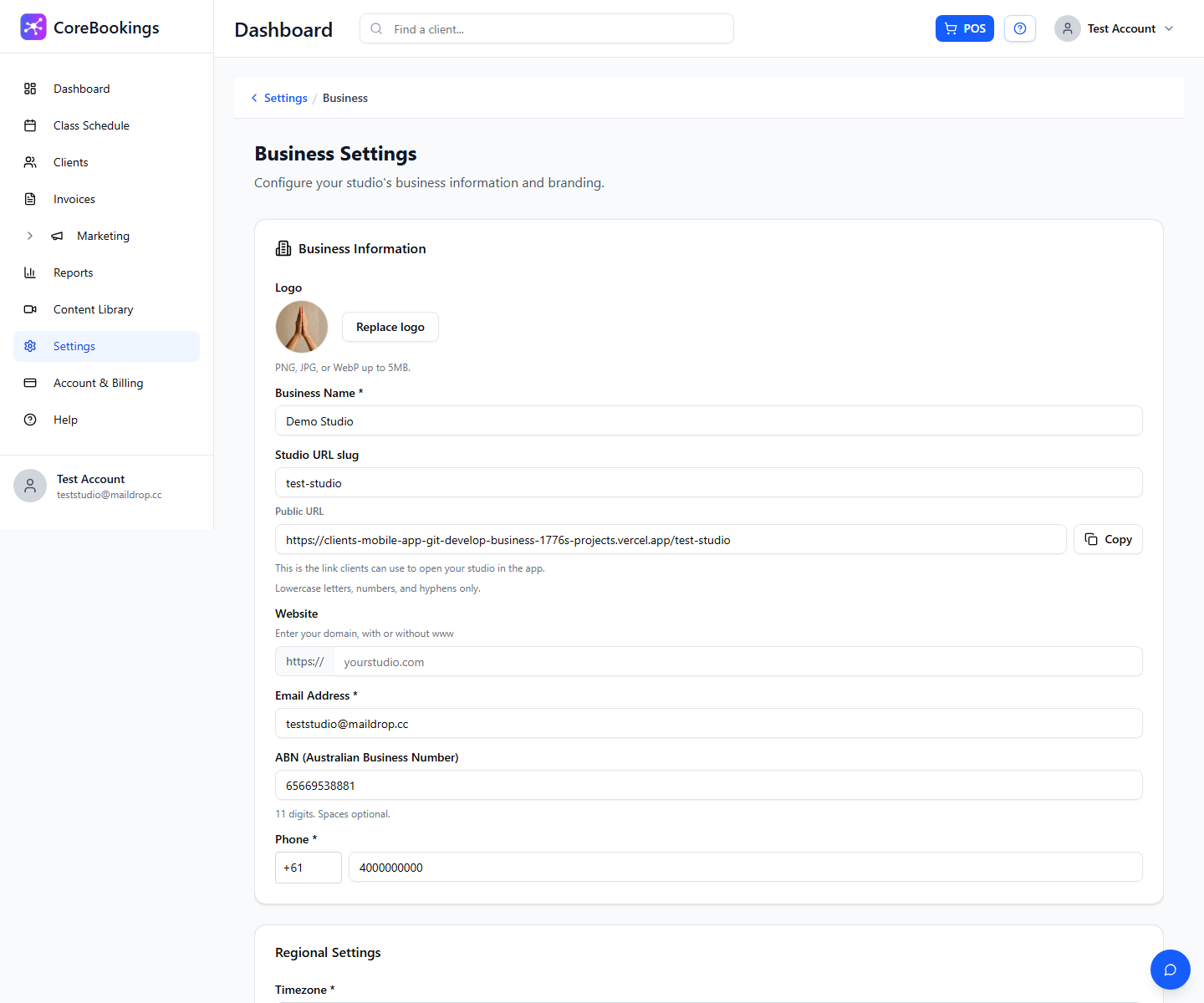
On Scale, you can also set:
- Auto-promotion cutoff (hours): stops auto promotion when the class starts within this window (recommended: 2 hours).
- Timed offer window (minutes): how long a waitlisted client has to confirm or buy a pass when they have no active pass (default 120 minutes).
Manual vs auto promotion #
Manual (Growth): when a spot opens, you choose who moves from the waitlist into the class.
Auto (Scale): CoreBookings offers the next client in the queue when a booked spot opens. Auto promotion does not run if the class is within your cutoff window. You can still promote clients manually at any time.
If the next waitlisted client has no valid pass, they receive a timed offer and must confirm within your offer window. Clients with an Offer pending badge are waiting on that response.
View the waitlist on a class #
Where: Class Schedule → open a class → Class Schedule Detail
- Open Class Schedule and click the class.
- Select the Waiting tab to see everyone on the waitlist.
- Review each client's Joined Waitlist time and pass details.
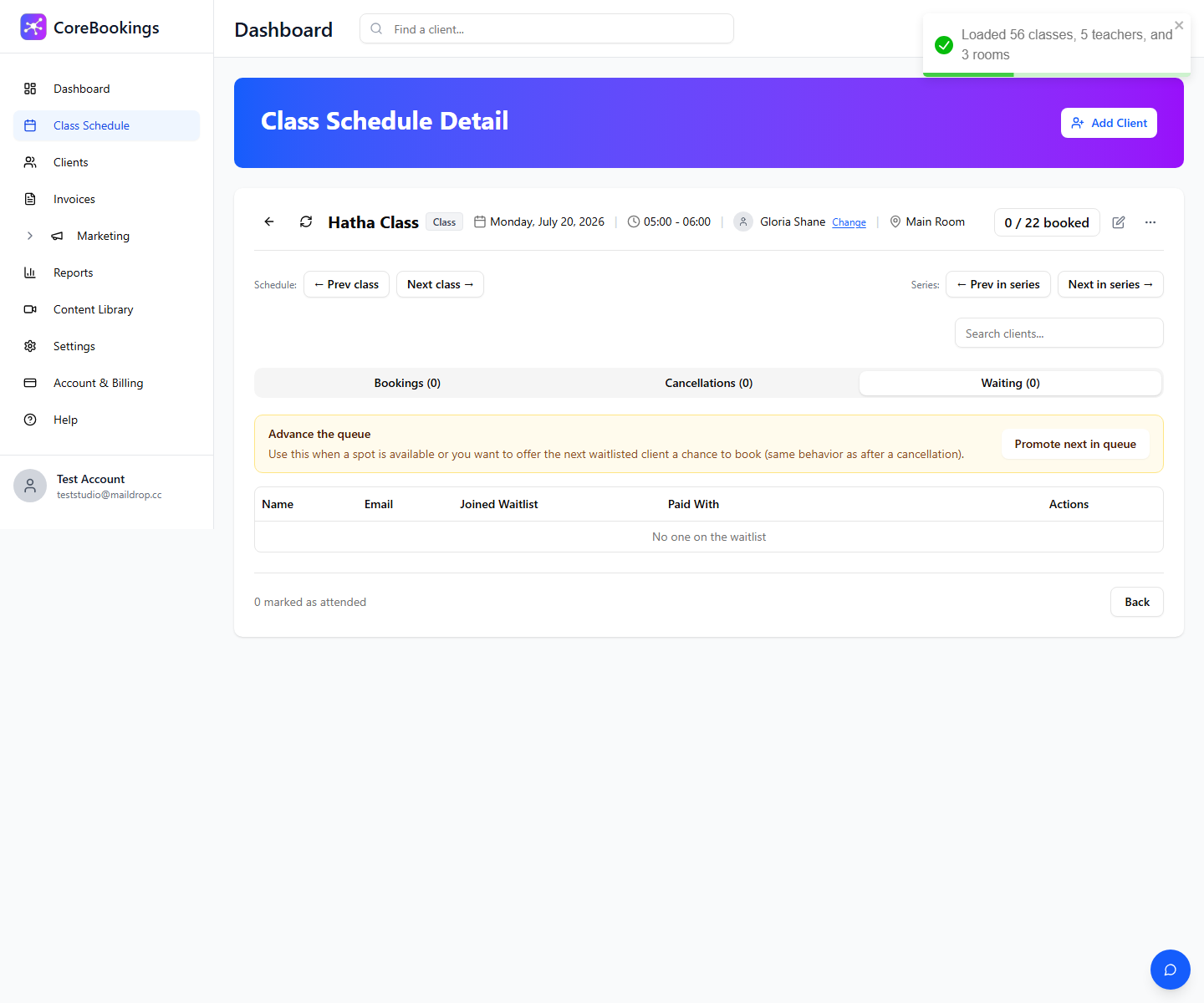
Promote clients from the waitlist #
When a spot is available, use one of these options on the Waiting tab:
- Promote next in queue: offers the class to the next waitlisted client (same behaviour as after a cancellation).
- Confirm spot: promotes a specific waitlisted client from the row actions.
After promotion, the client moves to a confirmed booking if they accept or already have a valid pass. You can turn off Waitlist promotion emails under Settings → Notifications if you prefer not to send automatic waitlist emails.


