
Table of Contents
Clients read class details from your public timetable / widget. That text comes from the scheduled class, which is usually filled from the class type in Settings. If the widget looks different from what you edited under Class Types, the schedule copy has not caught up yet—or you edited the Full Description while a Short Description is still in use.
Short answer #
- Edit Short Description and Full Description under Settings → Class Types.
- CoreBookings syncs the class type description onto classes that use that type (Short Description is used first when it is set).
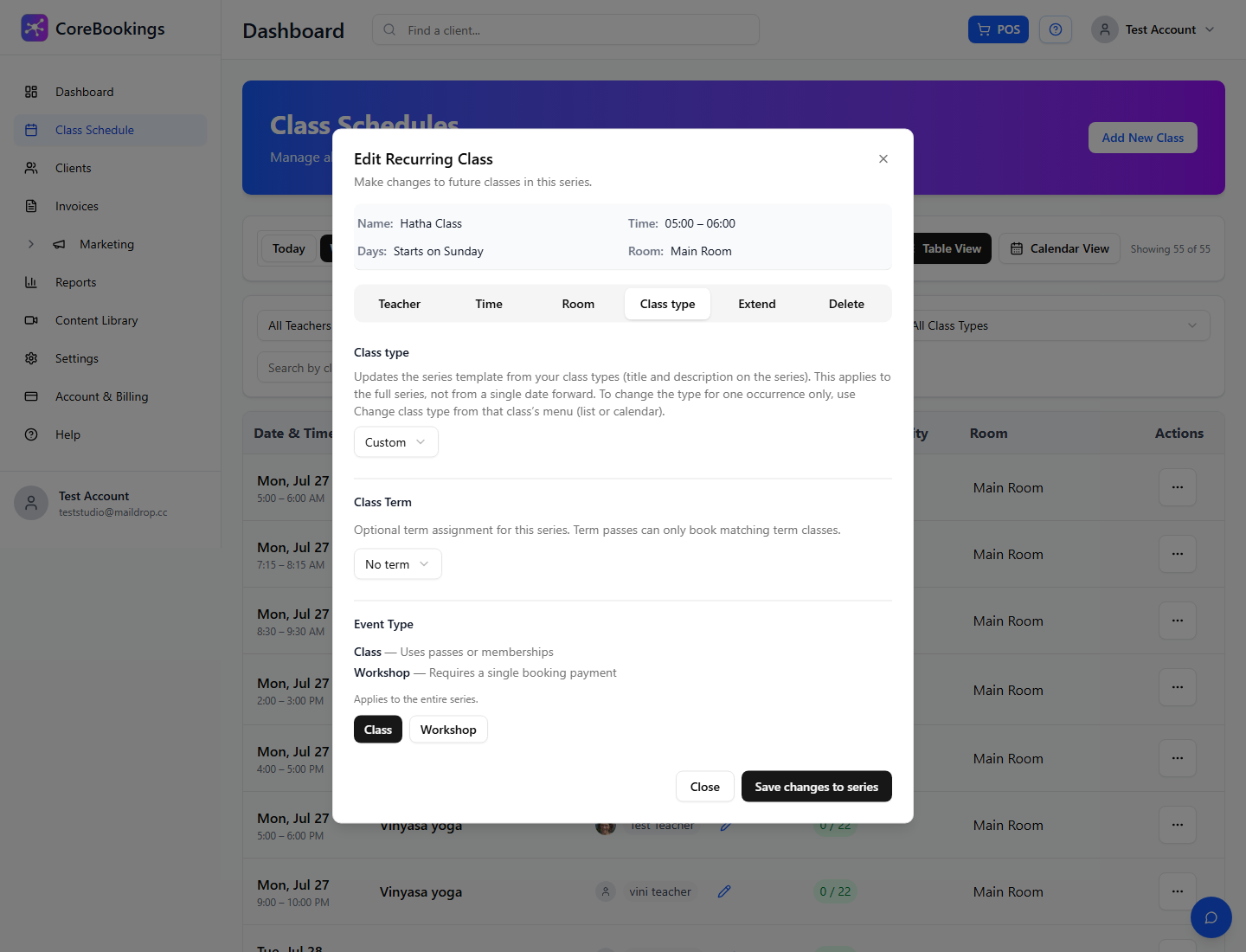
- To change one class only, use Change Class Type on the schedule. For a recurring series, use Edit This & Future Classes → Class type tab.
- Hard-refresh the website / widget after you save.
How descriptions work #
- Settings → Class Types stores the master Name, Short Description, and Full Description.
- When you create a class (or change its class type), CoreBookings copies description text onto that class series.
- The public widget prefers the series description already on the class, then falls back to the class type full/short text.
- There is no separate free-text "class description" field on Create Class today—you manage copy through Class Types and by changing the class type on the schedule.
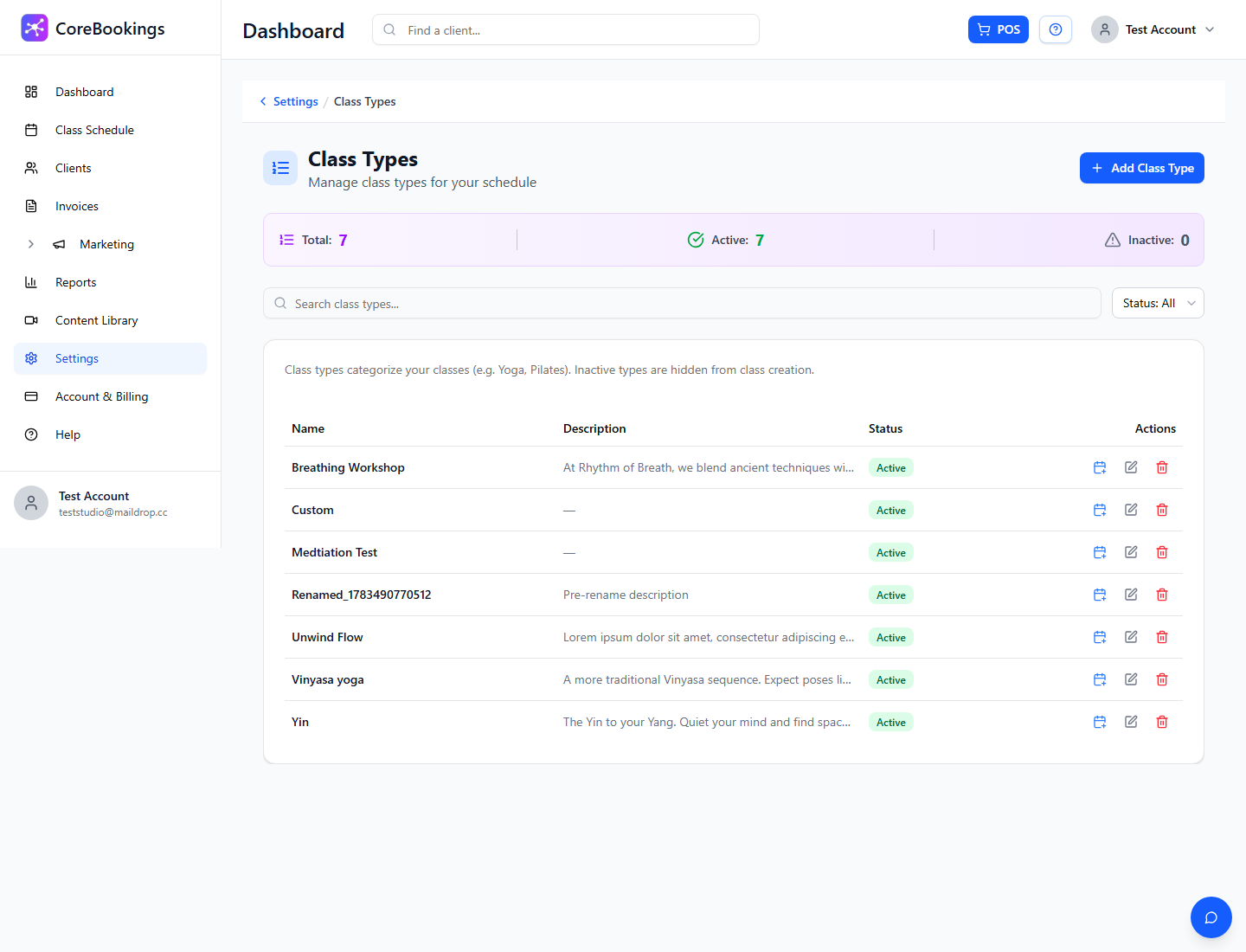
Update the class type (all matching classes) #
Where: Settings → Class Types
- Go to Settings → Class Types.
- Open the type (pencil Edit).
- Update Short Description and/or Full Description.
- Click Update.
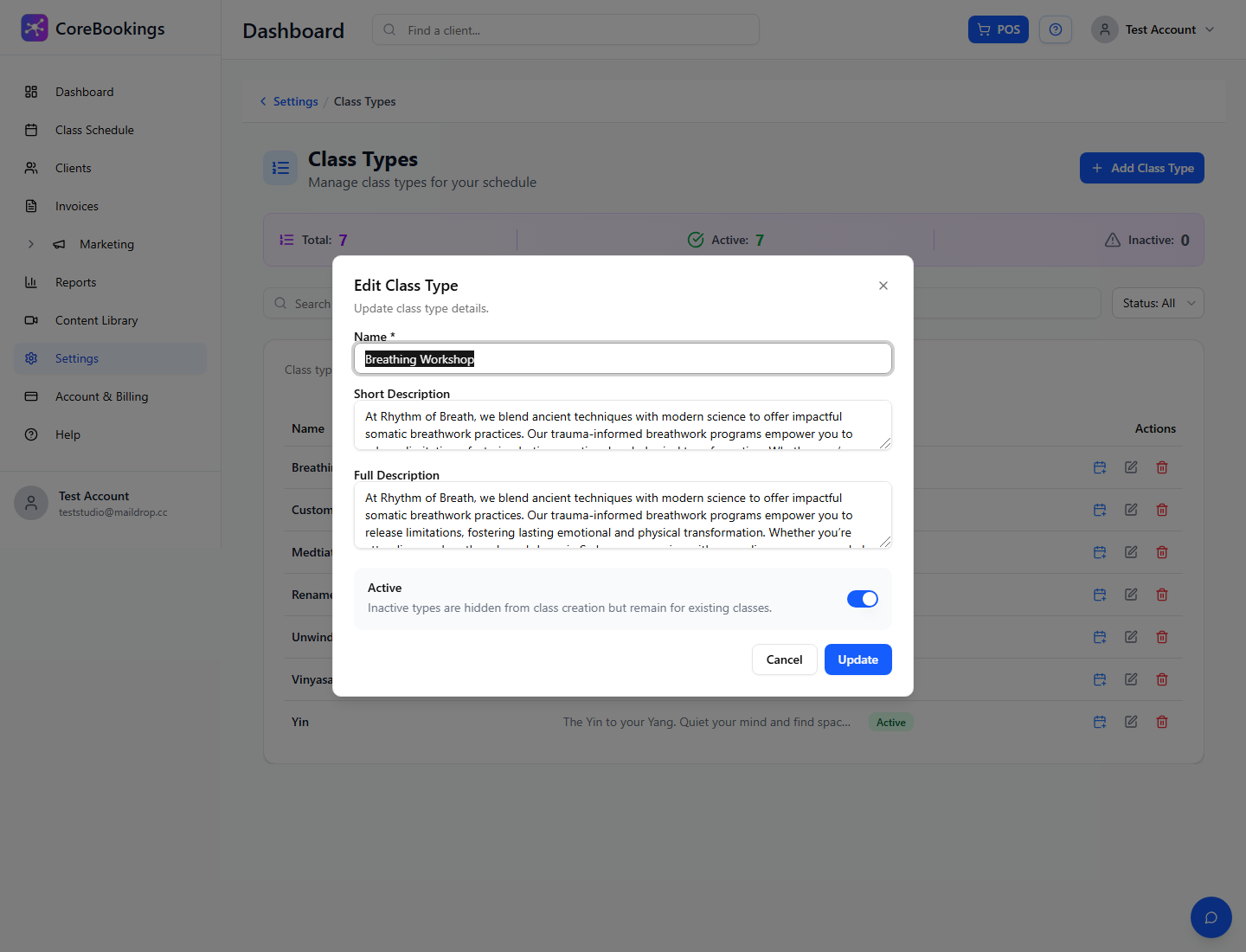
Important: if a Short Description is set, that is what syncs to the series. Editing only the Full Description may not change what clients already see on classes that have Short Description text.
Update one class or a recurring series #
Where: Class Schedule
One class:
- Open Class Schedule.
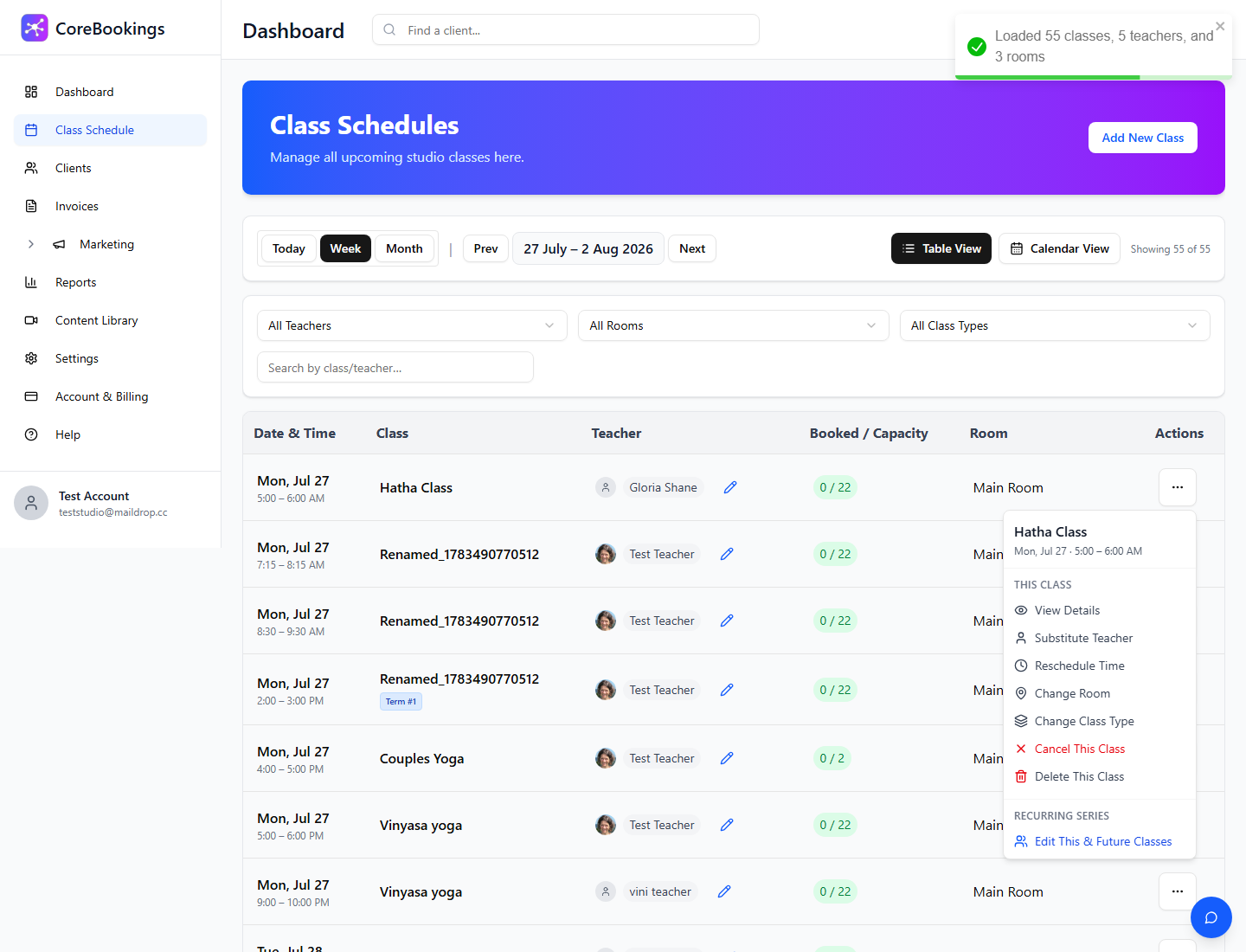
- Open the class … menu.
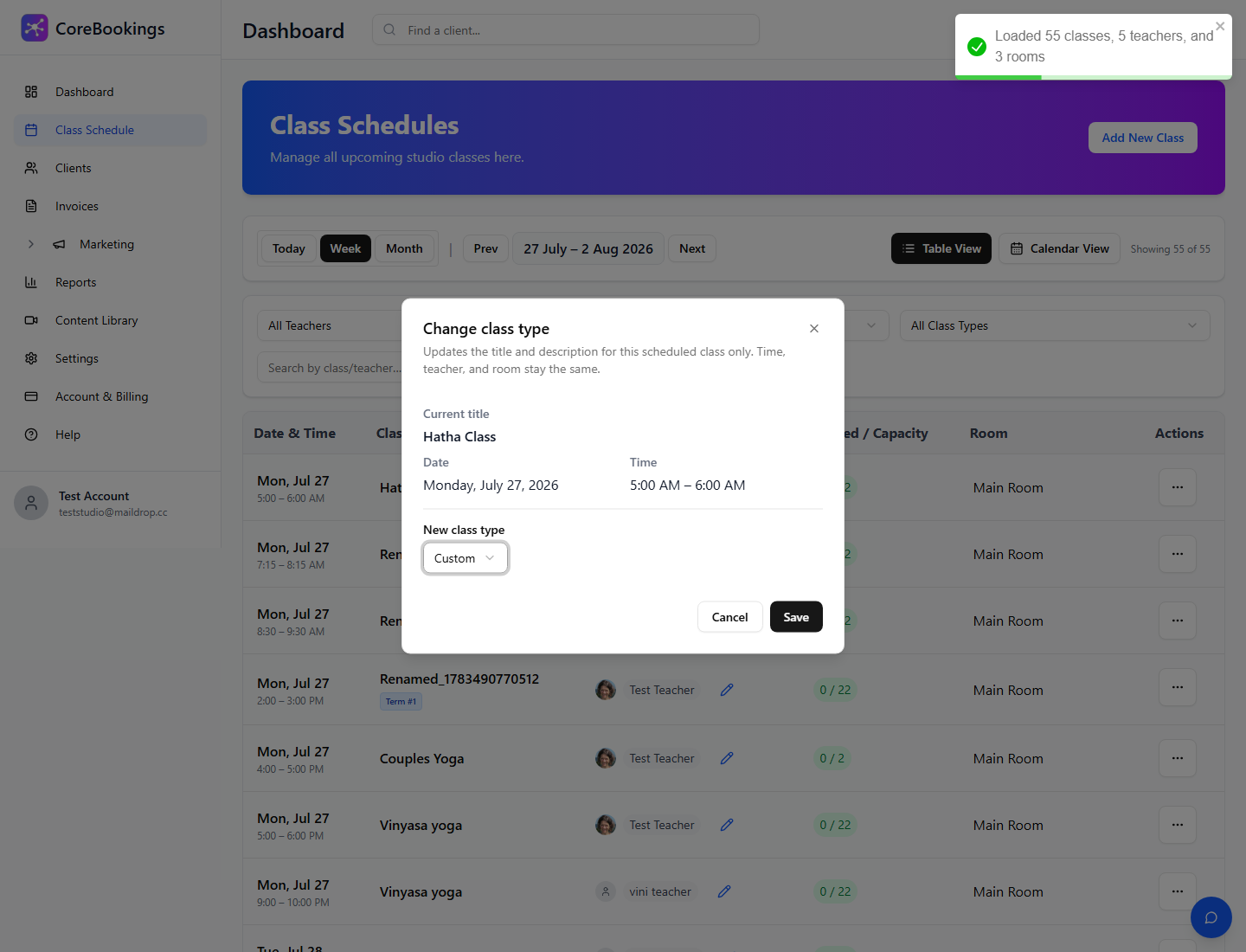
- Choose Change Class Type.
- Select the New class type and save. This copies the type name and description for that class only.
Whole recurring series:
- Open the class … menu.
- Under Recurring Series, choose Edit This & Future Classes.
- Open the Class type tab.
- Select the type and click Save changes to series.
Why the widget still looks wrong #
- You updated Class Types but the browser/site is still caching the old widget—hard-refresh the page (or clear cache).
- You changed Full Description while Short Description still drives the series text.
- You expected a per-class free-text field that is not in the Create Class form—use Class Types or Change Class Type instead.


