
Many studios keep a tablet or phone at the front desk for check-ins, the class schedule, and quick client lookups. You can pin the CoreBookings studio dashboard to your home screen so it opens like an app, without searching for the login page each time.
Before you start #
The CoreBookings mobile app is for clients to search studios, book classes, and pay. It is not the studio management dashboard.
As a studio owner, teacher, or front-desk staff member, use the studio dashboard in your mobile browser:
Adding the dashboard to your home screen creates a shortcut. You still sign in with your studio account. Stay signed in on a shared studio device only if your team is comfortable with that security trade-off.
iPhone and iPad (Safari) #
Use Safari on iPhone or iPad. Other browsers on iOS may not offer Add to Home Screen.
- Open /login/ in Safari.
- Sign in to your studio dashboard.
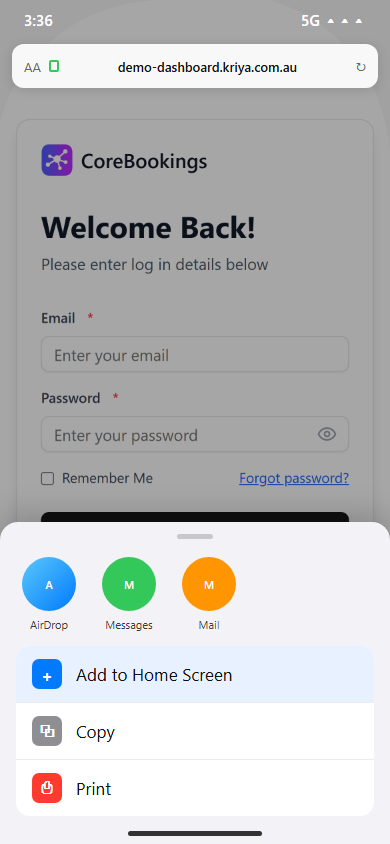
- Tap the Share button (square with an arrow pointing up).
- Scroll the share menu and tap Add to Home Screen.
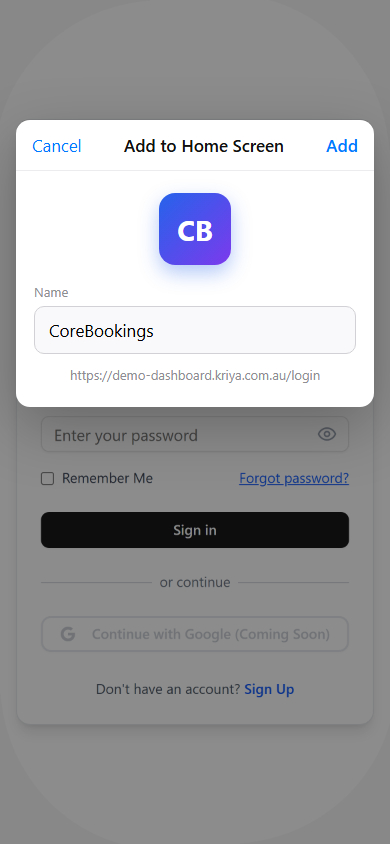
- Edit the name if you like (for example, CoreBookings), then tap Add.
The CoreBookings icon appears on your home screen. Tap it to open the dashboard in full-screen mode.
Android (Chrome) #
Use Chrome on Android (Firefox and other browsers also support home-screen shortcuts on most devices).
- Open /login/ in Chrome.
- Sign in to your studio dashboard.
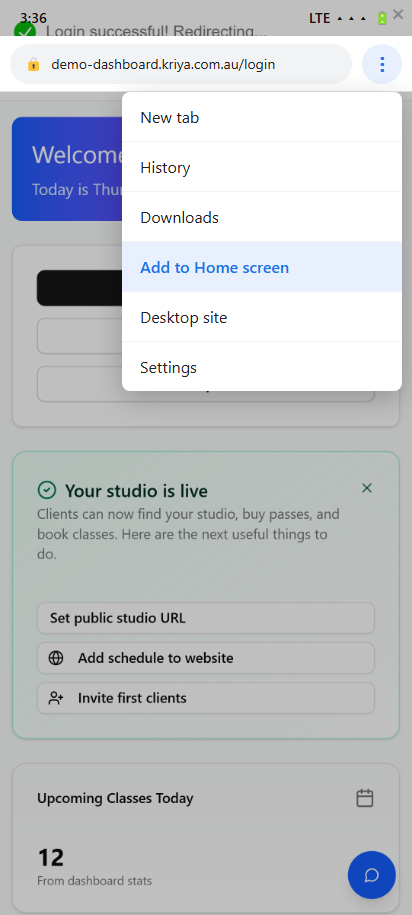
- Tap the menu button (three dots) in the top-right corner.
- Tap Add to Home screen or Install app (wording varies by Chrome version).
- Confirm the shortcut name and tap Add.
The dashboard shortcut appears on your home screen or app drawer.
Tip: On a shared studio tablet, consider enabling your device’s screen lock and signing out of the dashboard when the studio closes.
Related help #
- CoreBookings mobile app for clients
- How to start taking client bookings
- How to update my login email or password
Need help? Email support@kriya.com.au.


